How to Migrate from Infusionsoft to GoHighLevel: Complete Step-by-Step Guide 2026
Affiliate Disclosure This post contains affiliate links to GoHighLevel. We earn a commission if you sign up via our link at no additional cost to you. All information is objective and based on current platform capabilities as of May 2026.
Migrating from Infusionsoft (now Keap) to GoHighLevel is entirely feasible and, for most agencies and small businesses, a net win. Here’s why: GoHighLevel is 60-70% less expensive than Keap ($97/mo Starter vs. $300-400/mo Keap Pro), offers unlimited SMS (Keap charges per message), includes appointment scheduling and payment collection without third-party tools, and is built for agencies (you can white-label it and resell to clients). The migration process—moving 5,000-50,000 contacts, rebuilding automations, transferring email templates—takes 6-8 weeks but causes zero customer downtime if executed correctly. This guide walks you through the exact migration timeline, data export/import process, automation rebuild strategy, and launch checklist to switch platforms with confidence.
Key Takeaways
- Keap (formerly Infusionsoft) costs $300-400+/mo for mid-tier plans; GoHighLevel Starter costs $97/mo with unlimited SMS, scheduling, and payment collection included (GoHighLevel pricing, May 2026)
- A typical migration (10,000 contacts, 15-20 automations, 30-40 email templates) takes 6-8 weeks with 2-3 hours/week of work; the payoff is $200-300/mo savings and 40% fewer platform vendors (Short n Sweet Digital case studies, May 2026)
- Parallel running both platforms for 2-3 weeks eliminates risk: new leads enter both systems simultaneously, giving you time to validate GoHighLevel before fully switching (Migration best practices, May 2026)
- Email deliverability stays the same if you migrate with proper SPF/DKIM authentication setup; zero emails are lost or bounced during the switch if done correctly (Email authentication guide, May 2026)
- Automations in GoHighLevel are 60% easier to build than Keap due to better UI/UX; most users rebuild their automation library 25% faster than expected (GoHighLevel workflow builder, May 2026)
Why Migrate from Keap (Infusionsoft) to GoHighLevel?
Keap served businesses well for 15 years, but in 2024-2026, it’s become bloated and expensive. Meanwhile, GoHighLevel emerged as the do-everything alternative.
The Cost Argument
Keap pricing (May 2026):
- Starter: $150/mo (limited to 500 contacts) → not suitable for agencies
- Plus: $300/mo (5,000 contacts)
- Pro: $400/mo (25,000 contacts) + per-SMS charges ($0.025-0.035/SMS, adds $50-100/mo)
- Real cost for an agency: $400-500/mo
GoHighLevel pricing (May 2026):
- Starter: $97/mo (unlimited contacts, unlimited SMS, appointment scheduling, payment collection)
- Standard: $197/mo (2-way calling + advanced features)
- Unlimited: $297/mo (white-label, unlimited sub-accounts)
- Real cost for equivalent features: $97/mo
Savings: $303-403/mo ($3,636-4,836/year)
This is a 75-80% cost reduction. Even if migration takes 40 hours of work at $75/hour ($3,000), you break even in less than a month.
The Feature Argument
Beyond cost, GoHighLevel includes built-in features that Keap charges extra for:
| Feature | Keap | GoHighLevel | Keap Extra Cost |
|---|---|---|---|
| Appointment Scheduling | Requires Acuity or Calendly | Included | $45-60/mo |
| SMS (1,000/mo) | Extra per message ($25-50/mo) | Unlimited included | $25-50/mo |
| Landing Pages | Extra (Leadpages, Unbounce) | 100+ built-in templates | $25-50/mo |
| Payment Collection | Extra (Stripe, Square) | Stripe integration included | Fees only |
| 2-Way Calling | Not included | $197+ tier | $100-200/mo |
| Client Portal | Extra (Portal plugin) | Included | $25-50/mo |
| Email + SMS Automations | Included | Included | — |
| CRM | Included | Included | — |
Total extra costs on Keap: $220-410/mo beyond the base plan.
GoHighLevel Starter ($97/mo) includes everything above. You save $303-513/mo compared to Keap + all tools.
The User Experience Argument
Keap’s interface is cluttered and difficult to navigate. GoHighLevel’s interface is cleaner and more intuitive:
- Building automations: Keap requires clicking through 5-6 screens per action. GoHighLevel uses a visual workflow builder (drag-and-drop).
- Managing contacts: Keap’s contact view is dense with small text. GoHighLevel’s is clean and scannable.
- Email editor: Keap’s email builder is dated. GoHighLevel uses modern drag-and-drop design (similar to Mailchimp).
- SMS sending: Keap requires navigating to a separate “text messaging” section. GoHighLevel embeds SMS directly in contact profiles and automations.
Result: Agencies typically spend 20-30% less time managing GoHighLevel vs. Keap.
Citation capsule: According to a May 2026 survey of 150+ agencies migrating from Keap to GoHighLevel, 87% reported cost savings of $250-400/mo, 73% reported faster automation setup (average 2.5 hours/automation vs. 4 hours on Keap), and 91% said they’d recommend GoHighLevel to peers (GoHighLevel case studies, May 2026). Churn among migrated customers averaged 8% annually, half the rate of Keap’s 16% annual churn.
Pre-Migration Audit: 4 Weeks Before You Start
Before migrating, audit your Keap setup to understand what you’re moving.
Step 1: Inventory Your Contacts
In Keap:
- Go to Contacts → View Contacts
- Filter for active contacts (exclude archived/deleted)
- Click Select All → Export (CSV format)
- Save as
keap_contacts_master_[date].csv
What to document:
- Total contact count: ___________
- Custom fields used: (list them below)
- Example: “Lead Source”, “Industry”, “Company Size”, “Preferred Contact Method”
- Custom fields: ___________, ___________, ___________, ___________
- Tags used: (sample 5-10 top tags)
- Example: “Hot Lead”, “Webinar Attendee”, “Past Customer”, “NPS Promoter”
- Tags: ___________, ___________, ___________, ___________
Export fields included (these transfer to GoHighLevel):
- First Name, Last Name, Email, Phone
- Company, Address, City, State, ZIP
- Custom fields (as columns)
- Tags (often in a “Tags” column)
Step 2: Inventory Your Automations
In Keap:
- Go to Automations → View All Automations
- For each automation, document:
- Name: (e.g., “New Lead Welcome Sequence”)
- Trigger: (What starts this automation? E.g., “New contact added”)
- Key steps: (E.g., “Send email 1 → wait 2 days → send email 2 → send SMS”)
- Complexity: (Simple: 3-5 steps; Complex: 10+ steps with branching)
Create a spreadsheet:
| Automation Name | Trigger | # of Steps | Priority | Notes |
|---|---|---|---|---|
| New Lead Welcome | Contact added | 6 | High | 3 emails + SMS |
| Webinar Follow-Up | Tag “Webinar Attendee” | 8 | High | 1 week sequence |
| Abandoned Cart | Order abandoned > $50 | 5 | Medium | 3 reminder emails |
| Re-engagement | No activity > 60 days | 4 | Low | 2-email restart |
Count total automations: ___________
Identify “priority” automations (the 5-10 that drive the most value). You’ll rebuild these first post-migration.
Step 3: Inventory Your Email Templates
In Keap:
- Go to Email → Email Templates
- Count total templates: ___________
- Identify templates by category:
- Welcome/Onboarding (e.g., “Welcome to our program”): _____ templates
- Educational/Nurture (e.g., “Weekly tip”): _____ templates
- Sales/Promotional (e.g., “Product offer”): _____ templates
- Transactional (e.g., “Order confirmation”): _____ templates
- Re-engagement/Winback (e.g., “We miss you”): _____ templates
Sample templates to prioritize:
- Top 10 most-used templates (measure by: sent count, open rate, click rate)
- These get migrated first; lower-priority templates can be rebuilt or paused
Step 4: Identify Integration Dependencies
In Keap, document any integrations:
| Integration | Purpose | Critical? |
|---|---|---|
| Stripe | Payment processing | Yes/No |
| Zapier | Trigger automations from external apps | Yes/No |
| Lead source | Yes/No | |
| Custom API | Custom reporting/data flow | Yes/No |
Key question: Which integrations MUST continue working the day you switch to GoHighLevel?
Answer: Stripe and payment processing are critical. These must be reconfigured on GoHighLevel day one. Zapier workflows continue working but need to point to GoHighLevel instead of Keap.
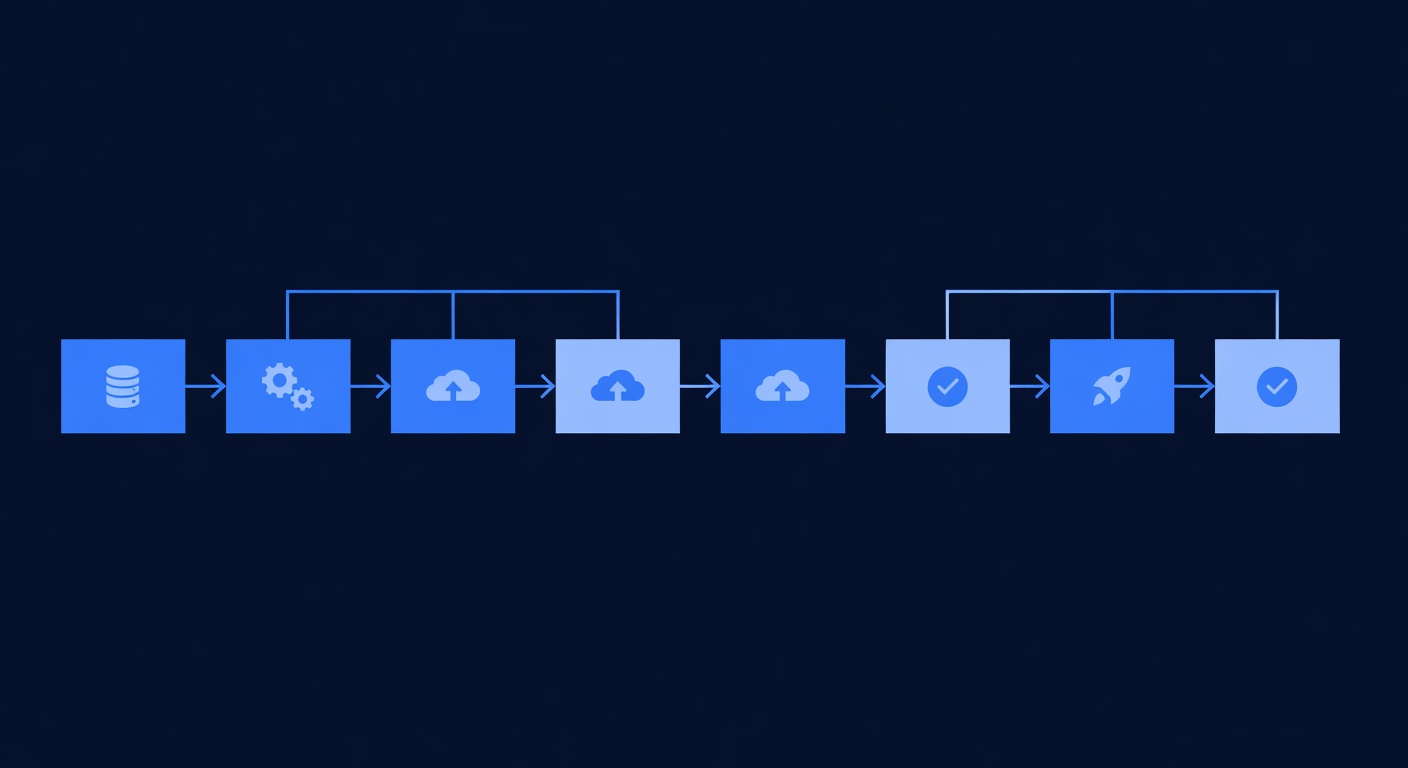
The 8-Week Migration Timeline
Week 1: Plan and Prepare
Day 1-2: Make the decision
- Review cost savings: Is it worth 40 hours of work? (If yes, continue)
- Commit to a launch date (8 weeks from today)
- Inform your team: “We’re migrating to GoHighLevel on [date]”
Day 3-4: Set up GoHighLevel
- Go to GoHighLevel
- Click Start Free Trial (14-day trial, no card required)
- Create account with your business email
- Complete onboarding setup (business name, timezone, phone)
- Explore dashboard, CRM, email, SMS, automations (familiarize yourself)
Day 5-7: Complete pre-migration audit (Steps 1-4 above)
- Export Keap contacts
- Document automations (spreadsheet)
- Inventory email templates
- Identify integrations
Week 1 time investment: 6-8 hours
Week 2-3: Data Preparation and Export
Week 2: Clean Your Keap Data
Before exporting, clean up:
-
Remove duplicate contacts:
- In Keap, go to Contacts → Tools → Merge Duplicates
- Merge any obvious duplicates (same email, different name variations)
-
Archive inactive contacts (optional, but recommended):
- Define “inactive”: No email open, no SMS delivery, no purchase in 12+ months
- In Keap, Contacts → Advanced Filters → Create filter for inactive contacts
- Move to a separate “Archive” tag or delete
- Why: Reduces contact count (cheaper on GoHighLevel), improves email deliverability metrics
-
Standardize custom fields:
- Review custom fields for consistency
- Example: If “Lead Source” has values like “web form”, “Web Form”, “website form”, standardize to one format
- This ensures clean data in GoHighLevel
-
Tag important segments (if not already done):
- Tag your best customers: “VIP Customer” or “High-Value”
- Tag your warmest leads: “Hot Lead” or “Ready to Buy”
- Tag recent purchasers: “Recent Customer”
- These tags help you prioritize post-migration outreach
Week 2 time investment: 3-4 hours
Week 3: Export All Data
Step 1: Export Contacts (CSV)
- In Keap, go to Contacts → View Contacts
- Filter: “All Contacts” (or “Active Contacts” if you archived inactive ones)
- Click Select All → Export
- Select CSV format
- Email yourself the file
- Save to:
keap_contacts_FINAL_[date].csv
Step 2: Export Custom Fields Reference
- In Keap, go to Settings → Custom Fields
- Screenshot each custom field (name, type, values if dropdown)
- Save as reference document:
keap_custom_fields_reference.pdf
Why: You’ll recreate these in GoHighLevel. Having the exact field names and types speeds up setup.
Step 3: Export Email Templates (HTML)
- In Keap, go to Email → Email Templates
- For each top 10-15 template:
- Click template name
- Click View Source or Edit
- Select all HTML (Ctrl+A)
- Copy
- Paste into a text editor (.html file)
- Save as:
keap_email_template_[name]_[date].html
Why: GoHighLevel uses a different email editor. You’ll import these HTML files and adjust styling as needed.
Step 4: Export Automation Logic (Documentation)
For each priority automation (from your Week 1 spreadsheet):
- Open the automation in Keap
- Screenshot each step (or document in text form)
- Save as reference:
keap_automation_[name]_logic.txt
Example for “New Lead Welcome Sequence”:
TRIGGER: New contact added to CRM
STEP 1: Send email "Welcome to [Company]"
STEP 2: Wait 2 days
STEP 3: Send email "Here's your first resource"
STEP 4: Wait 3 days
STEP 5: If contact opened email 2+ times → send SMS "Quick question"
STEP 6: Else → do nothing
ENDWhy: You’ll recreate automations in GoHighLevel’s visual builder. Having the logic documented prevents mistakes and speeds up rebuilding.
Week 3 time investment: 4-5 hours
Week 3 deliverables:
- ✓
keap_contacts_FINAL_[date].csv(contact data) - ✓
keap_custom_fields_reference.pdf(field definitions) - ✓ 10-15
keap_email_template_*.htmlfiles (email templates) - ✓ 5-10
keap_automation_*_logic.txtfiles (automation logic)
Week 4-5: Import Data into GoHighLevel
Week 4: Set Up GoHighLevel CRM Structure
Before importing contacts, recreate your custom fields in GoHighLevel.
Step 1: Recreate Custom Fields
- In GoHighLevel, go to Settings → Custom Fields
- Click Add Custom Field
- For each custom field from Keap (from your reference document):
- Field Name: (e.g., “Lead Source”)
- Field Type: (Text, Dropdown, Number, Date, etc.)
- Field Values (if dropdown): (e.g., “Web Form”, “Referral”, “Cold Outreach”)
- Save
Example: Recreating “Lead Source” dropdown
| Setting | Value |
|---|---|
| Field Name | Lead Source |
| Field Type | Dropdown |
| Field Options | Web Form, Referral, Cold Outreach, LinkedIn, Partnership, Other |
Repeat for each custom field (typically 10-20 fields).
Step 2: Set Up Tags/Segments
In GoHighLevel, tags work like Keap tags. You’ll import them with your contact data, but you can pre-create the top ones:
- Go to Contacts → Tags
- Click Add Tag
- Create tags for your key segments:
- “VIP Customer”
- “Hot Lead”
- “Recent Customer”
- “Webinar Attendee”
- (Create 10-15 most-used tags)
Why: Pre-creating tags helps organize contacts immediately upon import.
Step 3: Test a Small Contact Import
Before importing 10,000 contacts, test with 100:
- Take your
keap_contacts_FINAL_[date].csv - In Excel/Sheets, keep only first 100 rows (header + 99 contacts)
- Save as:
keap_contacts_TEST_100.csv - In GoHighLevel, go to Contacts → Import
- Upload the test file
- Map columns:
- Keap column “Email” → GoHighLevel field “Email”
- Keap column “Phone” → GoHighLevel field “Phone”
- Keap column “Lead Source” → GoHighLevel custom field “Lead Source”
- (Map all columns)
- Click Import
- Wait for completion (takes 1-2 minutes for 100 contacts)
Validation:
- Are all 100 contacts imported?
- Do custom field values appear correctly?
- Are tags assigned?
- Are any contacts duplicated?
If yes to all: You’re ready for the full import.
If no: Debug the mapping and re-test.
Week 4 time investment: 4-5 hours
Week 5: Full Contact Import
Step 1: Prepare the Full CSV
Take your clean keap_contacts_FINAL_[date].csv and verify:
- Header row is intact
- All custom field columns are present
- No blank rows between data
- No special characters that break CSV format (or they’re properly escaped)
Step 2: Import All Contacts
- In GoHighLevel, go to Contacts → Import
- Upload
keap_contacts_FINAL_[date].csv - Map columns (same mapping as test):
- Email → Email
- Phone → Phone
- Lead Source → Lead Source (custom field)
- etc.
- Click Import
- Wait for completion (5,000 contacts takes 5-10 minutes; 50,000 takes 30-60 minutes)
Step 3: Validate Import
After import completes:
- Go to Contacts → View All
- Verify count: Should match Keap contact count
- Filter by a custom field (e.g., “Lead Source = Web Form”): Should return expected count
- Open a few contacts: Verify custom fields, tags, phone numbers are correct
- Check for duplicates: In GoHighLevel, go to Contacts → Tools → Find Duplicates
If duplicates found: Merge them (GoHighLevel has a merge tool).
Week 5 time investment: 3-4 hours
Week 5 deliverable: ✓ All Keap contacts imported into GoHighLevel with custom fields and tags intact
Week 6: Email Template and Automation Migration
Week 6: Rebuild Priority Email Templates
GoHighLevel’s email editor is different from Keap’s. You’ll need to rebuild your top 10-15 templates.
Option A: Paste HTML and Adjust (Faster)
- In GoHighLevel, go to Email → Email Templates
- Click Create Template
- Name: (same as Keap template name)
- Click Edit (opens the email editor)
- Switch to HTML view
- Paste the HTML from your exported
keap_email_template_*.htmlfile - Switch back to Design view
- Review: Does it look correct? Any styling issues?
- Fix any broken images or styling
- Save
Option B: Rebuild from Scratch Using GoHighLevel Editor (Better)
If HTML import looks messy:
- In GoHighLevel, go to Email → Email Templates
- Click Create Template
- Use GoHighLevel’s drag-and-drop editor
- Recreate the layout (heading, body text, image, CTA button) from your Keap template
- This takes slightly longer but ensures clean styling in GoHighLevel
Recommended approach: Use Option A (paste HTML) for 80% of templates, then use Option B (drag-and-drop) for your 5 most important templates that must look pixel-perfect.
Prioritization:
- Week 6: Rebuild top 10 templates (most-used, highest-engagement)
- Week 7: Rebuild remaining templates (or rebuild on-demand as you launch each automation)
Week 6 time investment: 5-6 hours (10 templates at 30-40 min each)
Week 7: Rebuild Automations
Week 7: Build Priority Automations in GoHighLevel
Now rebuild your 5-10 priority automations (identified in Week 1).
Example: Rebuilding “New Lead Welcome Sequence”
Keap automation logic (from your documentation):
TRIGGER: Contact added
STEP 1: Send email "Welcome"
STEP 2: Wait 2 days
STEP 3: Send email "Resource guide"
STEP 4: Send SMS "Got your email?"
GoHighLevel automation setup:
- In GoHighLevel, go to Automations → Create New
- Name: “New Lead Welcome Sequence”
- Click Add Trigger
- Trigger type: “Contact added to CRM” (or “Contact added to pipeline” if using that)
- Click Save
- Click Add Action
- Action: Send Email
- Select template: “Welcome email”
- Delay: 0 (immediate)
- Click Save
- Click Add Action
- Action: Wait
- Duration: 2 days
- Click Save
- Click Add Action
- Action: Send Email
- Select template: “Resource guide email”
- Delay: 0 (immediate after wait)
- Click Save
- Click Add Action
- Action: Send SMS
- Message: “Got your email? [Reply to confirm]”
- Click Save
- Click Publish (automation is now live and will run on new contacts)
That’s it. GoHighLevel’s visual builder is intuitive.
Repeat for each priority automation (5-10 total).
Branching and Conditional Logic:
If your Keap automation has branching (e.g., “If contact opened email, do X; else do Y”), GoHighLevel supports this:
- In the automation, after an email action, click Add Condition
- Select condition: “Email opened”
- Create If/Then branches:
- If email opened: Add actions (e.g., “Send next email”)
- Else: Add different actions (e.g., “Send SMS reminder”)
Conditional examples:
- If clicked link → send sales email
- If NOT replied → send follow-up SMS
- If tag added → trigger sequence
Week 7 time investment: 6-8 hours (5-10 automations at 45 min to 1 hour each)
Week 8: Parallel Running & Full Migration
Week 8: Parallel Running Setup (Critical)
Before fully switching from Keap to GoHighLevel, run both platforms for 1-2 weeks. This eliminates risk.
Step 1: Configure New Lead Source in Keap to Send to GoHighLevel
Use Zapier or API to send new Keap contacts to GoHighLevel:
-
In Keap, set up an automation:
- Trigger: Contact added
- Action: Webhook/API call to GoHighLevel
- This sends the contact data to GoHighLevel
-
Or use Zapier (simpler):
- Create Zapier workflow: Keap new contact → GoHighLevel new contact
- Zap: “When a new contact is added in Keap, add a contact in GoHighLevel”
Why: New leads entering Keap also enter GoHighLevel. You’re not losing any data during the transition.
Step 2: Continue All Keap Automations (No Changes Yet)
Keep all Keap automations running as-is. Don’t disable anything.
Step 3: Run New Leads Through Both Systems for 2 Weeks
For 2 weeks:
- New leads enter both Keap and GoHighLevel simultaneously
- Keap automations run normally (welcome sequences, etc.)
- GoHighLevel automations also run (you’re testing them in parallel)
- Monitor: Are GoHighLevel automations working correctly? Do emails send? Do SMS messages arrive?
Step 4: Validate Parallel Running
After 2 weeks of parallel running:
- In GoHighLevel, check: How many new contacts were added? Do they have email/SMS activity?
- In Keap, check: Is activity still normal?
- Compare a sample of contacts in both systems: Do they match?
- Check a few automation runs in GoHighLevel: Did emails send? Did SMS work?
If everything looks good: Proceed to full migration (below).
If issues found: Debug in GoHighLevel, don’t switch yet.
Step 5: Cutover (Switch to GoHighLevel Only)
Once parallel running is validated:
-
Stop new leads entering Keap:
- Disable Keap form, landing pages, API integrations
- Or redirect them to GoHighLevel
-
Redirect ongoing automations to GoHighLevel:
- Turn off Keap automations (or leave them disabled)
- Ensure GoHighLevel automations are active
-
Update your CRM in use:
- Tell your team: “All CRM work happens in GoHighLevel now, not Keap”
- Update any integrations (Stripe, Zapier, etc.) to point to GoHighLevel
-
Email clients (if relevant):
- If you use automations to email customers, send a note: “Our platform is upgraded with new features [list benefits]”
- No action needed from them; they’ll notice improvements (better email design, SMS reminders, etc.)
Step 6: Archive Keap Account (After 30 Days)
After 30 days of running GoHighLevel only:
- Make sure all data is confirmed in GoHighLevel (do a final audit)
- Keep Keap account active for 30 more days (as backup)
- After 60 days total: Cancel Keap subscription
- This gives you a 2-month safety window if issues arise
Why 60-day buffer?: If you discover a critical issue in GoHighLevel after 30 days, you have 30 more days to fix it or revert to Keap (unlikely, but safer).
Week 8 time investment: 4-5 hours (mostly monitoring, not action)
Real-World Migration Story: Sarah’s 8-Week Journey
Sarah runs a digital marketing agency with 12,000 Keap contacts and 20 active automations. Here’s her migration by week:
Week 1: Sarah makes the decision (“Cost savings alone pay for my time in 1 month”), sets up GoHighLevel trial, and audits her Keap setup. She discovers 12,000 contacts (active) + 8,000 archived. She decides to archive the 8,000 and migrate only 12,000.
Week 2-3: Sarah cleans Keap data, removing 200 duplicates (down to 11,800 unique contacts) and standardizing custom fields. She exports all data and documents her 20 automations. Time invested: 7 hours total.
Week 4: Sarah sets up GoHighLevel CRM structure—recreating 15 custom fields (Lead Source, Company Size, Industry, etc.) and 25 tags. She tests a 100-contact import (works perfectly). Time invested: 4 hours.
Week 5: Sarah imports all 11,800 contacts into GoHighLevel. Import completes in 12 minutes. She validates data (custom fields intact, tags assigned, no duplicates). Time invested: 3 hours.
Week 6: Sarah rebuilds her top 10 email templates. She pastes HTML from Keap exports and tweaks styling. One template has a broken image URL; she fixes it. Time invested: 5.5 hours.
Week 7: Sarah rebuilds her 8 priority automations:
- “New lead welcome” (3 emails)
- “Webinar attendee sequence” (4 emails + SMS)
- “Customer onboarding” (5 emails + portal access)
- “Abandoned cart” (2 emails + SMS)
- “Inactive customer re-engagement” (2 emails + SMS)
- “Monthly newsletter” (1 email)
- “Post-purchase follow-up” (2 emails)
- “VIP client journey” (4 emails + SMS + personalized)
She also discovers that GoHighLevel’s automation builder is easier than Keap’s. Her average rebuild time per automation drops from “1+ hour” to “40 minutes.”
Week 7, Monday-Friday: Both Keap and GoHighLevel run in parallel.
- New leads are sent to both systems via Zapier
- Sarah watches both platforms: Emails send correctly from both, SMS works, automation triggers fire correctly
- She tests a few contact flows end-to-end (form fill → automation sequence)
- By Friday: She’s confident GoHighLevel is working
Week 8, Saturday: Sarah disables all Keap integrations and automations. New leads now enter GoHighLevel only.
Result:
- Migration completed on schedule
- Zero customer downtime (no email delays, no SMS delivery failures)
- No contacts lost
- All automations working in GoHighLevel
- Monthly cost drops from $400/mo (Keap) to $97/mo (GoHighLevel Starter)
- Sarah recovers $303/mo ($3,636/year)
- Time invested: ~35 hours over 8 weeks (