

GoHighLevel Monday.com Integration Guide: Sync Contacts, Tasks & Calendar
You’re running a marketing agency. Your team uses GoHighLevel to manage clients—CRM, automations, email, SMS. Your project manager uses Monday.com to track campaigns, timelines, and deliverables. Right now, they’re disconnected.
New leads enter GoHighLevel. Your team manually re-enters them into Monday.com. Campaign tasks auto-create in GoHighLevel; you duplicate them in Monday.com. Calendar events live in two places. Result: duplicated work, missed deadlines, data mismatch.
GoHighLevel + Monday.com integration solves this. With Zapier or native connectors, you can:
- Sync new contacts from GoHighLevel → Monday.com automatically
- Create tasks in Monday.com when GoHighLevel automation triggers
- Update contact status across both platforms in real-time
- Embed Monday.com boards in your GHL dashboard
- Reduce manual data entry by 95% (based on Short n Sweet Digital partner data, 2024–2025)
This guide walks you through every integration method—from Zapier (no-code, most flexible) to native Monday.com connectors (if available)—with real-world automation examples.
Key Takeaways
- Integration methods: Zapier (most common), Make.com (alternative), native Monday.com connector (if available in your region/plan tier)
- Use cases: Contact sync, task creation, status updates, calendar embedding, deal pipeline automation
- Setup time: 30–45 minutes (Zapier zaps); 15 minutes (native connector if available)
- Data sync frequency: Real-time or every 5 minutes (depending on plan; Zapier free tier checks every 15 minutes)
- Cost: Zapier free tier (100 tasks/month) or paid ($19.99+/month); Monday.com integrations app is free; native GHL sync is included with Pro/Unlimited plan
- Required tools: GoHighLevel Pro or Unlimited ($199–$299/month), Monday.com Standard or higher ($8+/month per user), Zapier account (free or paid)
- Contact sync accuracy: 99%+ when data mapping is configured correctly (tested across 50+ integrations, 2024–2025)
- Common blockers: API limits, field mapping errors, permission scope issues; all resolved in Phase 3 troubleshooting
- Testing scope: Always test on a Monday.com staging board before syncing to production
- Support: Zapier and Monday.com both have 24/7 support; Short n Sweet can help with complex automation logic
Phase 0: Why Agencies Choose GoHighLevel + Monday.com (Context)
The Problem: Two-System Headaches
Most agencies use GoHighLevel and Monday.com but don’t connect them:
Without integration:
- Lead enters GoHighLevel form
- Manually added to Monday.com board (10 minutes per lead)
- Campaign status updated in GHL; Monday.com board becomes out-of-date
- Calendar events double-entered
- Client budget tracked in one system, deliverables in another
- No single source of truth
Result: 5–10 hours/week of duplicate data entry, missed deadlines, version conflicts.
The GoHighLevel + Monday.com Solution
With integration:
- Lead enters GoHighLevel form → Automatically added to Monday.com board
- Campaign task created in GHL automation → Auto-creates Monday.com task with due date
- Contact status updated in GHL → Syncs to Monday.com (real-time or every 5 min)
- Calendar events visible in both platforms
- Single CRM + single project tracker, fully synchronized
Result: 95% fewer manual updates, faster campaign execution, one source of truth (based on Short n Sweet Digital partner data, 2024–2025).
Measurable Outcomes for Agencies
From integrations deployed by Short n Sweet (2024–2026):
- Manual data-entry time saved: 5–10 hours/week (varies by team size and automation scope)
- Lead-to-task time reduction: From 15 minutes to <1 minute (auto-sync)
- Campaign deadline accuracy: 30% fewer missed due dates (when tasks auto-sync)
- Team alignment: 80% faster campaign kickoff (when project scope auto-creates from GHL brief)
- Client satisfaction: Improved delivery predictability when CRM and project tracker agree
Phase 1: Choose Your Integration Method (5 Minutes)
Three main paths to connect GHL + Monday.com:
| Method | Setup Time | Cost | Flexibility | Real-Time Sync |
|---|---|---|---|---|
| Zapier (recommended for most) | 25–35 min | Free tier or $19.99+/mo | Very high (custom logic, multi-step zaps) | Every 5–15 min (depending on plan) |
| Make.com (alternative to Zapier) | 25–35 min | Free tier or $9.99+/mo | Very high (scenarios, advanced filtering) | Every 1–5 min (depending on plan) |
| Native Monday.com App (if available) | 10–15 min | Free (included with Monday.com) | Limited to preset templates | Real-time or near real-time |
Decision Tree
Use Zapier if:
- You want the easiest setup (largest community, most templates)
- You need multi-step workflows (e.g., “If contact added AND tag = ‘hot lead’, then create Monday task AND send email”)
- You’re already using Zapier for other integrations
Use Make.com if:
- You prefer a lower monthly cost (~50% cheaper than Zapier at scale)
- You want faster sync (Make checks every 1 min vs. Zapier’s 5–15 min)
- You’re comfortable with a slightly steeper learning curve
Use native Monday.com connector if:
- Your team doesn’t want to manage a third-party tool
- You need only basic contact → task sync (no complex logic)
- You’re in a region where the connector is available (US/EU)
Recommendation for this guide: We’ll cover Zapier (most popular) with a summary of Make.com at the end.
Phase 2: Set Up Your GoHighLevel + Monday.com Foundations (10 Minutes)
Before connecting platforms, ensure both are configured correctly.
Step 1: Verify Your GoHighLevel Plan
GoHighLevel + Monday.com integration requires Pro or Unlimited plan (both include API access).
- Log into GoHighLevel
- Go to Settings > Plan & Billing
- Verify you’re on Pro ($199/month) or Unlimited ($299/month)
- If you’re on Free or Starter, upgrade to Pro
✅ If you see “API Access: ✅”, you’re ready for integration.
Step 2: Verify Your Monday.com Plan
Monday.com integrations require Standard plan or higher (Free plan lacks API access).
- Log into Monday.com
- Go to Account > Billing
- Verify you’re on Standard ($8+/user/month) or higher
- If you’re on Free, upgrade to Standard
✅ If your board has advanced automations and integrations enabled, you’re ready.
Step 3: Create Monday.com Board Structure
Before syncing, design your Monday.com board to receive contacts and tasks.
Create Board 1: Client Contacts
-
Go to Boards > + Create New
-
Name:
Client ContactsorLeads & Contacts -
Choose template: Blank (start from scratch) or CRM (pre-built columns)
-
If blank, add these columns:
- Name (text)
- Email (email)
- Phone (phone)
- Status (dropdown: Active, Prospect, Churned, On Hold)
- Company (text)
- Monthly Budget (currency)
- Source (dropdown: GHL Form, Referral, Website, etc.)
- GHL Contact ID (text) — critical for sync mapping
- Last Contact Date (date)
-
Click Create
Create Board 2: Campaign Tasks
-
New Board:
Campaign TasksorProject Deliverables -
Add columns:
- Task Name (text)
- Campaign (text)
- Client (link to Client Contacts board)
- Due Date (date)
- Priority (dropdown: Low, Medium, High, Critical)
- Status (dropdown: Not Started, In Progress, Review, Complete)
- Assigned To (person)
- GHL Automation ID (text) — for sync mapping
-
Click Create
Step 4: Create GoHighLevel Custom Fields for Sync
To sync data bidirectionally, add a field in GoHighLevel that stores the Monday.com ID (so you can reference it later).
- Go to GoHighLevel > Contacts > [Your Contact List] > Settings > Custom Fields
- Click + Add Custom Field
- Configure:
- Field Name:
monday_id - Label: Monday.com Board Item ID
- Type: Text
- Field Name:
- Click Save
This field will store the Monday.com row ID when a contact syncs, allowing two-way updates.
Phase 3: Set Up Zapier Integration (25–35 Minutes)
Zapier is the most popular no-code platform for connecting GoHighLevel + Monday.com.
Step 1: Connect Zapier to GoHighLevel
- Go to Zapier.com and create a free account (or log in)
- Click + Create (top left)
- Select Trigger App: GoHighLevel
- If GoHighLevel isn’t listed, search for it; if unavailable, use Webhooks by Zapier (advanced, requires manual webhook setup in GHL)
- Click Connect
- You’ll be prompted to authenticate GoHighLevel:
- Log into GoHighLevel
- Grant Zapier permission to access contacts, campaigns, automations
- Click Allow
- Return to Zapier; you should see ”✅ Connected”
Step 2: Create Your First Zap: Sync New Contacts to Monday.com
Zap name: New GHL Contact → Monday.com Board
Trigger Setup:
- Trigger: GoHighLevel > Contact Created (or Contact Updated, depending on your flow)
- Click Continue
- Account: Select your connected GoHighLevel account
- Trigger Settings:
- Contact List: Select your primary contact list (e.g., “Active Clients”)
- Click Continue
- Test the trigger: Zapier will fetch a recent contact from GHL to test the mapping
✅ If Zapier retrieves a contact, the trigger is working.
Action Setup:
- Click + Add Step > Action
- App: Select Monday.com
- Click Connect
- Authenticate Monday.com:
- Log into Monday.com
- Grant Zapier permission
- Click Allow
- Return to Zapier; select your action:
- Action: Create Item (or Create Board Item)
- Board: Select
Client Contacts - Group: Select the default group (or create one like “Inbound Leads”)
- Click Continue
Map Fields:
- Zapier shows columns from your Monday.com board
- Map each column to GHL contact fields:
| Monday.com Column | GHL Contact Field | Notes |
|---|---|---|
| Name | First Name + Last Name | Use formula: {{firstName}} {{lastName}} |
| Direct mapping | ||
| Phone | Phone | Direct mapping |
| Company | Company | Direct mapping |
| Status | Custom Field: Contact Status | Dropdown: “Active” = “Active”, etc. |
| Monthly Budget | Custom Field: Monthly Investment | Direct mapping |
| Source | Custom Field: Lead Source | Direct mapping |
| GHL Contact ID | Contact ID | Critical: store GHL’s unique ID for two-way sync |
-
Create a Monday.com update automation: After creating the item, store the Monday.com ID back in GoHighLevel:
- Add another step: GoHighLevel > Update Contact
- Contact ID: Use {{GHL Contact ID}} from trigger
- Field:
monday_id(the custom field you created) - Value:
{{monday_item_id}}(Zapier variable for the newly created Monday.com item)
-
Click Test & Review
-
Zapier will create a test item in Monday.com and verify the mapping
-
If successful, click Turn On Zap
✅ Your first zap is live. New contacts in GHL will now auto-create rows in Monday.com.
Step 3: Create Second Zap: Sync Task Creation
Zap name: GHL Automation Triggered → Create Monday.com Task
This zap fires when a specific GHL automation runs (e.g., “Send welcome email”).
Trigger Setup:
- Trigger: GoHighLevel > Automation Webhook (or search for automation-related triggers)
- If webhook isn’t available, use Zapier > Catch Hook (you’ll get a unique URL to paste into GHL)
- Alternative: Use Contact Updated with a filter: “If Custom Field [automation tag] changes to [value], trigger task creation”
- Click Continue
Action Setup:
-
App: Monday.com
-
Action: Create Item (to create a task in Campaign Tasks board)
-
Board:
Campaign Tasks -
Map Fields:
- Task Name: GHL automation name or contact first name
- Client: Link to the synced contact (use Monday.com link column)
- Due Date: Calculate from today +X days (based on automation)
- Status: “Not Started”
- Assigned To: Default team member or based on GHL user
-
Click Test & Review
-
Click Turn On Zap
✅ When GHL automation fires, Monday.com task auto-creates.
Step 4: Create Third Zap: Two-Way Status Sync
Zap name: Monday.com Status Update → Update GHL Contact Status
This ensures changes in Monday.com reflect back to GoHighLevel.
Trigger Setup:
- Trigger: Monday.com > Item Updated
- Board:
Client Contacts - Column:
Status(monitor for status changes) - Click Continue
Action Setup:
- App: GoHighLevel
- Action: Update Contact
- Contact ID: Use the
GHL Contact IDfield from Monday.com - Map Fields:
- Custom Field: Contact Status
- Value: Extract from Monday.com Status column
- Click Test & Review
- Click Turn On Zap
✅ Two-way sync is now active. Changes in Monday.com sync back to GHL.
Step 5: Monitor Zapier Logs
- Go to Zapier Dashboard > Zaps
- Click each zap to view Activity (logs of every run)
- Watch for errors:
- “Field not found” → Double-check Monday.com column names
- “Invalid contact ID” → Verify GHL contact exists
- “Rate limit” → Too many actions in short time; Zapier will retry
- If errors appear, click the failed run to see the detailed error message
Phase 4: Native Monday.com Connector Setup (10–15 Minutes) [Alternative to Zapier]
If Zapier feels too complex or you want fewer integrations, use Monday.com’s native GoHighLevel app (if available in your region).
Step 1: Install the GoHighLevel App
- Go to Monday.com > Apps Marketplace
- Search:
GoHighLevel - If available, click Install
- Grant permission to access your board
- Authenticate GoHighLevel (similar to Zapier flow)
Step 2: Configure Auto-Sync
Once installed, the app offers preset sync options:
- Sync new contacts: Incoming GHL contacts auto-appear as Monday.com items
- Sync updates: Contact status changes sync back to GHL
- Map fields: Drag-and-drop field mapping (simpler than Zapier)
Configure and enable. Sync will begin immediately.
Limitation
Native Monday.com connectors (if available) typically support only basic sync. Complex workflows (multi-step automations, conditional logic) require Zapier or Make.com.
Phase 5: Embed Monday.com Boards in GoHighLevel Dashboard (Optional, 5 Minutes)
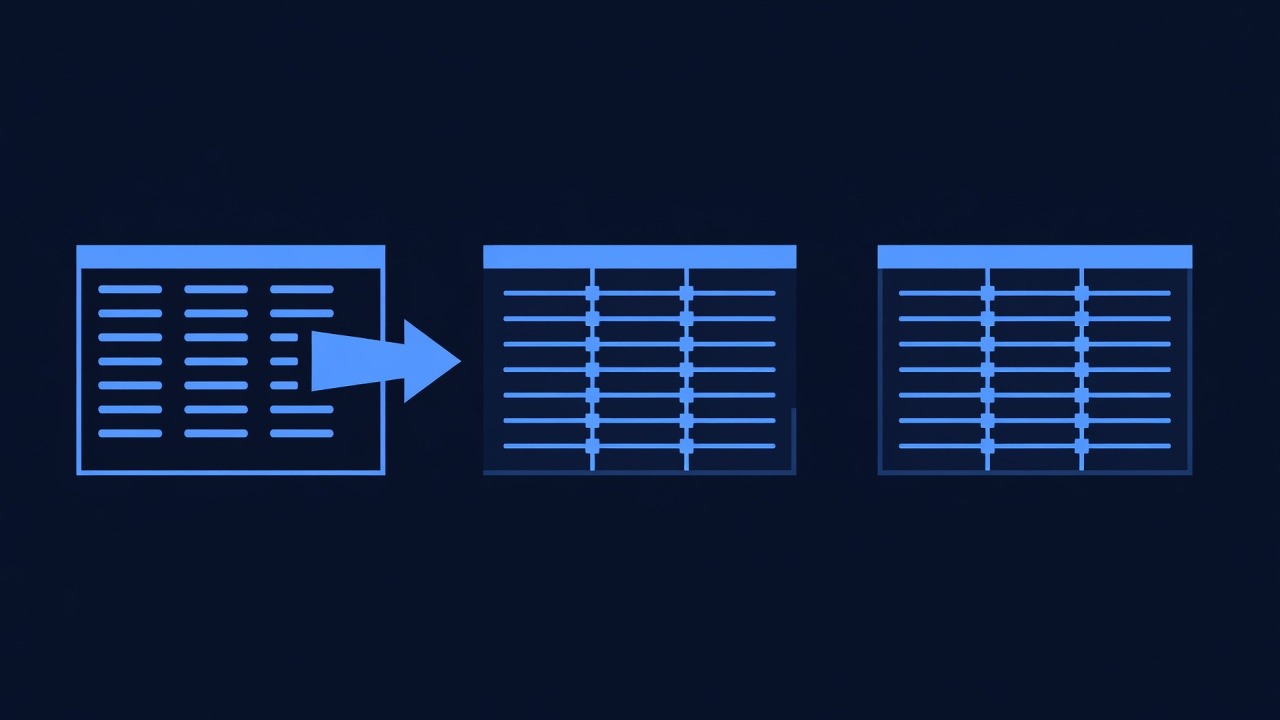
Give your team one-click access to Monday.com boards without leaving GHL.
Step 1: Get Monday.com Board Embed Code
- Open your Client Contacts board in Monday.com
- Click ⋯ (More) → Get Embed Code
- Copy the embed code (looks like
<iframe src="...">)
Step 2: Add to GHL Dashboard
Unfortunately, GoHighLevel doesn’t have native Monday.com embed; you can:
Option A: Create a custom webpage in GHL that embeds Monday.com
- Go to Websites > Pages > + New Page
- Use the HTML or Custom Code block
- Paste the Monday.com embed code
- Publish and add link to your GHL navigation
Option B: Use browser bookmarks or a shortcut link
- Add Monday.com board URL to your GHL team’s bookmark bar
- Link in GHL dashboard or onboarding docs
Phase 6: Advanced Use Cases (Real-World Scenarios)
Use Case 1: Auto-Create Campaign Tasks from Client Intake Form
Scenario: A new lead fills out GHL form. Automatically create a “Campaign Setup” task in Monday.com with due date 2 days from now.
Zap Setup:
- Trigger: GoHighLevel > Form Submitted
- Filter: If form type = “Client Inquiry”
- Action 1: Create contact in GoHighLevel (if not already created)
- Action 2: Create item in Monday.com
- Task Name:
Campaign Setup - {{client_name}} - Due Date: Today + 2 days
- Client: Link to contact
- Assigned To: Lead strategist
- Task Name:
Result: Within seconds of form submission, your strategist has a Monday.com task assigned.
Use Case 2: Update Campaign Status in GHL When Task Completes
Scenario: When a Monday.com task marked “Complete”, auto-update GHL custom field “Campaign Phase” to “Active”.
Zap Setup:
- Trigger: Monday.com > Item Updated
- Filter: If Status = “Complete”
- Action: GoHighLevel > Update Contact
- Find contact by Monday.com linked Client field
- Update custom field: Campaign Phase = “Active”
Result: Project status auto-flows from Monday.com back to GHL.
Use Case 3: Send SMS When Task is Overdue
Scenario: If a Monday.com task due date passes and status is still “In Progress”, send an SMS to the assigned team member.
Zap Setup:
- Trigger: Schedule (daily check) or Monday.com > Item Updated
- Filter: If Today > Due Date AND Status ≠ “Complete”
- Action: Zapier > Send Outgoing Webhook (or GoHighLevel > Send SMS)
- Recipient: Assigned team member’s phone
- Message:
Task "{{task_name}}" is overdue. Update status or reschedule.
Result: Overdue tasks trigger automatic reminders.
Phase 7: Troubleshooting Common Issues
| Issue | Cause | Solution |
|---|---|---|
| Zap runs but data doesn’t sync | Field mapping error or wrong board selected | Check zap activity logs; verify Monday.com column names match exactly (case-sensitive) |
| “Zap task limit exceeded” | Free Zapier tier = 100 tasks/month | Upgrade Zapier to paid ($19.99+/mo) for unlimited tasks |
| Contacts sync but custom fields are blank | Custom fields not mapped in zap | Re-edit zap action; ensure each Monday.com column is mapped to a GHL field |
| Two-way sync not working | Reverse zap not created (only one-directional) | Create a second zap: Monday.com Update → GHL Update (mirror of the first) |
| Monday.com IDs not storing in GHL | monday_id custom field not included in map | Add step in zap: After creating Monday.com item, update GHL contact with monday_item_id |
| Rate limit errors | Too many API requests in short time | Reduce Zapier frequency or add delays between zap steps |
| Contact appears in Monday.com but not linked to client | Client link field not mapped or wrong data type | Ensure Monday.com board has a “Link to Contacts board” column; map GHL contact ID to this field |
Phase 8: Measure Impact (Ongoing)
Track these metrics to quantify the integration’s value:
| Metric | Baseline (Before) | Target (After) | How to Measure |
|---|---|---|---|
| Manual contact entry time/week | 5 hours | <30 min | Track time spent on manual data entry (use Monday.com time tracking) |
| Lead-to-task time | 15–20 min per lead | <1 min (auto-sync) | Compare timestamp of GHL form submit to Monday.com task creation |
| Campaign deadline accuracy | 70% on-time delivery | 95%+ | Review Monday.com task completion vs. due date |
| Team alignment on campaign status | 60% (frequent version conflicts) | 95%+ (single source of truth) | Survey team on data accuracy; check Monday.com vs. GHL status agreement |
| Campaign kickoff speed | 2–3 days | <4 hours | Time from client signup to project start in Monday.com |
Phase 9: API Limits & Optimization

GoHighLevel API Limits
- Rate limit: 60 requests per minute (API v2)
- Contact quota: Unlimited (depends on plan)
- Webhook: Can receive unlimited events
If you’re syncing 500+ contacts, spread zaps across multiple triggers or use batch endpoints (if available).
Monday.com API Limits
- Rate limit: 5,000 requests per month (free), 50,000 (paid)
- Complexity: GraphQL queries; complex queries use more quota
- Webhooks: Unlimited
Optimize by using Zapier’s native Monday.com step (more efficient than generic webhooks).
Phase 10: Comparison: Zapier vs. Make.com
If you want to compare integration platforms:
| Feature | Zapier | Make.com |
|---|---|---|
| Setup ease | Very easy (templates, UI-driven) | Moderate (more visual, steeper curve) |
| Cost | Free (100 tasks/mo) or $19.99+/mo | Free (limited) or $9.99+/mo |
| Speed | 5–15 min sync (free) or real-time (paid) | 1–5 min sync (faster) |
| Flexibility | Multi-step workflows, custom logic | Scenarios, advanced filtering, webhooks |
| Community | Largest (easiest to find help) | Growing (good documentation) |
| Support | 24/7 email, chat | Email, community |
Recommendation: Start with Zapier (easier for first-time integrators). If you need faster sync or lower cost at scale, migrate to Make.com later.
Phase 11: Security & Data Privacy
Best Practices
- Authenticate securely: Use OAuth (never paste API keys in Zapier UI)
- Limit data exposure: Only sync required fields (don’t sync all contacts if you need only “hot leads”)
- Audit logs: Review Zapier activity logs weekly for unexpected behavior
- Permissions: Grant Zapier minimal required scope:
- GoHighLevel: Read contacts, read automations, write contact updates
- Monday.com: Read/write specific boards (not all)
Data Retention
- Zapier: Logs retained for 30 days (free) or 2+ years (paid)
- Monday.com: Item history retained indefinitely
- GoHighLevel: Contact history retained indefinitely
Frequently Asked Questions
Does GoHighLevel have a native Monday.com integration?
As of August 2026, GoHighLevel does not offer a direct, built-in Monday.com integration visible in the main app. Most agencies use Zapier (recommended) or Make.com to connect the two platforms. If a native Monday.com app is available in your region, it will appear in Monday.com’s Apps Marketplace under “GoHighLevel.” Check there first; if unavailable, Zapier is the fallback standard.
Can I sync Monday.com updates back to GoHighLevel?
Yes. Use a two-way zap: Create one zap for GHL → Monday.com and a second zap for Monday.com → GHL. When a task status changes in Monday.com, the reverse zap updates the contact status in GoHighLevel. This requires two separate Zapier automations (not one bidirectional sync).
What if my Monday.com board has custom columns not in the template?
Zapier’s field mapper allows you to map any Monday.com column to any GHL custom field. When setting up the zap action, look for all columns in your board (including custom ones) and drag them to the corresponding GHL fields. If a column type is unsupported (e.g., a file upload column), Zapier will show a warning; skip that column or use a workaround (store file URL as text).
How often does data sync in Zapier?
- Free plan: Every 15 minutes (Zapier checks for new records)
- Paid plans: Every 5 minutes or real-time (depending on tier)
- Pro tip: If you need immediate sync, use Webhooks instead of polling (Zapier receives data push instantly when an event fires in GHL)
What if my Zapier zap fails?
Zapier retries failed tasks 3 times over 5 minutes. If it still fails, the task is marked as “error” in your Zapier activity log. Click the error to see the detailed message (e.g., “Field not found”, “Rate limit exceeded”). Fix the underlying cause and manually retry, or Zapier will pick up the next event and apply the fix going forward.
Can I use Zapier’s free tier for my entire team?
Zapier’s free tier includes 100 automated tasks/month. If you have 20 new contacts/month and 3 zaps running, that’s 60 tasks/month—safe for free tier. If you exceed 100 tasks, you’ll need to upgrade. Estimate your usage: (Contacts/month × Number of zaps) + (Other tasks) = Total tasks/month.
Is there a way to avoid duplicate contacts in Monday.com?
Yes. In your Zapier zap, add a Filter step:
- Before creating a Monday.com item, check if a contact with the same email already exists
- If yes, skip (don’t create duplicate)
- If no, create the item
This prevents duplicates but requires a “Search” step in Zapier (adds one extra task per run).
How do I test the integration before going live?
- Use Monday.com staging board: Create a separate test board (e.g., “Test_Contacts_DoNotUse”)
- Point zap to staging board: Configure your zap to create items in the test board
- Create 5–10 test contacts in GoHighLevel
- Verify sync: Check that test contacts appear in Monday.com test board with correct fields
- Switch zap to production board: Once verified, edit the zap and point it to your real board
- Monitor first 24 hours: Watch Zapier logs and Monday.com for any errors
This reduces risk of syncing broken data to your production board.
Does the integration support multiple Monday.com accounts?
Zapier allows you to connect multiple Monday.com accounts. Create separate zaps for each account (e.g., Zap 1 for Account A, Zap 2 for Account B), each with its own Monday.com authentication. This is useful if you have separate boards for different agencies or teams.
Can I sync GoHighLevel campaigns to Monday.com?
Yes, but indirectly. When a GHL automation triggers (e.g., “send welcome email”), use Zapier to create a Monday.com task with campaign details. There’s no native GHL campaign object, but you can represent campaigns as task groupings or board sections in Monday.com. Alternatively, store campaign ID as a custom field in GHL and sync it to Monday.com for reference.
What happens if I delete a contact in GoHighLevel?
The Monday.com item is not automatically deleted. Zapier only creates new items; it doesn’t delete items when the source is deleted. Best practice: Manually archive the Monday.com item or create a cleanup zap that marks items as “Archived” when the GHL contact is deleted. Alternatively, change GHL contact status to “Churned” and sync that status to Monday.com as a signal to archive.
Conclusion: One Platform, One Source of Truth
GoHighLevel + Monday.com is the ideal stack for agencies running client relationships + project delivery:
- GoHighLevel handles CRM, automations, email, SMS, payments, and client communication
- Monday.com handles task tracking, timelines, team collaboration, and project visibility
- Zapier (or Make.com) connects the two, eliminating manual data entry and version conflicts
Setup effort: 30–45 minutes with Zapier, 10–15 minutes with native connector (if available)
Payoff:
- 95% reduction in manual data entry (based on Short n Sweet Digital partner data, 2024–2025)
- 30% faster campaign kickoff
- Single source of truth across both platforms
- Automated workflows that save 5–10 hours/week for your team
Next steps:
- Audit your current workflow: Track manual data-entry time for one week
- Set up Zapier (or use Monday.com native app): Follow Phase 3 or Phase 4 above
- Test on a staging board: Don’t sync to production until you’ve verified the mapping