

GoHighLevel Notion Integration: Setup Guide for Agencies
You’re running an agency and using both GoHighLevel (for CRM, scheduling, and automations) and Notion (for team wikis, project tracking, and client databases). But your data lives in two places:
- GHL: Client contacts, appointments, SMS history, payment status
- Notion: Project timelines, deliverables, team notes, client databases
When a new contact is added to GHL, you manually copy their info into Notion. When a project status updates in Notion, someone has to log back into GHL to move the deal forward. That’s manual data entry, duplicated work, and risk of out-of-sync records.
You’re asking:
- Can I automatically sync contacts from GHL to Notion?
- Can I log appointments in Notion automatically?
- How do I trigger GHL workflows based on Notion database changes?
- Is there a native integration, or do I need a third-party tool?
- What’s the cost?
This guide answers all of these. It walks you through:
- Why integrate GHL + Notion — Unified client visibility, reduced manual entry, automated workflow triggers
- Integration architecture — GHL → Zapier/Make → Notion (there’s no native direct integration; you’ll use automation middleware)
- Three core workflows:
- Sync new GHL contacts to Notion database
- Log GHL appointments in Notion as project milestones
- Trigger GHL workflows based on Notion database updates
- Step-by-step setup for Zapier (simpler for beginners) and Make (more powerful, lower cost at scale)
- Troubleshooting & maintenance — Sync issues, data mapping, audit trails
By the end, you’ll have a bidirectional integration keeping GHL and Notion in sync with minimal manual work.
Key Takeaways
- No native GHL-Notion integration exists. GHL and Notion do not directly connect; you’ll use Zapier (beginner-friendly, $19–$99/month) or Make (advanced, $10–$30/month). Both platforms support GHL and Notion APIs, enabling custom workflows that sync contacts, appointments, and trigger actions across both tools.
- Common integration patterns — (1) Sync new GHL contacts to Notion clients database (contacts appear in Notion within 2–5 minutes of creation in GHL); (2) Log GHL appointments in Notion as linked records (each appointment syncs with project, allowing team to see service delivery timeline); (3) Trigger GHL workflows based on Notion changes (e.g., when a Notion project status moves to “Active,” automatically create GHL task or send SMS reminder). All three are achievable via Zapier or Make.
- Pricing breakdown — Zapier: $19/month (Free tier = 2 Zaps, 5 tasks; typical agency setup needs 3–5 Zaps = minimum $19/month). Make: $10/month (Free tier = 1,000 operations/month; typical agency setup ~500–1,500 operations/month = $10–$20/month). If you use 10+ integrations across multiple tools, Make is cheaper long-term. For simple GHL-Notion sync only, Zapier is simpler UI and better for non-technical users.
- Data sync latency — Zapier/Make check for new records every 5–15 minutes (default); you can set to every 1–2 minutes if needed (consumes more platform operations, increases cost). Real-time sync is not available via Zapier/Make; expect 5–15 minute delay between GHL create and Notion sync. For most agencies, this is acceptable (contacts sync by end of business day).
- Zapier workflow example: Contact sync — Trigger: GHL new contact created → Action 1: Create Notion database entry → Action 2: Add contact name, phone, email, custom fields as Notion properties → Action 3: Tag in GHL as “synced_to_notion” (for tracking). Time to build: 15–20 minutes for first workflow; 5 minutes for each subsequent contact sync variation.
- Make workflow example: Appointment logging — Trigger: GHL appointment created OR appointment status changed → Action 1: Lookup corresponding project in Notion (match by client name or custom field) → Action 2: Create child record in Notion linked to project → Action 3: Log appointment date, time, technician, job type, notes. Time to build: 30–45 minutes (requires learning Make’s lookup/filter logic).
- Bidirectional sync (GHL ← Notion) — Trigger: Notion project status changes to “Active” → Action 1: Find contact in GHL (match by email or phone) → Action 2: Create or update GHL custom field (e.g., “notion_project_status”) → Action 3: Trigger GHL workflow (e.g., send SMS “Your project is now active, start date [date]”). This requires Make or advanced Zapier; Zapier Free/paid doesn’t support two-way conditional logic easily.
- Recommended setup for most agencies — Start with Zapier (easier learning curve, better UI). Build workflow 1 (contact sync) for proof of concept. Once confident, migrate to Make if you need bidirectional syncing or lower cost at scale (10+ workflows). Both platforms offer test modes; use test GHL/Notion workspaces before production.
- Data mapping & custom fields — GHL custom fields must be manually mapped to Notion properties (Notion doesn’t auto-detect GHL schema). Example: GHL field “service_type” → Notion property “Service Type” (select type). Mapping takes 10–15 minutes per workflow. Keep a shared spreadsheet documenting all mappings (helps team troubleshoot and onboard new integrators).
- Audit trail & compliance — Zapier and Make log all workflow runs (timestamp, trigger data, actions taken, errors). Export logs monthly for compliance audits. GHL and Notion also retain event logs. For GDPR/CCPA compliance, ensure you have consent to sync contact data between platforms and maintain deletion audit trails.
- Common failure modes — (1) Notion property type mismatch (GHL sends text but Notion property is select/dropdown; sync fails). (2) Authentication expired (Zapier/Make loses GHL API token; workflows pause until re-authenticated). (3) Duplicate creation (same contact created multiple times in Notion if Zapier checks every 2 minutes; use conditional logic “if not already exists”). Mitigation: test with sandbox workspaces, use conditional filters in workflows, re-authenticate APIs monthly.
- When to use Zapier vs. Make — Zapier: 1–5 integrations, simple one-way syncs, non-technical user, willing to pay higher per-task cost. Make: 5+ integrations, complex logic (conditionals, lookups, loops), technical user or developer, cost-sensitive at scale. Most agencies start with Zapier and graduate to Make as integrations grow.
Part 1: Why Integrate GHL + Notion?
The Problem: Data Scattered Across Tools
Typical agency workflow today:
- New client inquiry → Leads form submitted → Admin logs into GHL, creates contact manually
- Intake call scheduled → GHL appointment created → Admin copies client name and notes into Notion project page manually
- Project kicks off → Notion project status changes to “Active” → Admin manually logs back into GHL, updates custom field or sends manual SMS reminder
- Appointment completed → GHL appointment marked “Complete” → Admin manually logs into Notion, updates project milestone status
- Invoice sent → GHL payment link created → Admin manually logs into Notion, adds payment link to project notes
Friction points:
- Manual data entry (5–10 minutes per client per cycle)
- Data desynchronization (GHL shows different status than Notion)
- Delayed action (if admin forgets to update, team operates on stale data)
- Audit risk (no linked record of which GHL action triggered which Notion update)
Time cost: A 5-person agency with 50 new clients/month × 3 manual touches per client × 10 min per touch = 25 hours/month of manual data entry. At $50/hour fully loaded cost, that’s $1,250/month in labor waste.
The Solution: Automated Integration
Integrated workflow:
- New contact in GHL → Zapier automatically creates Notion client database entry (2 min auto-sync)
- Appointment created in GHL → Zapier automatically logs appointment in Notion as linked record to project (1 min auto-sync)
- Notion project status changes to “Active” → Make automatically updates GHL custom field + triggers SMS reminder workflow (1 min auto-sync)
- Appointment marked “Complete” → Zapier automatically updates Notion milestone status + logs completion date (1 min auto-sync)
Outcome:
- Zero manual data entry
- Single source of truth — Both systems in sync
- Audit trail — Every sync logged with timestamp, data, and trigger
- Faster action — Team sees real-time status changes across platforms
Time saved: Same 50 new clients/month, but now sync is automatic = 25 hours/month saved = $1,250/month labor savings (or reallocate time to strategy, client communication, higher-value work).
Part 2: Integration Architecture & Middleware Options
The Technical Reality: No Native GHL-Notion Integration
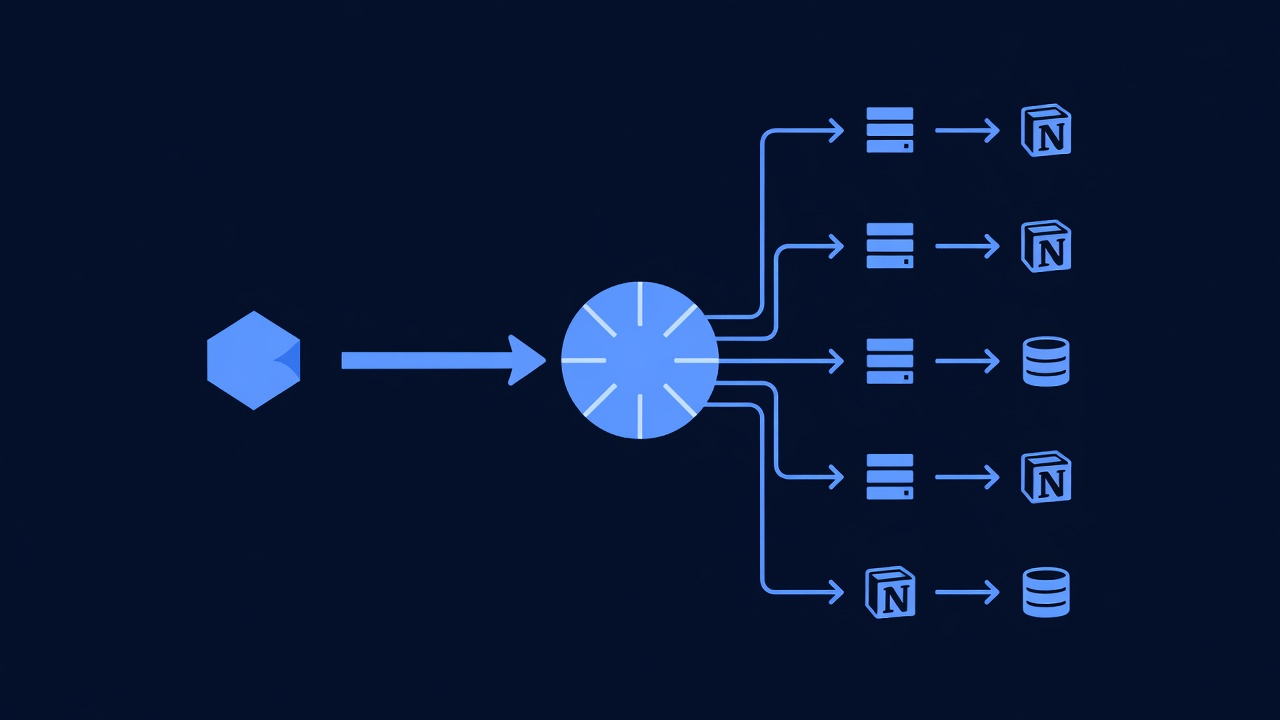
GHL and Notion do not directly connect. Instead, you’ll use automation middleware — a third-party service that listens for events in GHL, transforms the data, and sends it to Notion (and vice versa).
| Middleware | Ease of Use | Cost | Best For | Learning Curve |
|---|---|---|---|---|
| Zapier | High (visual workflow builder, templates) | $19–$99/month (based on task count) | Beginners, 1–5 integrations, simple one-way syncs | Low (2–4 hours to first workflow) |
| Make (formerly Integromat) | Medium (visual builder, more complex logic) | $10–$30/month (based on operations) | Intermediate users, 5+ integrations, complex logic | Medium (4–8 hours to first workflow) |
| Zapier + Make hybrid | High (Zapier for simple, Make for complex) | $30–$50/month combined | Advanced agencies, mixed workflow complexity | Medium (learn both platforms) |
| Custom API (no-code alternative: n8n) | Low (requires coding or extensive documentation) | $0–$50/month (self-hosted or cloud) | Technical teams, full control, cost-conscious at scale | High (requires API knowledge) |
Recommendation for most agencies: Start with Zapier. It has the simplest UI and requires zero coding. Once you’ve built 1–2 workflows, you’ll understand the pattern and can decide whether to stick with Zapier or migrate to Make.
How Zapier/Make Workflows Operate
GHL Event (e.g., new contact)
  ↓ (Zapier/Make detects event via webhook or polling)
  ↓
Transform Data (map GHL fields to Notion property schema)
  ↓
Send to Notion (create/update Notion database entry)
  ↓
Confirm Success or Log Error (audit trail in Zapier/Make)
Key concepts:
- Trigger — Event in GHL that starts the workflow (e.g., “New contact created”)
- Action — What happens next in Notion (e.g., “Create new database entry”)
- Conditions (optional) — Filter which records to sync (e.g., “Only if contact is tagged ‘client’ in GHL”)
- Mapping — Assign GHL fields to Notion properties (e.g., GHL “firstName” → Notion “First Name”)
Part 3: Core Integration Workflows

Workflow 1: Sync New GHL Contacts to Notion Client Database
Goal: Every time a new contact is created in GHL, automatically add a row to your Notion “Clients” database.
Requires:
- GHL account with at least one contact
- Zapier or Make account
- Notion workspace with a “Clients” database (structure described below)
Notion Database Setup (Before Zapier)
- Open your Notion workspace
- Create a new page called “Clients”
- Create a database with the following properties:
| Property Name | Type | Description |
|---|---|---|
| Name | Text | Client name (primary field; auto-filled) |
| Client email address | ||
| Phone | Phone | Client phone number |
| Company | Text | Client company/business name |
| Service Type | Select | Dropdown: “Consulting,” “Design,” “Development,” “Support,” “Other” |
| GHL ID | Text | Unique identifier from GHL (for matching/lookup) |
| Status | Select | Dropdown: “Lead,” “Active,” “Completed,” “On Hold” |
| Created in GHL | Date | Timestamp when contact was created in GHL |
| Notes | Text | Additional notes/custom field data from GHL |
Why these fields? Minimal set covers most use cases. Add more as needed (e.g., “Budget,” “Industry,” “Project Timeline”).
Zapier Setup: Contact Sync Workflow
Step 1: Create a New Zap
- Log into Zapier (https://zapier.com)
- Click Create → New Zap
- Name: “Sync GHL New Contacts to Notion”
Step 2: Add Trigger
- Search: Type “GoHighLevel”
- Select Trigger: “New Contact”
- Connect account: Click “Connect” → Log into GHL → Grant API access (Zapier will request scopes for contacts)
- Test trigger: Click “Test Trigger” → Zapier pulls a sample contact from your GHL account
Step 3: Add Action (Create Notion Entry)
- Search: Type “Notion”
- Select Action: “Create Database Item”
- Connect Notion account: Click “Connect” → Log into Notion → Grant API access
- Select Notion database: Choose “Clients” database (created above)
Step 4: Map GHL Fields to Notion Properties
Zapier now shows a form with all Notion properties. Map GHL fields to each:
| Notion Property | GHL Field (Map To) |
|---|---|
| Name | First Name + Last Name (use formula: {{firstName}} {{lastName}}) |
Email Address | |
| Phone | Phone Number |
| Company | Company Name (if GHL has this custom field; else leave blank) |
| Service Type | {{customField_ServiceType}} (if GHL has this; else hardcode default) |
| GHL ID | Contact ID (unique identifier from GHL; essential for future lookups) |
| Status | Hardcode “Lead” or map to {{customField_Status}} |
| Created in GHL | Created Date |
| Notes | {{customField_Notes}} or leave blank |
Example mapping for “Name” field:
- Zapier shows input field for “Name”
- Click the field → Select “Formatter” app → Function: “Text → Join”
- First input:
{{firstName}} - Separator: ” ” (space)
- Second input:
{{lastName}} - Result: “John Doe”
Step 5: Add Condition (Optional but Recommended)
To prevent syncing every test contact or unwanted records:
- Click Add Condition
- Condition:
Status(in GHL)equals“Active” (or whatever tag indicates a real client) - Only contacts matching this condition will sync
Step 6: Test the Workflow
- Click Test Action → Zapier creates a test entry in Notion
- Open Notion → Verify “Clients” database shows the new entry
- If successful, click Publish
Step 7: Monitor in Zapier Dashboard
After publishing, Zapier checks GHL every 15 minutes for new contacts. Each sync creates a “Task” in Zapier (your plan includes a set number of tasks per month; see pricing).
Expected behavior:
- New contact created in GHL at 2:00 PM
- Zapier detects at 2:15 PM (max 15 min delay)
- Notion entry appears by 2:17 PM
- Both records linked via GHL ID field
Workflow 2: Log GHL Appointments in Notion as Linked Records
Goal: When an appointment is created in GHL, automatically log it in Notion as a child entry under the corresponding project.
Requires:
- Notion workspace with two databases: “Clients” (above) + “Projects”
- GHL account with appointments
Notion Database Setup: Projects
- Create a new database called “Projects” with properties:
| Property Name | Type | Description |
|---|---|---|
| Project Name | Text | Project title (primary) |
| Client | Relation | Link to “Clients” database (many-to-one; each client may have multiple projects) |
| Status | Select | ”Scoping,” “In Progress,” “Review,” “Complete,” “On Hold” |
| Start Date | Date | Project start date |
| End Date | Date | Project end date |
| Appointments | Relation | Link to “Appointments” database (one-to-many; each project has multiple appointments) |
- Create a third database called “Appointments” with properties:
| Property Name | Type | Description |
|---|---|---|
| Appointment Date | Date | Scheduled date/time from GHL |
| Appointment Time | Text | Time portion (e.g., “2:00 PM”) |
| Contact | Relation | Link to “Clients” database (many-to-one) |
| Project | Relation | Link to “Projects” database (many-to-one) |
| Status | Select | ”Scheduled,” “In Progress,” “Complete,” “No-Show,” “Rescheduled” |
| Notes | Text | GHL appointment notes/job description |
| GHL Appointment ID | Text | Unique ID from GHL (for matching) |
Why this structure? The “Appointments” database serves as a junction table. Each appointment links to a contact and a project, allowing your team to see all service touchpoints in context.
Zapier Setup: Appointment Logging Workflow
Step 1: Create New Zap
- Name: “Log GHL Appointments to Notion Projects”
Step 2: Add Trigger
- Trigger: GoHighLevel → “New Appointment”
- Connect and test trigger
Step 3: Add Lookup Action (Find Matching Project)
This is key: GHL appointment is created, but we need to find the corresponding Notion project.
- Add Action → Notion → “Search Database Items”
- Database: “Projects”
- Search Field: “Client” (relation)
- Search Value:
{{Contact Name from GHL}}(or match by email if available)
This lookup finds the project linked to the contact who scheduled the appointment.
Step 4: Add Action (Create Appointment Entry)
- Add Action → Notion → “Create Database Item”
- Database: “Appointments”
- Map fields:
| Notion Field | GHL Field |
|---|---|
| Appointment Date | {{Appointment Date}} |
| Appointment Time | {{Appointment Time}} |
| Contact | Result of Step 3 lookup (linked record) |
| Project | Result of Step 3 lookup (linked project) |
| Status | Hardcode “Scheduled” |
| Notes | {{Appointment Notes}} (or job description from GHL) |
| GHL Appointment ID | {{Appointment ID}} |
Step 5: Add Condition (Optional)
Only sync if appointment is in the future (avoid logging past appointments):
- Condition:
Appointment Dateis aftertoday()
Step 6: Test and Publish
- Test with a sample GHL appointment
- Verify Notion “Appointments” database shows the new entry
- Verify the entry is linked to the correct project and contact
- Publish
Workflow 3: Trigger GHL Workflows Based on Notion Changes (Bidirectional)
Goal: When a Notion project status changes to “Active,” automatically trigger a GHL workflow (e.g., send SMS reminder, create task).
Requires:
- GHL webhook URL for custom trigger (you’ll configure this)
- Make account (Zapier Free doesn’t support bidirectional workflows easily; Make is better here)
GHL Webhook Setup
First, create a “landing spot” in GHL for Notion events:
- In GHL, navigate to Automations → Workflows
- Create new workflow: “Notion Trigger: Project Active”
- Trigger type: “Custom Webhook”
- GHL generates a webhook URL (e.g.,
https://hook.gohighlevel.com/webhooks/12345abc) - Copy this URL — you’ll paste it into Make
Make Setup: Notion to GHL Workflow
Step 1: Create New Scenario
- Log into Make (https://make.com)
- Click Create a new scenario
- Name: “Notify GHL When Notion Project Becomes Active”
Step 2: Add Trigger
- Search: “Notion”
- Trigger: “Watch Database Items”
- Connect Notion account
- Select Database: “Projects”
- Watch: “Field changes to specific value”
- Field: “Status”
- Value: “In Progress” (or “Active”, depending on your Notion setup)
Step 3: Add Action (Send Webhook to GHL)
- Add Action → Search “HTTP”
- Action: “Make a Request”
- URL: Paste the GHL webhook URL from Step 1
- Method: POST
- Body (JSON): Map Notion fields to custom GHL fields:
{
  "contact_id": "{{Notion Client ID}}",
  "project_name": "{{Notion Project Name}}",
  "project_status": "{{Notion Status}}",
  "start_date": "{{Notion Start Date}}"
}
Step 4: Configure GHL Workflow to Handle Webhook
Back in GHL, in the webhook-triggered workflow:
- Add condition: “If custom field project_name is not empty”
- Add action: Send SMS: “Hi {{firstName}}, your project {{project_name}} is now active. We’ll kick off on {{start_date}}.”
- Or create GHL task: “Follow up with {{project_name}} client”
- Save workflow
Step 5: Test End-to-End
- In Notion, change a project status to “In Progress”
- Make detects change (check Make execution log for timestamp)
- Make sends webhook to GHL
- GHL workflow receives webhook and sends SMS/creates task
- Verify SMS arrives in GHL contact record or task appears
Part 4: Step-by-Step Zapier Setup (Full Walkthrough)
This section provides a complete walkthrough for beginners using Zapier.
Prerequisites
- GHL account with at least one contact and one calendar with appointments
- Notion account with workspace created
- Zapier account (free tier allows 2 Zaps; paid starts at $19/month for 5 Zaps)
Step A: Create Notion Clients Database
- Open Notion → Create new page
- Type
/database→ Select “Database - Inline” - Name: “Clients”
- Add properties as described in Part 3, Workflow 1 (Notion Database Setup)
- Copy the Notion Database ID (visible in the URL when you open the database)
Step B: Authenticate Zapier to GHL and Notion
- Log into Zapier
- Click Connections (top menu)
- Click Connect New Account → Search “GoHighLevel”
- Select “GoHighLevel” → Click Connect
- Log into your GHL account → Zapier requests API scopes (contacts, tasks, workflows)
- Click Approve or Allow (button text varies)
- Repeat for Notion: Connect → Search “Notion” → Grant page access
Step C: Create First Zap (Contact Sync)
-
Click Create → New Zap
-
Trigger Step:
- App: GoHighLevel
- Trigger: New Contact
- Account: Select your connected GHL account
- Click Test Trigger → Zapier fetches a sample contact
- Verify it shows real contact data
- Click Continue
-
Action Step:
- App: Notion
- Action: Create Database Item
- Account: Select your connected Notion account
- Database: Search and select “Clients” database
- Map fields (see Part 3 table):
- Name:
{{First Name}} {{Last Name}} - Email:
{{Email Address}} - Phone:
{{Phone Number}} - GHL ID:
{{Contact ID}} - Others as available
- Name:
- Click Test Action → Zapier creates a test entry in Notion
- Verify Notion shows the new row
- Click Continue
-
Review & Publish:
- Zapier shows a summary of trigger + action
- Click Publish
- Zap is now active; checks GHL every 15 minutes for new contacts
Step D: Create Second Zap (Appointment Logging)
Repeat Step C, but:
-
Trigger: GoHighLevel → “New Appointment”
-
Action: Notion → “Create Database Item”
-
Database: “Appointments”
-
Add a Lookup step (between trigger and create):
- Action: Notion → “Search Database Items”
- Database: “Clients”
- Search by: Email address from GHL appointment
- This returns the Notion Client record to link
-
Map Appointment fields to Notion:
- Appointment Date:
{{Appointment Date}} - Contact: Result from lookup step
- Status: “Scheduled” (hardcode)
- GHL Appointment ID:
{{Appointment ID}}
- Appointment Date:
Step E: Monitor Workflows
-
In Zapier dashboard, each Zap shows:
- Status: Active (green) or paused (gray)
- Last Run: Timestamp of last sync
- Task Count: How many tasks this Zap has used (counts against monthly limit)
- Executions: Click to see detailed logs (success/failure, data synced)
-
If a sync fails, click the failed execution → See error message
- Common errors: “Field type mismatch” (GHL sent text but Notion expects select), “Authentication expired” (re-connect account)
Part 5: Troubleshooting & Maintenance
Common Integration Issues & Fixes
| Issue | Cause | Solution |
|---|---|---|
| Contacts not syncing to Notion | Zapier not detecting new contacts OR authentication expired | Check Zapier execution log; re-authenticate GHL account; verify Notion database exists |
| ”Field type mismatch” error | GHL sends text but Notion property is select/dropdown | In Zapier mapping, convert text to select option (use “Formatter” app → “Text → Lookup”) |
| Duplicate entries in Notion | Zapier checks every 2 minutes; same contact syncs twice if workflow runs twice | Add condition: “Only if contact doesn’t already exist in Notion” (requires lookup) |
| Appointments not linking to projects | Lookup step failed to find matching project | Verify project name matches contact name in Notion; use email as lookup key instead |
| Zapier tasks exceeding monthly limit | Too many workflows or high-frequency checks | Reduce sync frequency (e.g., from every 5 min to every 15 min); consolidate workflows |
| GHL webhook not receiving Notion data | Make scenario is paused OR webhook URL is incorrect | Check Make execution log; verify GHL webhook URL is correct and copied fully |
Monitoring Checklist
Weekly (5 minutes):
- Open Zapier dashboard → Check each Zap status (all green?)
- Spot-check one synced entry: Open GHL, find a contact → Check Notion database for that contact → Verify all fields match
Monthly (15 minutes):
- Export Zapier execution logs (CSV) → Count successful syncs vs. failures
- Verify authentication tokens are fresh (Zapier will warn if expiring soon)
- Review Zapier task usage vs. plan limit → Plan upgrade if approaching limit
- Check for duplicate entries in Notion (sign of sync issues)
Quarterly (30 minutes):
- Review all active Zaps → Deactivate any unused workflows (save on task count)
- Document any custom fields added to GHL or Notion → Update Zapier mappings
- Test a full workflow end-to-end (create contact in GHL → verify Notion sync within 15 min)
Data Consistency Audit
Once monthly, ensure GHL and Notion are in sync:
- Export GHL contacts (CSV) → Count total rows
- Export Notion Clients database (CSV) → Count total rows
- Compare: Should match (allowing for contacts excluded by conditions)
- Spot-check 5 random contacts: Verify phone, email, custom fields match between systems
- If mismatch found:
- Check Zapier execution logs for failures during sync window
- Manually add missing entries to Notion (or vice versa)
- Re-authenticate if sync was paused
Part 6: Advanced Use Cases & Customization
Use Case 1: Sync Only Certain Contacts (Conditional Sync)
Scenario: You have 500 contacts in GHL, but only want to sync “qualified leads” to Notion (those tagged “ready_to_close”).
Solution: Add Zapier condition to contact sync workflow:
- In Zapier, after the trigger, click **