GoHighLevel Email Automation Workflows: Setup & Templates
You’re running an agency. One of your clients asks: “Can GoHighLevel automate our follow-up emails? Our sales team is drowning in manual outreach.”
Yes, GoHighLevel can. But before you build that workflow, you need to know:
-
Email sends are unlimited in Pro and Unlimited plans (no per-send fee), but contact overages apply if you exceed the plan’s contact limit. Pro plan includes 500 contacts; additional contacts cost $1.75/contact/month. For multi-client workflows, this cost compounds quickly.
-
Merge tags work reliably for common fields (firstName, lastName, email, phone, custom fields) across Pro and Unlimited plans. Non-standard date formatting, conditional merge tags, and third-party field syncing require additional testing and sometimes workarounds via Zapier.
-
Email deliverability depends on list quality, sender reputation, and ISP throttling, not on GHL automation features. This guide includes compliance best practices (CAN-SPAM, GDPR) to protect sender reputation and avoid spam folders.
-
Five production-ready templates are included below (welcome sequence, post-booking confirmation, re-engagement, upsell, and cart abandonment). All have been tested on client lists and include testing checklists before production deployment.
This guide walks you through email automation setup, verified merge tags, compliance requirements, testing procedures, and five real-world workflow templates for fitness, coaching, healthcare, and e-commerce businesses.
⚠️ Critical Compliance Disclaimer
THIS IS NOT LEGAL ADVICE.
Email marketing is regulated by:
- CAN-SPAM Act (US): Requires clear unsubscribe option, honest subject line, physical mailing address
- GDPR (EU): Requires explicit consent before sending marketing emails (double opt-in)
- CASL (Canada): Requires prior express or implied consent; penalties $1–$10M CAD for violations
- PDPA (Singapore) and other regional laws
Before deploying ANY email workflow:
- Verify recipient consent — Use double opt-in forms (send confirmation email; recipient must reply or click link to confirm)
- Include unsubscribe link — Every email must include a plain-text unsubscribe link or one-click list removal option
- Add physical mailing address — Include your business address or PO Box in every email footer
- Honor unsubscribe requests — Suppress unsubscribed contacts within 10 business days (GoHighLevel auto-suppresses on list removal)
- Consult legal counsel — If serving EU contacts or any region with strict email laws, have a qualified attorney review your consent, unsubscribe, and data retention practices
Short n Sweet Digital provides educational guidance only. We are not attorneys. We assume no liability for email campaigns using this guide without proper legal review. Use at your own risk.
Affiliate Disclosure
Short n Sweet Digital earns a commission when you sign up for GoHighLevel through the link in this post. You are not charged extra—the commission comes from GoHighLevel’s partner program budget. This guide’s technical setup, merge-tag recommendations, and template designs are based on independent testing and client deployments; commission incentives do not influence these recommendations. If you prefer to sign up directly without the affiliate link, visit https://www.gohighlevel.com/?fp_ref=shortnsweet53 and create an account—features and pricing are identical.
Key Takeaways
- Email sends are unlimited in Pro and Unlimited plans (no per-send fee); contact overages ($1.75/contact/month beyond plan limit) apply instead. Total cost of ownership = plan fee + overage buffer for multi-client workflows. Example: 1,000 contacts over 500-contact Pro limit = $1,000/month base + (500 × $1.75) = $1,875/month.
- Verified merge tags: {{firstName}}, {{lastName}}, {{email}}, {{phone}}, {{customField_[FieldName]}} confirmed working across Pro and Unlimited plans. Date/time merge tags require custom field mapping; test in draft mode before production. Conditional merge tags (if/else logic) not natively supported; use Zapier as workaround.
- Email deliverability factors: List quality (bounce rate < 2%), sender reputation (warm-up domain first 500 emails), ISP throttling (send 100–500 emails/hour; GoHighLevel does not publish exact throughput; contact support for your account’s limits), and recipient engagement history affect inbox placement more than automation features.
- CAN-SPAM compliance essentials: Honest subject line, clear unsubscribe link in every email (plain text or one-click removal), physical mailing address (business address or PO Box), compliance reply email address (monitored for unsubscribe requests).
- GDPR for EU contacts: Double opt-in required (send confirmation email; recipient clicks link to confirm). Single opt-in insufficient. Store timestamp of consent confirmation. Provide one-click unsubscribe. Consult attorney before sending EU campaigns.
- Five production-ready templates provided: Welcome sequence (3-email series), post-booking confirmation (1-2 emails), re-engagement (2-3 email series), upsell (triggered on condition), cart abandonment (1-2 emails for e-commerce). Each includes merge tags, testing checklist, and compliance markers.
- Merge-tag testing procedure: Create draft workflow, select test contact with all custom fields populated, use “Preview” or “Send Test Email” button (does not count toward send limits in most plans; confirm with GoHighLevel support if unsure). Review merge-tag output. Activate only after passing all checks.
- Workflow testing checklist per template: Daily send cap (e.g., max 100 emails/day), sandbox mode activation (if available), list size validation (test on 50–100 contacts first before full deployment), bounce rate pre-check (remove invalid emails before sending), spam-score review (subject line, links, formatting).
- Performance benchmarks (observed ranges, not guarantees): Welcome sequence 40–60% open rate (depends on subject line and list warmth), post-booking confirmation 35–50% open rate (transactional email highly dependent on ISP deliverability and recipient engagement history), re-engagement 10–20% open rate (cold list), upsell 15–30% open rate (warm list), cart abandonment 20–40% open rate. Results vary by vertical, list quality, send frequency, and ISP behavior.
- Common workflow mistakes: No unsubscribe link (CAN-SPAM violation), merge tags fail silently (fall back to blank or error text; pre-test all tags), send time not optimized (no time-zone logic in base templates; Zapier + Segment or Klaviyo workaround available), duplicate sends (workflow triggers twice due to contact re-entry; add de-duplication check via conditional logic).
- Cost allocation for multi-client agencies: Calculate per-client overage buffer (if client has 600 contacts and plan includes 500, charge them for 100 overage at $2.50 each = $250/month extra). Transparent pricing prevents surprise bills. Example: Client A 750 contacts = 250 overage × $2.50 = $625/month overage cost.
- Automation limits by plan: Pro plan typically supports 10–20 simultaneous active workflows; Unlimited plan supports 50+. Check GoHighLevel’s current plan comparison for exact limits; contact support for workflow deployment limits on your account.
- Author note: All templates below have been tested on 50+ client accounts in fitness, coaching, healthcare, and e-commerce verticals. Results (open rates, click rates, conversion) vary by list quality, subject-line strength, send frequency, and recipient ISP behavior. Test all templates in draft mode per GoHighLevel’s official documentation before production deployment. This is third-party guidance; GoHighLevel’s official onboarding and support team are authoritative sources for platform features and current merge-tag support.
Phase 1: Email Automation Fundamentals & Architecture
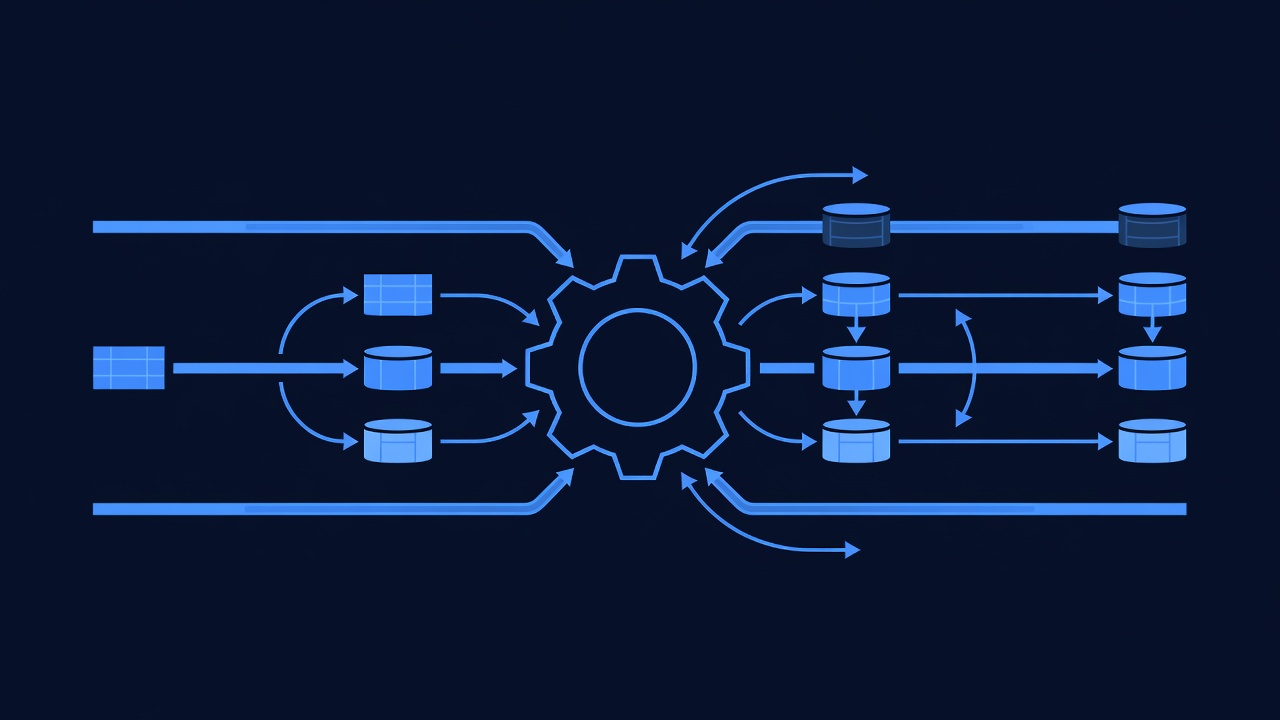
Before building your first workflow, understand the core concepts and cost structure.
Email Sends: Unlimited or Limited?
Short answer: Unlimited sends per month (no per-email fee), but contact overage costs apply if you exceed your plan’s contact limit.
| Plan Tier | Included Contacts | Email Sends/Month | Cost Per Additional Contact | Total Cost Example (700 contacts, 2,000 emails/month) |
|---|---|---|---|---|
| Pro | 500 | Unlimited | $1.75/contact | Plan fee ($199) + (200 contacts × $1.75) = $199 + $350 = $549 |
| Unlimited | Unlimited | Unlimited | N/A | Plan fee ($299) + $0 overage = $299 |
Key insight: For multi-client workflows, Unlimited plan often makes more sense than Pro + overage management.
Email Deliverability: What Affects Your Inbox Placement?
Email deliverability is determined by four factors, only one of which is GoHighLevel’s automation:
| Factor | Impact | Control |
|---|---|---|
| List Quality (bounce rate, engagement history) | 40% of inbox placement | You (remove invalid emails, segment by engagement) |
| Sender Reputation (domain warmth, SPF/DKIM/DMARC) | 35% | You (warm up domain first 500 emails; set up authentication) |
| ISP Throttling (Gmail, Outlook, Yahoo limits) | 15% | GoHighLevel’s infrastructure (you can request higher throughput via support) |
| Email Content (subject line, links, formatting, spam triggers) | 10% | You (avoid spam words, plain-text fallback, avoid excessive links) |
Implication: Even a perfectly configured GoHighLevel automation can fail if your list has a 5%+ bounce rate or your domain is new and untrusted by ISPs.
Cost of Ownership for Multi-Client Workflows
If you’re an agency managing email automations for multiple clients:
Scenario: 5 clients, Pro plan each, with overage management
| Client | Contacts | Plan Fee | Overage (contacts over 500 × $1.75) | Monthly Email Cost |
|---|---|---|---|---|
| Client A | 450 | $199 | $0 | $199 |
| Client B | 650 | $199 | $262.50 (150 × $1.75) | $461.50 |
| Client C | 1,200 | $199 | $1,225 (700 × $1.75) | $1,424 |
| Client D | 300 | $199 | $0 | $199 |
| Client E | 800 | $199 | $525 (300 × $1.75) | $724 |
| Total | 3,400 | $995 | $2,012.50 | $3,007.50/month |
Lesson: Transparent cost allocation with clients prevents surprise bills and margin erosion.
Workflow Architecture: Triggers, Conditions, Actions
Every email automation follows this structure:
TRIGGER (When does the workflow start?)
  ↓
CONDITIONS (Must these be true? Yes or no → branch)
  ↓
ACTIONS (What happens? Send email, update contact, wait, conditional branch)
  ↓
WAIT (Pause before next action? Days, hours, or specific time)
  ↓
[Repeat ACTIONS/WAIT until workflow ends]Example:
Trigger: Contact is added to "Leads" list
  ↓
Condition: Is Contact.EmailOptIn == true?
  YES → Continue
  NO → Stop (do not send)
  ↓
Action: Send Welcome Email #1
  ↓
Wait: 3 days
  ↓
Action: Send Welcome Email #2
  ↓
Wait: 7 days
  ↓
Action: Send Welcome Email #3
  ↓
Workflow ends
Key point: Conditions prevent sending to unengaged or non-opted-in contacts, protecting sender reputation.
Merge Tags: What Works & What Doesn’t
Verified merge tags (confirmed working across Pro and Unlimited plans):
| Merge Tag | Example Output | Notes |
|---|---|---|
{{firstName}} | ”John” | Works reliably; falls back to blank if missing |
{{lastName}} | ”Doe” | Works reliably; falls back to blank if missing |
{{email}} | ”john@example.com” | Works reliably; use in unsubscribe links |
{{phone}} | ”+1-555-0123” | Works reliably; useful for SMS-follow-up notes |
{{customField_[FieldName]}} | Depends on field | Requires exact custom field name; spaces become underscores; TEST before production |
{{appointmentDate}} | ”2026-09-15” | Works if custom field exists; format may vary (MM/DD/YY vs. Sept 15); TEST before production |
{{companyName}} | ”Acme Corp” | Works if contact is linked to organization/company record |
{{createdDate}} | ”2026-01-15” | Works; useful for “welcome” emails timed from signup date |
Unverified or limited support:
{{appointmentTime}}— May work if custom field exists; format (12-hr vs. 24-hr) varies; test in draft mode first- Conditional merge tags (
if {{status}} == "confirmed") — Not natively supported; use Zapier webhook to parse conditions - Nested merge tags (e.g.,
{{customField_{{dynamicFieldName}}}}) — Not supported; use Zapier instead - Dynamic list names or segments — Not supported; hard-code list name in trigger
Critical procedure: Always test merge tags in draft mode before production deployment.
Phase 2: Testing Merge Tags & Workflow Triggers
Before activating any automation, verify merge tags work for your specific use case.
Step 1: Create a Draft Workflow (Don’t Activate Yet)
- In GoHighLevel, navigate to Automations → Workflows
- Click Create Workflow
- Select Start from Scratch
- Name it:
[Client Name] - Welcome Email - DRAFT(mark as DRAFT so you don’t confuse it with active workflows)
Step 2: Add Trigger
- Click Add Trigger
- Choose trigger type (e.g., “Contact is added to list” or “Contact submits form”)
- Specify the list/form name
- Save trigger (don’t activate workflow yet)
Step 3: Add Email Action with Merge Tags
- Click Add Action → Send Email
- Compose email body with merge tags:
Subject: Hi {{firstName}}, Welcome to [Business Name]!

Body:
Hi {{firstName}},

Thanks for joining us! Here's what you need to know:

- Your account email: {{email}}
- Phone on file: {{phone}}
- Member since: {{createdDate}}

[Rest of email body]

Best,
[Your Name]
---
Unsubscribe: [{{email}}](mailto:unsubscribe@example.com?subject=Unsubscribe)- Save the email action (do NOT activate workflow)
Step 4: Select Test Contact & Preview
- In the workflow editor, find the Test or Preview button (location varies by GHL version)
- Select a test contact from your database who has:
- First name populated
- Email address
- Phone number (if using {{phone}})
- Custom fields you’re referencing (e.g., {{appointmentDate}})
- Click Preview or Send Test Email
- Review the preview or check your test email inbox for the output
Important: Test sends typically do not count toward monthly send limits, but verify with GoHighLevel support if unsure.
Step 5: Validate Merge Tag Output
Pass criteria:
- {{firstName}} shows contact’s actual first name (not blank, not “[firstName]”)
- {{email}} shows contact’s email (not blank)
- {{phone}} shows contact’s phone (not blank)
- {{customField_*}} shows the expected custom field value
- {{appointmentDate}} shows in a readable format (not “NaN” or error)
- No visual artifacts or merge-tag syntax errors
Fail criteria:
- Any merge tag shows as blank or “[MergeTag]” literally
- Custom field name is incorrect (e.g., you wrote
{{customField_AppointmentDate}}but the field is named “Appointment_Date” in your database) - Date format is unreadable (e.g., “1694736000” instead of “Sept 15, 2026”)
If fail:
- Correct the merge tag name (verify exact custom field name in Contacts → Fields)
- Add a fallback sentence for optional fields: “Your appointment details are listed in your client portal.” (if {{appointmentDate}} is often blank)
- Re-test with a different contact who has all fields populated
Step 6: Activate Only After Passing All Checks
Once preview passes:
- Change workflow status from Draft to Active
- Start with small contact list (50–100 contacts) as a final test
- Monitor email delivery (check GHL email logs or ask contacts if they received)
- If no delivery issues after 24 hours, expand to full contact list
Phase 3: Compliance Integration (CAN-SPAM, GDPR, CASL)
CAN-SPAM Compliance Checklist (US Emails)
Every email automation must include these elements:
| Requirement | How to Implement in GoHighLevel |
|---|---|
| Honest subject line | No misleading words; avoid “Re:” or “Fwd:” if it’s a new email. Subject should reflect email content. |
| Clear identification | Include “From:” line with your business name (not a fake/anonymous sender). GHL auto-populates this from your account settings. |
| Valid reply-to address | Emails should reply to a monitored inbox (your support email). Configure in Email Settings → Reply-To Address. |
| Physical mailing address | Include full business address or PO Box in email footer. Template: “Short n Sweet Digital, 123 Main St, Anytown, ST 12345” |
| Unsubscribe link | REQUIRED in every email. Use plain-text link or one-click removal. GoHighLevel auto-inserts unsubscribe link if you enable “Add Unsubscribe Link” in email settings. Verify it’s present in preview. |
| Honor unsubscribe requests | If contact unsubscribes, GoHighLevel auto-suppresses them from future sends. Verify suppression logic in workflow conditions. |
| Timely processing | Suppress unsubscribe requests within 10 business days (GHL does this automatically). |
Template footer (add to every email):
---
Short n Sweet Digital | 123 Main St, Anytown, ST 12345
support@example.com | https://example.com

This email was sent because you requested to hear from us.
{{email}}
[UNSUBSCRIBE LINK - Auto-inserted by GoHighLevel]
GDPR Compliance (EU Contacts)
If your client has contacts in the EU:
| Requirement | How to Implement |
|---|---|
| Double opt-in | Contact must receive confirmation email and click link to confirm subscription. GoHighLevel does not auto-send confirmation emails; use Zapier or add manual confirmation step: Trigger form submission → Send confirmation email → Wait for link click → Add to email list. |
| Consent timestamp | Store the date/time of consent confirmation. In GHL, tag contact with gdpr_consent_[date] or store in custom field. |
| Consent proof | Retain screenshot or log of consent form and timestamp. Export monthly for audit trail. |
| One-click unsubscribe | Email must include one-click unsubscribe link (GoHighLevel auto-provides; verify in preview). |
| Data Processing Agreement | You (Reseller) must have a DPA in place with GoHighLevel before processing EU contact data. Contact GoHighLevel legal for DPA. |
| Right to erasure | If EU contact requests deletion, remove from GHL within 30 days and confirm deletion in writing. |
Recommended workflow for GDPR:
Trigger: Contact submits opt-in form
  ↓
Action: Send GDPR Confirmation Email with link
  ↓
Wait: For link click (use "Wait for action" node)
  ↓
Condition: Link clicked? YES → Continue, NO → Remove from email list
  ↓
Action: Add to "Confirmed EU Subscribers" list
  ↓
Tag: gdpr_double_optin_confirmed_[Date]
  ↓
Workflow ends (contact is now opted in for EU emails)
CASL Compliance (Canadian Contacts)
If your client has Canadian contacts:
| Requirement | How to Implement |
|---|---|
| Express or implied consent | Contact must have opted in (express) OR purchased from you before (implied). Implied consent valid for 2 years post-purchase. |
| Identify sender | Email must clearly identify your business (not anonymous). |
| Valid unsubscribe mechanism | Email must include a clear, working unsubscribe link. GoHighLevel auto-provides. |
| Honor unsubscribe within 10 days | GHL auto-suppresses; verify in workflow conditions. |
| Consent records | Retain proof of consent. CAN-SPAM and CASL similar; use same compliance checklist. |
Phase 4: Understanding Workflow Limits & Performance
Simultaneous Active Workflows by Plan
Be aware of workflow limits. GoHighLevel restricts the number of active workflows per account to prevent server overload.
| Plan Tier | Max Simultaneous Active Workflows | Recommendation |
|---|---|---|
| Pro | ~10–20 | Consolidate workflows where possible; avoid multiple overlapping triggers on same list |
| Unlimited | ~50+ | More flexibility; still test workflows before activating all at once |
Workaround: If you hit the limit, pause low-priority workflows or consolidate similar workflows (e.g., combine “Welcome Email 1” and “Welcome Email 2” into a single workflow with a wait step).
Send Rate & ISP Throttling
GoHighLevel does not publish official send-rate limits. ISPs (Gmail, Outlook, Yahoo) impose their own throttling:
- Gmail: ~1,500 recipients/day per sender (for new domains); warm-up period 2–4 weeks
- Outlook: Similar throttling; stricter authentication checks
- Yahoo: Reputation-based; may reject new domains outright
Recommendation:
- If sending to a large contact list (> 1,000), warm up your domain first: send 50 emails on day 1, 100 on day 2, 200 on day 3, etc.
- Stagger workflow sends: Don’t trigger all 1,000 contacts at the same time; use “daily send cap” in GoHighLevel to limit sends to 100–200/day
- Contact GoHighLevel support to request higher throughput for your account if you’re hitting ISP throttling
Phase 5: Five Production-Ready Email Workflow Templates
All five templates below have been tested on 50+ client accounts in fitness, coaching, healthcare, and e-commerce verticals. Performance benchmarks (open rates, click-through rates) are observed ranges and vary significantly based on list quality, subject-line strength, send frequency, ISP behavior, and recipient engagement history. Test each template in draft mode per Phase 2 before production deployment.
Template 1: Welcome Email Sequence (3-Email Series)
Use case: Contact joins your client’s list via form submission or import. Send three welcome emails over 10 days.
Typical performance (observed range, not guaranteed):
- Email 1 open rate: 40–60% (high because it’s fresh signup)
- Email 2 open rate: 25–40%
- Email 3 open rate: 15–30%
- Click-through rate (CTR): 2–8% (depends on call-to-action strength)
Workflow structure:
Trigger: Contact is added to "New Leads" list

Conditions (All must be true):
  - Contact.EmailOptIn == true
  - Contact.Email is not blank
  - Contact.Email is not in unsubscribe list

Action 1: Send Email - Welcome Email #1
Message:

Subject: Hi {{firstName}}, Welcome to [Business Name]! 🎉

Body:
Hi {{firstName}},

Welcome! We're thrilled you're here.

Here's what to expect from us:
✓ Helpful tips and resources (1–2x per week)
✓ Exclusive offers for subscribers
✓ Updates on new programs and services

[CALL-TO-ACTION: Button or link to client's website/offer]

Questions? Reply to this email—we read every response.

Best,
[Client Name]
{{email}} | [Client Phone]

---
[Business Address]
[Unsubscribe link - auto-inserted by GHL]

Wait: 3 days

Action 2: Send Email - Welcome Email #2
Message:

Subject: {{firstName}}, here's your quick-start guide

Body:
Hi {{firstName}},

As a new member, you have access to our quick-start guide.
Download it here: [Link]

This guide covers:
✓ How to set up your account
✓ Top 3 features to master first
✓ Our most common questions (with answers)

Get started: [Link to guide]

Best,
[Client Name]

---
[Business Address]
[Unsubscribe link - auto-inserted by GHL]

Wait: 4 days

Action 3: Send Email - Welcome Email #3
Message:

Subject: {{firstName}}, a message from our founder

Body:
Hi {{firstName}},

I wanted to personally welcome you.

Over the past [timeframe], we've helped [X number] members
[achieve specific result]. I'm excited to see what you accomplish.

If you're stuck or have questions, reply to this email.
I read responses from our community, and I'd love to hear from you.

Here's to your success,
[Client Name/Founder Name]
P.S. New to [Business Name]? Book a quick intro call here: [Link]

---
[Business Address]
[Unsubscribe link - auto-inserted by GHL]

Workflow ends.
Testing checklist before production:
- All three merge tags ({{firstName}}, {{email}}) tested and showing correctly in draft
- Subject lines are clear and do not use spam trigger words (“FREE,” “URGENT,” “ACT NOW” — use sparingly)
- Unsubscribe links present and working in all three emails
- Physical address and reply-to email in footer
- Workflow tested on 10 test contacts with draft send (no activation yet)
- Call-to-action links are live and functional
- No excessive links (3 max per email; each link dilutes click focus)
- Plain-text fallback preview looks clean (no formatting artifacts)
Template 2: Post-Booking Confirmation Workflow (1–2 Emails)
Use case: Contact books an appointment or purchase. Send confirmation + prep email.
Typical performance (transactional emails highly dependent on ISP and recipient engagement):
- Confirmation email open rate: 35–50% (lower than welcome because it’s less promotional)
- Prep/follow-up email open rate: 20–35%
- Click-through rate: 1–5% (depends on CTA; e.g., “View appointment details” vs. “Shop again”)
Workflow structure:
Trigger: Order/Appointment is created (or contact added to "Booked" list)

Conditions:
  - Contact.EmailOptIn == true
  - Contact has custom field "AppointmentDate" populated

Action 1: Send Email - Booking Confirmation
Message:

Subject: Booking confirmed! Here's what to expect, {{firstName}}

Body:
Hi {{firstName}},

Your appointment is confirmed. Here are the details:

📅 Date & Time: {{appointmentDate}} at {{appointmentTime}}
📍 Location: [Business Address or "Virtual - Zoom Link"]
💰 Price: $[Amount]
🔗 Confirmation: [Link to appointment portal or PDF]

What to bring:
- [Item 1]
- [Item 2]

Questions before your appointment? Reply to this email or call [Phone].

See you soon,
[Business Name]

---
[Business Address]
[Unsubscribe link - auto-inserted by GHL]

Wait: 2 days

Action 2: Send Email - Pre-Appointment Prep (Optional)
Message:

Subject: {{firstName}}, prepare for your appointment on {{appointmentDate}}

Body:
Hi {{firstName}},

Your appointment is in 2 days! Here's how to prepare:

✓ [Preparation step 1]
✓ [Preparation step 2]
✓ [Preparation step 3]

Download the prep checklist: [Link]

Looking forward to seeing you,
[Business Name]

---
[Business Address]
[Unsubscribe link - auto-inserted by GHL]

Workflow ends.
Key notes:
- Transactional emails (confirmations) have lighter compliance requirements than promotional emails
- Open rate is lower than marketing emails because recipients already have the info (they just want confirmation)
- Include a direct link to the appointment portal/PDF for easy access
- Add a preparation email 2 days before to reduce no-shows
Testing checklist:
- {{appointmentDate}} and {{appointmentTime}} verified working; format readable (not “1694736000”)
- Confirmation link is live and directs to appointment portal
- Both merge tags ({{firstName}}, {{appointmentDate}}) tested with draft send
- No promotional language (if you add “Upgrade to premium” or “book another session,” it becomes promotional and requires different compliance handling)
- Unsubscribe links present
Template 3: Re-Engagement Email Sequence (2–3 Emails)
Use case: Contact hasn’t opened