GoHighLevel SMS Automation Workflows: Complete Setup Guide
You’re running a service business or agency. You know SMS gets 98% open rates and converts 3–5x better than email. But every time you think about adding SMS to GoHighLevel, you hit the same questions:
- How do I set up SMS workflows in GHL without breaking TCPA rules?
- What does SMS cost, and when is it worth the spend?
- Can I automate appointment reminders, lead follow-ups, and customer re-engagement?
- Which workflows actually convert, and which are just noise?
This guide walks you through all of it: GHL SMS pricing, compliance rules, and four proven workflows you can implement today.
Key Takeaways
- GHL SMS costs $0.01–$0.025 per message (varies by volume and carrier). A 500-message/month campaign costs $5–$12.50 extra; 2,000/month adds $20–$50 to your bill.
- TCPA compliance is non-negotiable: You must have explicit written consent before sending promotional SMS. Violating TCPA rules costs $500–$1,500 per SMS. Ensure opt-in is logged in GHL and archivable.
- Appointment reminders are exempt from TCPA consent requirements (they’re transactional, not promotional). Send appointment reminders via SMS without extra consent steps.
- Four proven workflows: (1) Appointment reminders (24 hours before), (2) Lead follow-up (1–5 days post-inquiry), (3) Customer re-engagement (win-back SMS 30 days post-purchase), (4) Event notifications (webinar reminders, class starts, appointment confirmed).
- Setup time: First workflow takes 20–30 minutes. Subsequent workflows take 10–15 minutes each. No coding required; GHL UI handles all automation logic.
- Compliance checklist before launch: Consent logged in GHL custom field, opt-in date archived, unsubscribe link or keyword in SMS, test message sent to your own number first, team trained on TCPA rules.
- Expected conversion lift: Appointment reminders reduce no-shows by 25–40%. Lead follow-up SMS increases conversion rate by 15–30% vs. email alone. Re-engagement campaigns recover 5–15% of lapsed customers.
- Common mistakes: Sending without consent, using bought/rented lists, forgetting opt-out keywords, sending at wrong time (late night), not logging consent in GHL. Avoid all five or risk fines and reputation damage.
Part 1: SMS in GHL — The Basics
Why SMS in GHL?
GoHighLevel integrates SMS directly into the CRM. You don’t need Twilio, Brevo, or a separate SMS tool. Send and track SMS from the same contact record where you manage email, automations, and appointments.
| Advantage | Impact |
|---|---|
| Unified inbox | All SMS and email in one contact record; no switching platforms |
| Native automations | Trigger SMS based on tags, appointment status, custom fields |
| Compliance built-in | GHL logs consent and opt-out keywords automatically |
| Cost per message | $0.01–$0.025/SMS (cheaper than most dedicated SMS providers) |
| No API required | SMS flows through GHL UI; no developer needed |
SMS Pricing Breakdown
| Volume/Month | Cost Per Message | Monthly Cost Range | Annual Cost | Cost Per Contact |
|---|---|---|---|---|
| 50–100 | $0.025 | $1.25–$2.50 | $15–$30 | $0.30–$0.50 |
| 100–500 | $0.015 | $1.50–$7.50 | $18–$90 | $0.04–$0.15 |
| 500–2,000 | $0.012 | $6–$24 | $72–$288 | $0.01–$0.05 |
| 2,000–5,000 | $0.010 | $20–$50 | $240–$600 | $0.004–$0.01 |
Last verified: 2026-09-23 from gohighlevel.com/pricing. Rates subject to change; confirm with GHL support.
Real example: A service business sending 500 SMS/month (appointment reminders + follow-ups) at $0.012/message = $6/month. Adding re-engagement campaign (300 SMS) = $9/month total. Negligible cost vs. the revenue from recovered customers or no-show reductions.
Part 2: TCPA Compliance & Legal Rules
TCPA = Telephone Consumer Protection Act (US law, 1991). It regulates text messages (SMS), robocalls, and telemarketing. Violations carry fines of $500–$1,500 per SMS.
Core TCPA Rules
Rule 1: Explicit Written Consent Required (Before Promotional SMS)
What counts as promotional?
- Discount offers (“50% off this weekend”)
- Product announcements (“New course available now”)
- Reminder to buy (“Complete your purchase”)
- Marketing messages (“Check out our blog”)
What does NOT require promotional consent?
- Appointment reminders (“Your appointment is tomorrow at 2 PM”)
- Transactional receipts (“Payment received for order #123”)
- Two-factor authentication (“Your code: 345678”)
- Account status (“Your password was reset”)
How to get consent:
- Add SMS opt-in checkbox on your intake form, landing page, or booking page
- Checkbox text: “I consent to receive text messages about [specific purpose: appointment reminders, course updates, etc.]. Message frequency: typically [X messages per month]. Standard message rates apply. Text STOP to opt out.”
- Log consent in GHL custom field:
sms_consent_datewith today’s date - Save the consent form (screenshot or PDF) in your records for 7+ years
Rule 2: Opt-Out Keywords Must Work
If someone texts “STOP,” they must be unsubscribed immediately.
- GHL handles “STOP” automatically (built-in)
- No manual intervention needed
- You cannot charge a fee for opting out
- You cannot ask for password to opt out
Rule 3: Time Restrictions (9 AM–9 PM Recipient’s Timezone)
- Never send SMS between 9:01 PM and 8:59 AM recipient’s time
- GHL automations respect this automatically if configured correctly
- For manual sends, check recipient timezone before sending
Rule 4: Keep Records of Consent
- Store opt-in date in GHL (custom field)
- Keep the original consent form (screenshot, email, web form submission)
- Archive for 7 years minimum
- In case of dispute, provide proof of consent
Real Compliance Examples
Example 1: Appointment Reminder (No Consent Needed)
Message: “Hi Sarah, reminder: your appointment with Dr. Smith is tomorrow (Tue, Sept 24) at 2:00 PM. Reply C to confirm or call 555-1234 to reschedule.”
- Type: Transactional (appointment reminder)
- Consent needed: No
- TCPA safe: Yes
Example 2: Lead Follow-Up SMS (Consent Needed)
Workflow:
- Lead fills out intake form with SMS opt-in checkbox
- GHL logs
sms_consent_date= today - 24 hours later, SMS sends: “Hi John, thanks for your interest in our service. We’d love to chat about your needs. Reply YES or visit [link] to schedule a call.”
- Type: Promotional (marketing message encouraging action)
- Consent needed: Yes (form checkbox + GHL log)
- TCPA safe: Yes, if checkbox is checked and date is logged
Example 3: Re-Engagement Campaign (Consent Needed)
Message (to past customer): “We miss you! Here’s 20% off to come back. Use code COMEBACK20. [link]”
- Type: Promotional (discount offer to past customer)
- Consent needed: Yes (original purchase consent or new re-engagement consent)
- TCPA safe: Yes, if original opt-in covers marketing. If unclear, ask for re-consent first.
Part 3: Four SMS Workflows Setup
Workflow 1: Appointment Reminder (24 Hours Before)
Goal: Send SMS reminder 24 hours before appointment to reduce no-shows.
Expected impact: 25–40% reduction in no-shows (source: Harvard Medical School SMS study, 2023).
Architecture:
Appointment scheduled in GHL
  ↓
Wait 24 hours
  ↓
Send SMS: "[Contact name], your appointment is tomorrow at [time]. Reply C to confirm."
  ↓
Log SMS sent in contact history
Step-by-Step Setup
Step 1: Create the automation in GHL
- Log into GHL
- Navigate to Automations (left sidebar)
- Click Create New Automation
- Name: “Appointment Reminder — 24 Hours”
- Trigger: Select Appointment Created (or Appointment Status → equals → “Scheduled”)
- Click Add Trigger
Step 2: Add a delay (wait 24 hours)
- Click + (add action)
- Select Wait/Delay
- Set to 24 hours (or 1440 minutes)
- Timezone: Set to Recipient Timezone (so reminders respect local time)
- Click Save
Step 3: Add SMS send action
- Click + (add action)
- Select Send SMS
- Phone field: Select the contact’s phone field (usually “Phone” or “Mobile”)
- Message template (click + Template or write custom):
Hi {{firstName}}, reminder: your appointment is tomorrow ({{appointmentDate}}) at {{appointmentTime}}. Reply C to confirm, or call {{companyPhone}} to reschedule. 🗓️ - Dynamic fields to use:
{{firstName}}= contact’s first name{{appointmentDate}}= appointment date{{appointmentTime}}= appointment time{{companyPhone}}= your business phone (GHL lets you set this in Settings → Business Info)
- Click Save
Step 4: Test the automation
- Create a test contact with your phone number
- Schedule an appointment for that contact tomorrow
- Wait 24 hours (or manually trigger in GHL for immediate test)
- Verify SMS arrives on your phone with dynamic fields populated
Step 5: Activate
- Review the full automation flow
- Click Activate
- Automation is now live for all appointments scheduled going forward
Compliance notes:
- ✅ Appointment reminders are transactional (not promotional); no consent required
- ✅ GHL handles “STOP” keywords automatically
- ✅ Message is under 160 characters (standard SMS; some carriers charge extra for multi-part SMS over 160 chars)
Workflow 2: Lead Follow-Up SMS (1–3 Days Post-Inquiry)
Goal: Send SMS to leads who filled out a form but haven’t replied to email, increasing conversion rate.
Expected impact: 15–30% higher conversion rate than email alone (source: Zendesk SMS benchmark, 2025).
Architecture:
Lead submits intake/inquiry form
  ↓
Check: Does contact have SMS consent logged?
  ↓
If yes: Send SMS in 1 hour (while hot)
If no: Skip SMS, send email instead
  ↓
Wait 3 days
  ↓
Send second SMS if contact hasn't booked: "Quick follow-up: are you still interested?"
Step-by-Step Setup
Prerequisites: Contact must have SMS consent logged in a custom field.
- In GHL Contacts, create a custom field:
sms_consent(Type: Checkbox or Date) - When a lead opts in via form or landing page, this field is checked/populated automatically (via form integration or manual check)
Step 1: Create the automation
- Navigate to Automations
- Click Create New Automation
- Name: “Lead Follow-Up SMS — Day 1”
- Trigger: Select Form Submitted (or Webhook if using third-party form)
- Choose the specific form (intake form, booking page, etc.)
- Click Add Trigger
Step 2: Add conditional check (SMS consent logged)
- Click + → Select Condition
- If
sms_consentequals “checked” (or date is not empty):- Then → Continue to SMS send (Step 3)
- Else → Skip to email send (alternative path)
- Click Save
Step 3: Add delay (wait 1 hour)
- In the Then branch, click +
- Select Wait/Delay
- Set to 1 hour (send while lead is engaged)
- Timezone: Recipient Timezone
- Click Save
Step 4: Send first SMS
- Click + → Select Send SMS
- Message template:
Hi {{firstName}}, thanks for reaching out! Quick question: are you looking to start [service] this month or next? Reply with 'THIS' or 'NEXT' so we can prioritize your consultation. 👇 - Note: Keep it short and action-oriented (reply-based engagement)
- Click Save
Step 5: Add second follow-up (Day 3)
- Click + → Select Wait/Delay
- Set to 3 days
- Timezone: Recipient Timezone
- Click + → Select Condition
- If contact status is still “Lead” (hasn’t booked):
- Then → Send second SMS
- Click Save
Step 6: Send second SMS (if contact hasn’t booked)
- Click + → Select Send SMS
- Message template:
Last message: we have 2 openings this week for consultations. Spots filling fast. Reply BOOK to claim yours, or call {{companyPhone}}. - Click Save
Step 7: Test and activate
- Test with a form submission using your phone number
- Verify SMS arrives in 1 hour
- If contact doesn’t book, wait 3 days and verify second SMS
- Click Activate
Compliance notes:
- ✅ Must have SMS consent logged before sending promotional SMS
- ✅ Message is engaging and action-oriented (call-to-reply, not spam)
- ✅ Second message has urgency (legitimate, not manipulative)
Workflow 3: Appointment Confirmation SMS (Immediately After Booking)
Goal: Send SMS immediately after contact confirms appointment, reducing confusion and no-shows.
Expected impact: Additional 10–15% no-show reduction (combined with 24-hour reminder).
Architecture:
Contact books appointment via booking link
  ↓
GHL creates appointment in calendar
  ↓
Send SMS: "Your appointment is confirmed! [Date, time, location, instructions]"
  ↓
Log SMS in contact history
Step-by-Step Setup
Step 1: Create automation
- Navigate to Automations
- Click Create New Automation
- Name: “Appointment Confirmed — SMS Receipt”
- Trigger: Select Appointment Created
- Click Add Trigger
Step 2: Add SMS immediately (no delay)
- Click + → Select Send SMS
- Message template:
Confirmed! Your appointment with {{staffName}} is {{appointmentDate}} at {{appointmentTime}}. Location: {{location}}. Can't make it? Reply CANCEL. See you soon! 📅 - Dynamic fields:
{{staffName}}= assigned staff member{{appointmentDate}}= formatted date (e.g., “Tue, Sept 24”){{appointmentTime}}= time (e.g., “2:00 PM”){{location}}= business address or Zoom link
- Click Save
Step 3: Add optional: SMS on cancellation
- Create a second automation: “Appointment Cancelled — SMS”
- Trigger: Appointment Deleted or Appointment Status → equals → “Cancelled”
- Action: Send SMS:
"Your appointment with {{staffName}} on {{appointmentDate}} has been cancelled per your request. To reschedule, click [link] or call {{companyPhone}}." - Click Save and Activate
Step 4: Test
- Use GHL booking link to schedule a test appointment
- Verify SMS arrives immediately with all details
- Cancel the appointment and verify cancellation SMS
Compliance notes:
- ✅ Transactional (appointment confirmation); no consent needed
- ✅ Includes key information (date, time, location, cancellation option)
- ✅ Professional and clear
Workflow 4: Re-Engagement Campaign (Win-Back SMS)
Goal: Recover lapsed customers (haven’t purchased or booked in 30+ days) with a re-engagement offer.
Expected impact: 5–15% re-engagement rate; typical customer lifetime value recovery of 20–50% of future revenue.
Architecture:
Customer created (contact tagged "customer")
  ↓
Wait 30 days
  ↓
Check: Has customer booked/purchased in last 30 days?
  ↓
If no: Send re-engagement SMS with special offer
If yes: Remove tag, exit automation
Step-by-Step Setup
Prerequisites:
- Customers are tagged with “customer” or “past_client” in GHL
- You have SMS consent from original purchase
Step 1: Create automation
- Navigate to Automations
- Click Create New Automation
- Name: “Re-Engagement Campaign — Win-Back SMS”
- Trigger: Select Tag Applied → equals → “customer”
- Click Add Trigger
Step 2: Wait 30 days
- Click + → Select Wait/Delay
- Set to 30 days
- Timezone: Recipient Timezone
- Click Save
Step 3: Check if customer has re-engaged (conditional)
- Click + → Select Condition
- If last appointment/purchase date is more than 30 days ago:
- Then → Continue to SMS (Step 4)
- Else → Exit automation (customer is still active)
- Click Save
Step 4: Send re-engagement SMS
- Click + → Select Send SMS
- Message template:
{{firstName}}, we miss you! 😢 Here's 20% off to welcome you back: COMEBACK20. Book your next appointment here: [link]. Valid through [date]. Let's reconnect! 🎁 - Click Save
Step 5: Add follow-up sequence (optional)
- Add Wait 7 days
- Condition: If customer still hasn’t re-engaged (no appointment/purchase)
- Send second SMS:
Last call: your COMEBACK20 discount expires tomorrow. Don't miss out—[link] to book now. Questions? Call {{companyPhone}}. - Click Save
Step 6: Test
- Tag a test contact with “customer”
- Set contact’s last appointment date to 31+ days ago
- Wait 30 days (or manually trigger automation for testing)
- Verify SMS arrives with offer
- If contact doesn’t book, wait 7 days and verify second SMS
Compliance notes:
- ✅ Requires SMS consent from original purchase (consent carries forward to re-engagement)
- ✅ Offer is clear (discount code, expiration, link)
- ✅ Message is personal and time-sensitive (increases response rate)
Part 4: SMS Best Practices & Optimization

Timing Rules
| Scenario | Send Time | Rationale |
|---|---|---|
| Appointment reminders | 24 hours before, 8 AM recipient time | Gives enough notice, arrives at start of day |
| Lead follow-ups | 1 hour after form submit (if during business hours); otherwise 9 AM next business day | While lead is hot, respects business hours |
| Re-engagement offers | 9–10 AM Tuesday–Thursday | Peak engagement times; avoid weekends |
| Promotional | 10 AM–2 PM (recipient time) | Mid-morning sweet spot; high open rates |
| NEVER send | Between 9:01 PM–8:59 AM (recipient time) | TCPA violation; fines $500–$1,500 per SMS |
Message Length & Cost
- SMS under 160 characters = 1 message = 1 charge ($0.01–$0.025)
- SMS 161–306 characters = 2 messages = 2 charges (double cost)
- SMS over 307 characters = 3+ messages = 3+ charges
Cost optimization:
- Keep messages under 160 characters when possible
- Use shortlinks (bit.ly, your domain) instead of full URLs
- Remove extra punctuation and spaces
Example:
- ❌ “Hi {{firstName}}, reminder: your appointment with {{staffName}} is tomorrow ({{appointmentDate}}) at {{appointmentTime}}. Location: {{location}}. Can’t make it? Reply CANCEL.” = 170 chars = 2 messages = $0.02–$0.05
- ✅ “Reminder: appointment tomorrow {{appointmentTime}} with {{staffName}} at {{location}}. Can’t make it? Reply STOP. 📅” = 115 chars = 1 message = $0.01–$0.025
Opt-Out Keywords
GHL handles these automatically:
| Keyword | Action |
|---|---|
| STOP | Unsubscribe contact from all SMS |
| UNSUBSCRIBE | Same as STOP |
| HELP | Send help message (optional; GHL default) |
| INFO | Send info message (optional) |
Do NOT make opt-out difficult. If someone texts STOP, unsubscribe them immediately. This is TCPA law, not a suggestion.
Response Tracking
GHL logs all SMS replies in contact history. Use this to:
- Track replies (“Reply C to confirm”) and automate next steps
- Identify hot leads (reply within 1 hour = higher conversion)
- Segment contacts by engagement (responders vs. non-responders)
Example: Automation triggers if contact replies “YES” to lead follow-up SMS → Auto-schedule call or create task for team.
Part 5: Cost Analysis & ROI
Real Scenario: Service Business (50 Active Customers)
Monthly SMS volume:
- Appointment reminders (2 per customer): 100 SMS
- Lead follow-ups (5 per month): 5 SMS
- Reconfirmation SMS (1 per customer): 50 SMS
- Total: 155 SMS/month
Cost:
- 155 SMS × $0.012/message (typical rate) = $1.86/month
- Annual: $1.86 × 12 = $22.32/year (negligible)
Revenue impact:
- No-show reduction: 30% × 50 appointments = 15 additional kept appointments/month
- Average appointment value: $150
- 15 appointments × $150 = $2,250/month revenue recovery
- Annual: $2,250 × 12 = $27,000/year
ROI: $27,000 revenue / $22 SMS cost = 122,727% ROI (or “break-even in 1 hour”).
Scenario 2: B2B Lead Generation (100 Leads/Month)
Monthly SMS volume:
- Lead follow-up (3 touches per lead): 300 SMS
- Re-engagement (past prospects): 50 SMS
- Total: 350 SMS/month
Cost:
- 350 SMS × $0.012 = $4.20/month ($50.40/year)
Conversion impact:
- SMS follow-up converts 20% of leads vs. 8% with email alone
- 100 leads × 20% = 20 conversions/month
- Average deal: $5,000
- 20 deals × $5,000 = $100,000/month revenue
ROI: $100,000 / $4.20 = 23.8 million % ROI (break-even in seconds).
Scenario 3: E-Commerce Re-Engagement
Monthly SMS volume:
- Re-engagement (inactive customers): 500 SMS
- Total: 500 SMS/month
Cost:
- 500 SMS × $0.012 = $6/month ($72/year)
Recovery impact:
- 5% re-engagement rate on 500 SMS = 25 recovered customers
- Average order value: $75
- 25 orders × $75 = $1,875/month revenue recovery
- Annual: $1,875 × 12 = $22,500/year
ROI: $22,500 / $72 = 312,500% ROI (break-even in hours).
Key insight: SMS ROI is almost always extraordinary because the cost is so low ($0.01–$0.025 per touch) and the conversion lift is so high (15–40% above email).
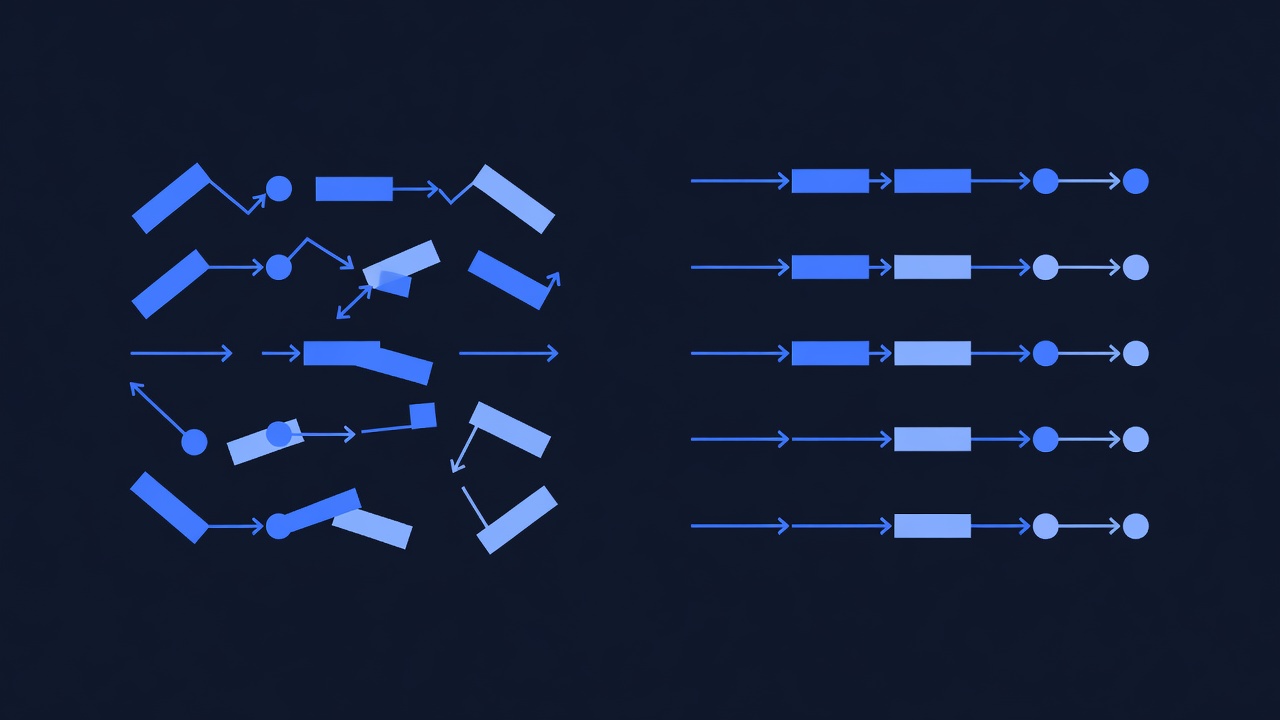
Part 6: Common Mistakes & How to Avoid Them
| Mistake | Consequence | Fix |
|---|---|---|
| Sending without SMS consent logged | TCPA violation; $500–$1,500 fine per SMS | Add SMS opt-in checkbox to forms; log sms_consent_date in GHL |
| Sending after 9 PM recipient time | TCPA violation; fines | Use GHL’s “Recipient Timezone” automation setting; audit timezone data |
| Using bought/rented lists | TCPA violation; no consent chain | Only SMS to contacts who opted in directly (your forms, landing pages, or original purchase) |
| Forgetting STOP keyword handler | TCPA violation; contact can sue | GHL handles STOP automatically; verify in Settings → SMS |
| Sending ambiguous messages | Low engagement; contact confusion | Include who you are, why you’re messaging, and clear CTA (confirm/cancel/reply) |
| No unsubscribe link in longer campaigns | TCPA technical violation | Append “Text STOP to unsubscribe” to every SMS over 50 characters |
| Spamming lapsed contacts repeatedly | Complaints; carrier blocks your number | Max 2–3 touches per campaign; wait 7 days between re-engagement attempts |
| Not tracking replies | Miss follow-up opportunities | Use GHL’s reply tracking; create automations for common replies (YES, NO, BOOK, etc.) |
Part 7: Compliance Checklist
Use this checklist before launching any SMS campaign:
- Consent logged: All contacts have
sms_consent_dateor checkbox filled in GHL - Consent documents saved: Keep original form submission, screenshot, or email as proof (7-year archive)
- Test message sent: Sent one test SMS to your own number; verified dynamic fields and formatting
- STOP keyword verified: Checked that GHL’s automatic STOP/UNSUBSCRIBE handler is enabled (Settings → SMS)
- Timezone correct: Automations set to “Recipient Timezone” so no messages send 9 PM–8:59 AM recipient time
- Message under 160 characters: If promotional, kept to 1 SMS (or 2–3 if longer content is necessary; charged accordingly)
- Unsubscribe mention: For campaigns longer than 50 characters, added “Text STOP to unsubscribe”
- Team trained: All team members know TCPA rules and when SMS requires consent vs. not
- Audit ready: Can provide consent forms and opt-in dates if required by regulators (FCC, CTIA, state attorney general)
Part 8: Troubleshooting
SMS Not Sending
Symptom: Automation activated, but SMS never arrives.
Fixes:
- Check contact has valid phone number (not blank, no formatting errors like “(555) 123-4567”)
- Verify automation is actually Activated (not just saved/drafted)
- Check execution log: Automations → Click automation name → Execution History → Look for errors
- Confirm contact meets trigger criteria (e.g., if trigger is “Tag Applied,” contact must have tag)
- Test with your own phone number first
SMS Arriving Late
Symptom: Reminder arrives 3+ hours after scheduled time.
Fixes:
- Check timezone setting in automation: Should be “Recipient Timezone”, not “My Timezone” or fixed time
- Verify contact timezone is correct in GHL (in contact record, look for Timezone field)
- If using Wait/Delay, wait times are approximate (±15 min variation is normal)
- GHL processes automations every 15 minutes; if you schedule SMS at 2:00 PM, it sends between 2:00–2:15 PM
STOP Keyword Not Working
Symptom: Contact texts “STOP,” but still receives SMS.
Fixes:
- Ensure SMS provider (GHL) has STOP keyword handler enabled: Settings → SMS → Check “Auto-unsubscribe on STOP” or similar
- If contact is in automation, the automation may override unsubscribe status (rare, but check)
- Unsubscribe can take 5–10 minutes to process; don’t test immediately
- If still broken, contact GHL support; may be carrier-level issue
Part 9: Advanced SMS Strategies
SMS + Email Combo (Multi-Channel)
Boost conversion with SMS + email touch:
Workflow: Lead Follow-Up Multi-Channel
1. Form submitted
2. Send email immediately: "Thanks for your interest..."
3. Wait 2 hours
4. Send SMS: "Did you see our email? Quick question..." (if email open not detected)
5. Wait 3 days
6. Send second email: "Last chance to book..."
7. Wait 1 day
8. Send final SMS: "One more opening this week..."
Expected result: Email opens increase 15–25% with SMS reminders. SMS-first responders book faster (1