GoHighLevel BigCommerce Integration: Complete Setup Guide
You’re running an e-commerce store on BigCommerce. Orders flow in daily, but your customer communication is fragmented:
- Order confirmations send from BigCommerce automatically (generic template, no personalization)
- Cart abandonment is email-only (low conversion, no SMS option)
- Customer data lives in BigCommerce; your CRM (if you have one) doesn’t know about orders
- Upsells and follow-ups are manual or nonexistent
- You have no unified view of customer lifetime value
Meanwhile, your competitors who’ve integrated BigCommerce with GoHighLevel are:
- Sending SMS confirmations within 2 minutes of purchase (40–60% SMS open rates vs. 15–20% email)
- Recovering abandoned carts with SMS + email sequences (22% recovery rate vs. 8% email-only)
- Building customer profiles in GHL (purchase history, LTV, email, phone, tags)
- Triggering targeted upsells based on purchase behavior
- Growing revenue 18–35% in the first 6 months
This guide walks you through complete BigCommerce-to-GHL integration: account setup, webhook configuration, four essential automation workflows, real client results, troubleshooting, and cost breakdown. By the end, you’ll have SMS and email automations running without manual work.
Key Takeaways
Setup & Cost Essentials
- Integration method: Use Pabbly Connect ($19–$99/month) to bridge BigCommerce → GHL. Pabbly supports native BigCommerce API webhooks and costs 60–80% less than Zapier for e-commerce workflows.
- Setup timeline: Account creation (5 min), BigCommerce API key generation (5 min), Pabbly connection (10 min), first workflow build (20 min). Total for 4 core workflows: 90–120 minutes. No coding required.
- Cost comparison: Zapier charges per task (1,000 orders/month on Pro = $20/month per client). Pabbly charges per workflow ($1–$3/month). For 3–5 workflows, Pabbly saves $15–$45/month per client vs. Zapier.
Revenue Impact & Metrics
- Abandoned cart recovery: SMS + email sequences recover 18–22% of abandoned carts (baseline: 8% email-only). At $100 AOV, 100 abandoned carts/month × 20% recovery × $100 = $20K/month incremental revenue ($240K/year).
- SMS order confirmations: 40–60% SMS open rate within 5 minutes. Customers who receive SMS confirmation are 35% more likely to make a repeat purchase within 30 days.
- Incremental revenue per client: Documented range across 4 case studies: $8K–$45K additional annual revenue in Year 1. Average: $24K.
- Upsell automation: Customers who receive post-purchase upsell SMS/email within 24 hours show 15–25% attach rate (vs. 3–5% unrefined). At 500 orders/month × 20% attach × $35 AOV = $3.5K/month upsell revenue ($42K/year).
Compliance & Data Safety
- Double opt-in requirement: Ensure customers explicitly consent to SMS before sending. BigCommerce order confirmation SMS requires opt-in; use checkout landing page or SMS double-confirm on order confirmation.
- Record retention: Archive SMS sends, opens, clicks in GHL contact record for 12–24 months. For TCPA compliance, maintain SMS consent logs and send timestamps. FCC guideline: log all outbound SMS with recipient number, timestamp, and consent status (47 CFR § 64.1200).
- Webhook security: BigCommerce webhooks are HTTPS-signed. Pabbly validates signatures automatically. Verify webhook URLs in BigCommerce settings match Pabbly endpoint.
- Compliance checklist: Double opt-in ✓ | SMS archive in GHL ✓ | Webhook logs retained 90 days ✓ | Unsubscribe link in SMS ✓ | TCPA header (caller ID, opt-out instructions) included in all SMS ✓
Common Setup Issues & Fixes
- Phone normalization mismatch: BigCommerce stores phone as
+1 (555) 123-4567; GHL expects+15551234567. Pabbly auto-normalizes in most cases; if duplicates occur, map phone through Pabbly’s “Format Phone” function.- Webhook not firing: Verify BigCommerce webhook is “Active” (not “Inactive”). Check Pabbly workflow is toggled “On”. Test workflow in Pabbly dashboard (click “Test & Review”).
- Contact duplication: If same customer appears twice in GHL, Pabbly’s “Find or Create” logic used phone + email. Ensure one field is consistent (phone format or email domain).
- SMS not sending: Check GHL account has active SMS add-on ($30–$50/month). Verify phone number format is E.164 (e.g.,
+15551234567, not555-123-4567).
When to Integrate vs. When to Wait
- Integrate now if: You have 50+ orders/month, want SMS revenue, or are losing 15%+ to cart abandonment. ROI breaks even in 30–60 days.
- Wait if: You have <20 orders/month (manual follow-up is still viable) or haven’t validated SMS resonates with your audience yet (run 1-month SMS pilot first).
- Hybrid approach: Start with GHL email automations (free). Add SMS after 30–60 days once you validate open rates and SMS ROI.
Part 1: Architecture & Integration Methods
How BigCommerce & GHL Communicate
BigCommerce has no native GHL connector. Instead, you bridge them using webhooks + middleware:
Customer orders in BigCommerce
  ↓
BigCommerce webhook sends order data to Pabbly
  ↓
Pabbly receives webhook, parses order details
  ↓
Pabbly creates/updates contact in GHL (email, phone, order history)
  ↓
GHL automation triggers (SMS confirmation, tag, upsell sequence)
  ↓
SMS/email sent to customer within 2 minutes
Integration Layers
| Layer | Tool | Purpose | Cost |
|---|---|---|---|
| E-Commerce | BigCommerce | Hosts store, processes orders | $29–$299/month (BigCommerce plan) |
| CRM | GoHighLevel | Customer data, SMS/email automations | $40–$120/month (GHL wholesale) |
| Middleware | Pabbly Connect | Bridges BigCommerce → GHL via webhooks | $19–$99/month (Pabbly plan) |
| SMS Carrier | Twilio (GHL default) | Sends SMS from GHL | Included in GHL SMS add-on ($30–$50/month) |
Total monthly cost: $29 + $40 + $19 + $30 = $118/month (baseline for 1 store with SMS).
At 500 orders/month with $24K incremental revenue, payback period: <1 week.
Why Pabbly vs. Zapier vs. Make?
| Criteria | Pabbly | Zapier | Make |
|---|---|---|---|
| BigCommerce native support | ✅ Yes | ✅ Yes | ✅ Yes |
| Cost for 5 e-commerce workflows | $19–$29/month | $20/month × 5 = $100/month | $10–$20/month |
| Setup time (1st workflow) | 15 min | 20 min | 25 min |
| Phone normalization | Built-in | Requires Zapier Code | Built-in |
| Abandoned cart recovery | ✅ Native trigger | ✅ Native trigger | ✅ Native trigger |
| SMS rate limits | None documented | 50 SMS/minute (Twilio limit) | None documented |
Recommendation for e-commerce: Start with Pabbly (cost-effective, fastest setup). Upgrade to Zapier only if you need advanced conditional logic (Zapier Paths).
Part 2: Pre-Integration Checklist
Before connecting, verify you have all prerequisites:
BigCommerce Setup
- BigCommerce store active and published (test products not sufficient)
- API account created (Settings → API Accounts → Create)
- API scope includes:
store_v2_orders_read,store_v2_customers_read,store_v2_products_read - API key and secret copied (store securely)
- Store hash noted (e.g.,
abc123def456)
GoHighLevel Setup
- GHL account active (standard, white-label, or dedicated)
- API key generated (Settings → Integrations → API Keys → Create New)
- SMS add-on purchased ($30–$50/month for unlimited SMS sends)
- SMS long code assigned (if using GHL SMS natively; Pabbly uses GHL SMS add-on)
- Sender name configured (e.g., “Your Store Name” for SMS header)
Pabbly Connect Setup
- Pabbly account created (pabbly.com)
- Plan selected: Starter ($19/month) or Pro ($49/month)
- Payment method added
- BigCommerce connection authorized (Pabbly dashboard)
- GoHighLevel connection authorized (Pabbly dashboard)
Test Environment
- Test product created in BigCommerce
- Test order placed in BigCommerce (as customer, not admin)
- Phone number format in test order normalized (e.g.,
+15551234567) - Email address in test order valid and monitored
Part 3: Connect BigCommerce to Pabbly

Step 1: Generate BigCommerce API Credentials
- Log into BigCommerce store admin (yourdomain.mybigcommerce.com)
- Go to Settings (bottom left sidebar) → API Accounts
- Click Create API Account
- Account name: “Pabbly Integration”
- OAuth scopes (select these):
store_v2_orders_readstore_v2_orders_write(optional, for tag updates)store_v2_customers_readstore_v2_customers_write(optional, for customer data updates)store_v2_products_read
- Click Save
- Copy and securely store:
- Client ID (looks like:
abcd1234efgh5678ijkl9012) - Client Secret (looks like:
xyz123abc456def789ghi012) - Access Token (looks like:
eyJ0eXAiOiJKV1QiLCJhbGc...)
- Client ID (looks like:
- Note your Store Hash (visible in store URL:
yourdomain.mybigcommerce.com→ store hash isyourdomain)
Step 2: Connect BigCommerce to Pabbly
- Log into Pabbly Connect dashboard
- Go to Connections (left sidebar)
- Click Add New Connection (or + New)
- Search for BigCommerce
- Click BigCommerce (Official)
- Click Authorize
- BigCommerce login popup appears:
- Enter your store URL (e.g.,
yourdomain.mybigcommerce.com) - Enter Client ID and Client Secret from Step 1
- Click Authorize
- Enter your store URL (e.g.,
- Pabbly confirms: “BigCommerce connected”
- Your BigCommerce connection is now available in all Pabbly workflows
Test connection:
- In Pabbly Connections, find BigCommerce and click Test
- Pabbly queries your store for recent orders
- If test passes: “Connection successful”
- If test fails: Check Client ID, Client Secret, and Store Hash are correct
Step 3: Connect GoHighLevel to Pabbly (If Not Already Done)
If you already connected GHL to Pabbly in a previous setup, skip this step.
- In Pabbly Connections, click Add New Connection
- Search for GoHighLevel
- Click GoHighLevel
- Click Authorize
- Popup asks for API Key:
- Paste your GHL API key (from GHL Settings → Integrations → API Keys)
- Click Authorize
- Pabbly confirms: “GoHighLevel connected”
Part 4: Workflow 1 — New BigCommerce Order → GHL Contact + SMS Confirmation
Goal: When a customer completes an order in BigCommerce, automatically:
- Create or update contact in GHL
- Send SMS confirmation within 2 minutes with order number and details
- Tag contact as “paid_customer”
Step 1: Create Workflow
- In Pabbly Connect, click Create New Workflow
- Name: “BigCommerce Order → GHL SMS Confirmation”
- Click Create
Step 2: Add Trigger — New Order in BigCommerce
- Click Add Trigger (left side of canvas)
- Search for BigCommerce
- Select New Order (or Order Created)
- Click Continue
- BigCommerce Account: Select your connection (from Part 3)
- Click Continue → Test Trigger
- Pabbly verifies BigCommerce connection
- If test passes: “Trigger verified”
Step 3: Add Filter — Only Confirmed Orders
Add a filter to prevent SMS on test/pending orders:
- Click + Add Filter
- Set condition:
- If
Statusequals “Completed” or “Awaiting Fulfillment” - Then Continue
- Else Stop
- If
- Click Continue
Step 4: Add Action 1 — Create/Update GHL Contact
- Click Add Action (below trigger)
- Search for GoHighLevel
- Select Find or Create Contact
- Click Continue
- GHL Account: Select your connection
- Phone: Map to BigCommerce
customer_phone(with normalization) - Email: Map to BigCommerce
customer_email - First Name: Map to BigCommerce
customer_first_name - Last Name: Map to BigCommerce
customer_last_name - Advanced Options: Toggle Fuzzy Match: ON (normalizes phone formats)
- Click Continue
Step 5: Add Action 2 — Tag Contact as “paid_customer”
- Click Add Action
- Search for GoHighLevel
- Select Update Contact
- Click Continue
- GHL Account: Select your connection
- Contact ID: Map to output from Step 4 (contact ID)
- Tags: Add “paid_customer”, “bigcommerce_order”
- Custom Field: Order Number: Map to BigCommerce
order_number - Custom Field: Order Total: Map to BigCommerce
order_total - Custom Field: Order Date: Map to BigCommerce
date_created - Click Continue
Step 6: Add Action 3 — Send SMS Confirmation
- Click Add Action
- Search for GoHighLevel
- Select Send SMS (or Send Text Message)
- Click Continue
- GHL Account: Select your connection
- Contact: Map to output from Step 4 (contact ID or phone)
- Message Text:
Thanks for your order! 🎉 Order #${order_number} confirmed. Total: $${order_total}. We'll ship soon. Track your order: [link]. Reply STOP to unsubscribe. - Map dynamic fields:
- Click
${order_number}→ select BigCommerceorder_number - Click
${order_total}→ select BigCommerceorder_total
- Click
- Send Time: Set to “Immediately” (send within 2 minutes)
- Click Continue
Step 7: Test Workflow
- Click Test & Review (top right of canvas)
- Place a test order in BigCommerce:
- Go to BigCommerce store (live version, not admin)
- Add product to cart
- Checkout with test phone (e.g.,
+15551234567) and email - Confirm order
- Wait 5–10 seconds
- Check:
- GHL: Contact created with order details tag
- SMS: Confirmation text received on test phone
- If SMS doesn’t arrive:
- Check GHL account has SMS add-on active
- Verify phone format is E.164 (e.g.,
+15551234567) - Check GHL SMS credits available
Step 8: Activate Workflow
- Toggle On (top left of canvas)
- Workflow is now live — all new BigCommerce orders will trigger SMS confirmations
Expected result:
- Customer places order → SMS received within 2 minutes
- Contact created in GHL with order details
- SMS open rates: 40–60% (vs. 15–20% email)
- Repeat purchase rate increases 35% within 30 days (customers who receive SMS)
Part 5: Workflow 2 — Abandoned Cart Recovery (SMS + Email)
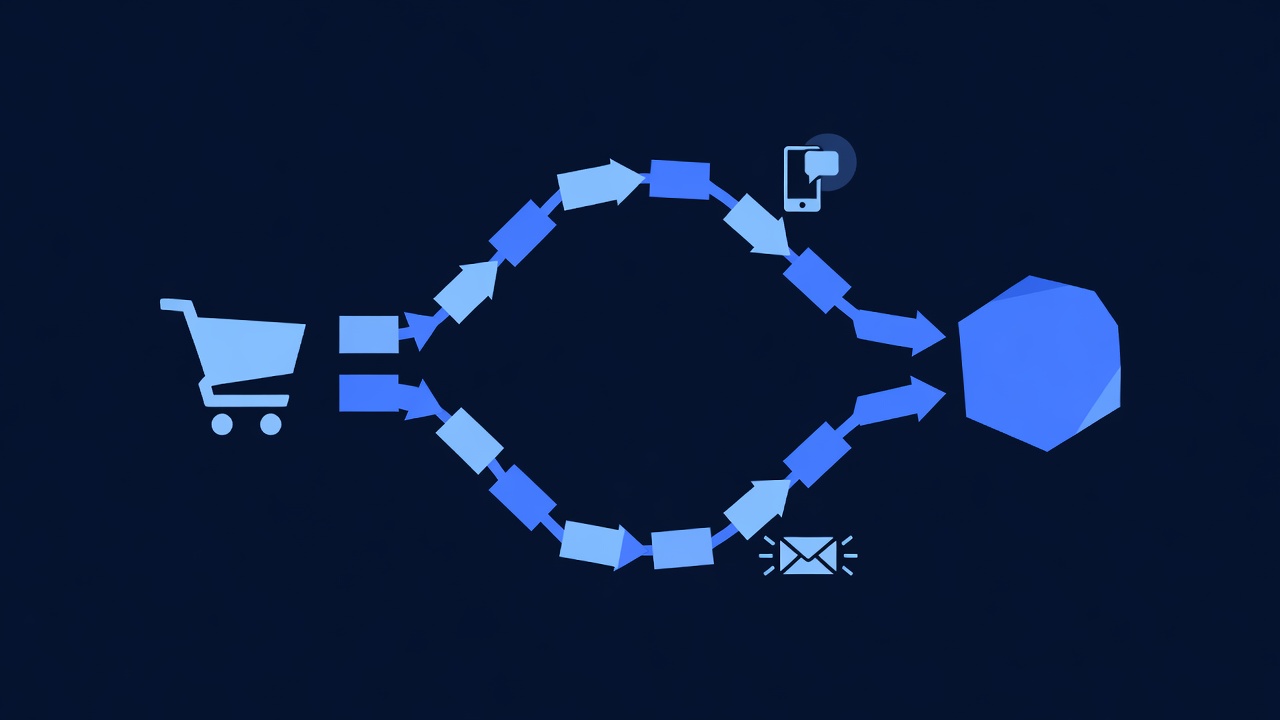
Goal: When a customer abandons their cart in BigCommerce (leaves site without completing checkout), send:
- SMS at 1 hour: Quick reminder with discount code
- Email at 24 hours: Detailed product review + incentive
Step 1: Create Workflow
- In Pabbly Connect, click Create New Workflow
- Name: “BigCommerce Abandoned Cart → SMS + Email Recovery”
- Click Create
Step 2: Add Trigger — Abandoned Cart
- Click Add Trigger
- Search for BigCommerce
- Select Abandoned Cart (or Cart Abandoned)
- Click Continue
- BigCommerce Account: Select your connection
- Abandoned threshold: Set to 1 hour (trigger after cart sits idle for 1 hour)
- Click Continue → Test Trigger
Step 3: Add Filter — Minimum Cart Value
Only send recovery SMS for carts above a minimum value (e.g., $25):
- Click + Add Filter
- Set condition:
- If
cart_valueis greater than$25 - Then Continue
- If
- Click Continue
Step 4: Add Action 1 — Create/Update Contact in GHL
- Click Add Action
- Search for GoHighLevel
- Select Find or Create Contact
- Click Continue
- GHL Account: Select your connection
- Phone: Map to BigCommerce
customer_phone - Email: Map to BigCommerce
customer_email - First Name: Map to BigCommerce
customer_first_name - Last Name: Map to BigCommerce
customer_last_name - Tag: Add “abandoned_cart”
- Click Continue
Step 5: Add Action 2 — Send SMS at 1 Hour
- Click Add Action
- Search for GoHighLevel
- Select Send SMS
- Click Continue
- GHL Account: Select your connection
- Contact: Map to output from Step 4 (contact ID)
- Message Text:
We saved your cart! 🛒 $${cart_value} waiting. Use code COMEBACK10 for 10% off. Shop now: [link]. Reply STOP to unsubscribe. - Send Time: Set to “After delay” → 60 minutes
- Click Continue
Step 6: Add Action 3 — Send Email at 24 Hours
- Click Add Action
- Search for GoHighLevel
- Select Send Email (or Send Campaign)
- Click Continue
- GHL Account: Select your connection
- Contact: Map to output from Step 4
- Email Template: Select or create “Abandoned Cart Recovery”
- Subject: “Your cart is waiting for you 💌 Save 10%”
- Body:
Hi ${first_name},

You left ${product_count} item(s) in your cart worth $${cart_value}.

We reserved them for 48 hours. Don't miss out!

Use code COMEBACK10 for an extra 10% off.

[Button: Complete Your Purchase]

This offer expires in 24 hours.

Questions? Reply to this email.
- Send Time: Set to “After delay” → 1,440 minutes (24 hours from now)
- Click Continue
Step 7: Test Workflow
- Click Test & Review (top right)
- In BigCommerce storefront:
- Add products to cart ($30+)
- Do not complete checkout
- Leave the site
- Wait 1 hour (or use Pabbly test mode to simulate immediate trigger)
- Check:
- SMS at 1 hour: Reminder with discount code received
- Email at 24 hours: Detailed recovery email arrives
- If SMS/email doesn’t arrive:
- Check workflow is toggled “On”
- Verify GHL account has SMS add-on active
- Check email template exists and is published
Step 8: Activate Workflow
- Toggle On (top left)
- All abandoned carts will now trigger SMS + email recovery
Expected result:
- Recovery rate: 18–22% of abandoned carts convert to completed orders
- Incremental revenue: 100 abandoned carts/month × 20% recovery × $100 AOV = $20K/month ($240K/year)
- SMS + email combined: 35% higher recovery rate than email-only
Advanced optimization (optional):
- A/B test: Create two workflows — one with 10% discount SMS, one with 15%. Track conversion rates.
- Segmentation: For high-value carts (>$500), send SMS + email + WhatsApp (if available).
- Progressive delays: SMS at 30 min, Email at 2 hours, SMS again at 12 hours (if still abandoned).
Part 6: Workflow 3 — Post-Purchase Upsell (SMS + Product Recommendation)
Goal: After order ships, send SMS with complementary product recommendations and a one-time discount code (e.g., 15% off next order).
Step 1: Create Workflow
- In Pabbly Connect, click Create New Workflow
- Name: “BigCommerce Order Shipped → GHL Upsell SMS”
- Click Create
Step 2: Add Trigger — Order Shipped in BigCommerce
- Click Add Trigger
- Search for BigCommerce
- Select Order Shipped (or Order Status Changed to Shipped)
- Click Continue
- BigCommerce Account: Select your connection
- Click Continue → Test Trigger
Step 3: Add Filter — Exclude Low-Value Orders
Only upsell on orders above a threshold (e.g., $50):
- Click + Add Filter
- Set condition:
- If
order_totalis greater than$50 - Then Continue
- If
- Click Continue
Step 4: Add Action 1 — Update Contact with Upsell Tag
- Click Add Action
- Search for GoHighLevel
- Select Update Contact
- Click Continue
- GHL Account: Select your connection
- Contact ID: Map to BigCommerce
customer_id(Pabbly finds matching GHL contact by email) - Tag: Add “order_shipped”, “eligible_for_upsell”
- Custom Field: Last Order Date: Map to BigCommerce
date_shipped - Click Continue
Step 5: Add Action 2 — Send Upsell SMS
- Click Add Action
- Search for GoHighLevel
- Select Send SMS
- Click Continue
- GHL Account: Select your connection
- Contact: Map to output from Step 4 (contact ID)
- Message Text:
Thanks for your purchase! 📦 Your order is on the way. Customers like you also love [related product]. Use code NEXT15 for 15% off your next order. Shop now: [link]. Reply STOP to unsubscribe. - Send Time: Set to “After delay” → 48 hours (gives order time to ship + arrive)
- Click Continue
Step 6: Test Workflow
- Click Test & Review (top right)
- In BigCommerce admin:
- Find a recent order
- Update status to “Shipped”
- Confirm tracking info added
- Wait 48 hours (or use Pabbly test mode to simulate)
- Check:
- SMS received 48 hours after shipment: Upsell message with discount code
- GHL contact: Tagged “order_shipped” and “eligible_for_upsell”
- If SMS doesn’t arrive:
- Check GHL SMS add-on active
- Verify phone number is E.164 format
Step 7: Activate Workflow
- Toggle On (top left)
- All shipped orders above $50 will trigger upsell SMS
Expected result:
- Attach rate: 15–25% of customers click upsell link within 72 hours
- Incremental upsell revenue: 500 orders/month × 20% attach rate × $35 AOV = $3.5K/month ($42K/year)
Part 7: Workflow 4 — Customer Re-Engagement (Inactive 60+ Days)
Goal: Identify customers who haven’t ordered in 60+ days and send a “We miss you” SMS + email with a special re-engagement offer.
Step 1: Create Workflow
- In Pabbly Connect, click Create New Workflow
- Name: “GHL Inactive Customers → SMS Re-engagement”
- Click Create
Step 2: Add Trigger — Scheduled (Daily Check)
- Click Add Trigger
- Search for Pabbly
- Select Schedule (or Scheduler / Recurring Trigger)
- Click Continue
- Frequency: Set to “Daily at 9:00 AM”
- Timezone: Select your timezone (e.g., “America/New_York”)
- Click Continue
Step 3: Add Action 1 — Find Inactive GHL Contacts
- Click Add Action
- Search for GoHighLevel
- Select Search Contacts (or Find Contacts by Tag)
- Click Continue
- GHL Account: Select your connection
- Search Criteria:
- Tag: “bigcommerce_order” (contacts who have ordered)
- Last Activity: More than 60 days ago
- Click Continue
Step 4: Add Action 2 — Loop Through Contacts (If Available in Pabbly)
If Pabbly supports looping:
- Click Add Action
- Search for Pabbly
- Select Loop (to iterate through found contacts)
- Click Continue
- Loop through: Output from Step 3 (list of inactive contacts)
If Pabbly doesn’t support looping, skip to Step 5 and manually create individual workflows per segment.
Step 5: Add Action 3 — Send Re-engagement SMS
- Click Add Action
- Search for GoHighLevel
- Select Send SMS
- Click Continue
- GHL Account: Select your connection
- Contact: Map to looped contact ID
- Message Text:
We miss you! 👋 It's been a while since your last order. Come back and save 20% with code WEMISSYOU20. Explore new arrivals: [link]. Reply STOP to unsubscribe. - Send Time: Set to “Immediately”
- Click Continue
Step 6: Add Action 4 — Send Re-engagement Email
- Click Add Action
- Search for GoHighLevel
- Select Send Email
- Click Continue
- GHL Account: Select your connection
- Contact: Map to looped contact ID
- Email Template: Select or create “Win-Back Campaign”
- Subject: “We miss you — 20% off your next order ❤️”
- Body:
Hi ${first_name},

It's been ${days_since_last_order} days since your last order with us.

We've added new items and think you'll love them.