GoHighLevel Pabbly Connect Integration: BigCommerce SMS Setup
You’re running a BigCommerce store. Right now, customer communication is disconnected:
- Order confirmations send from BigCommerce automatically (no personalization, no SMS option)
- Cart abandonment gets email only (low engagement)
- Customer data lives in BigCommerce; your CRM doesn’t sync
- Follow-ups and upsells are manual
This guide walks you through connecting BigCommerce to GoHighLevel using Pabbly Connect—the middleware layer that bridges them. You’ll set up SMS order confirmations, abandoned cart recovery, and customer sync in 90 minutes with no coding.
Key Takeaways
- Integration method: Use Pabbly Connect ($19–$99/month) to bridge BigCommerce webhooks → GHL automations. No native GHL-BigCommerce connector exists; Pabbly is the standard middleware for this stack.
- Setup timeline: 90–120 minutes total (account creation, API keys, 4 core workflows, testing). Each workflow takes 15–25 minutes to build and test.
- Cost breakdown: BigCommerce ($29–$299/month) + GHL ($40–$120/month) + Pabbly ($19–$99/month) + GHL SMS add-on ($30–$50/month) = ~$118–$568/month baseline. Cost per workflow: ~$6/month in Pabbly fees.
- What you’ll get: SMS order confirmations, abandoned cart SMS + email sequences, customer sync from BigCommerce → GHL, tags for segmentation, custom fields for order tracking.
- Compliance essentials: SMS requires customer opt-in (double opt-in recommended). BigCommerce webhooks are HTTPS-signed (Pabbly validates automatically). Maintain SMS logs in GHL for 12+ months per TCPA requirements. See ‘Compliance Checklist’ section.
- Common issues: Phone number format mismatches (normalize to E.164:
+15551234567), webhook inactive in BigCommerce admin, GHL SMS add-on not purchased, contact duplication when email/phone inconsistent across platforms.- When to integrate: If you have 50+ orders/month and want SMS capability. If <20 orders/month, manual follow-up may still be cost-effective.
Part 1: Architecture & Integration Overview
How BigCommerce, Pabbly, and GHL Connect
BigCommerce has no native GoHighLevel integration. Instead, you use Pabbly Connect as middleware:
1. Customer places order in BigCommerce
   ↓
2. BigCommerce sends webhook to Pabbly endpoint
   ↓
3. Pabbly receives webhook data (order details, customer info)
   ↓
4. Pabbly maps fields and creates/updates GHL contact
   ↓
5. GHL automation triggers (tag, send SMS/email)
   ↓
6. SMS/email sent to customer within 2–5 minutes
Webhook latency: BigCommerce webhook delivery is typically 5–30 seconds after order completion. SMS sending adds 30–120 seconds (Twilio/carrier processing). Total: 1–2 minutes from order to SMS arrival.
Integration Stack
| Component | Purpose | Cost |
|---|---|---|
| BigCommerce | E-commerce platform | $29–$299/month |
| GoHighLevel | CRM + SMS/email automations | $40–$120/month (wholesale) |
| Pabbly Connect | Webhook middleware + field mapper | $19–$99/month |
| GHL SMS Add-On | SMS sending via Twilio | $30–$50/month |
| Total (baseline) | Complete automation stack | ~$118–$180/month |
Why Pabbly vs. Zapier vs. Make?
| Criteria | Pabbly Connect | Zapier | Make |
|---|---|---|---|
| BigCommerce support | ✅ Native | ✅ Native | ✅ Native |
| GHL support | ✅ Native | ✅ Native | ✅ Native |
| Cost for 4 workflows | $19–$29/month | $20/month × 4 = $80/month | $10–$20/month |
| Phone normalization | Built-in function | Requires custom code | Built-in |
| Setup time (first workflow) | 15–20 min | 20–25 min | 25–30 min |
| Abandoned cart trigger | ✅ Supported | ✅ Supported | ✅ Supported |
| No-code interface | ✅ Yes | ✅ Yes | ⚠️ Partial |
Recommendation: Start with Pabbly Connect (cost-effective, native support for both platforms, fastest setup).
Part 2: Pre-Integration Checklist
Verify these prerequisites before building workflows:
BigCommerce Requirements
- Live BigCommerce store (published, not test mode)
- API account created (Admin Dashboard → Settings → API Accounts)
- API Client ID and Secret copied and secured
- Store Hash noted (found in store URL:
yourdomain.mybigcommerce.com) - Webhook support confirmed (BigCommerce supports webhooks for order, product, customer events)
GoHighLevel Requirements
- Active GHL account (standard, white-label, or dedicated instance)
- API key generated (Settings → Integrations → API Keys → Create New)
- SMS add-on purchased ($30–$50/month; required for SMS sending)
- SMS sender configured (Settings → SMS → Long Code assigned)
- Twilio integration active (GHL default SMS provider)
Pabbly Connect Requirements
- Pabbly account created (pabbly.com)
- Starter plan or higher ($19/month minimum; covers unlimited workflows)
- Payment method added
- BigCommerce connection authorized in Pabbly (OAuth flow)
- GoHighLevel connection authorized in Pabbly (API key)
Test Environment
- Test product created in BigCommerce (live storefront, not admin)
- Test customer phone number in E.164 format (e.g.,
+15551234567) - Test email monitored and accessible
- Test order placed in BigCommerce (as customer, not admin)
- Pabbly test mode enabled (for simulating webhooks without live orders)
Part 3: Generate API Credentials & Authorize Connections
Step 1: Create BigCommerce API Account
- Log into BigCommerce store admin (yourdomain.mybigcommerce.com)
- Go to Settings (bottom left) → API Accounts
- Click Create API Account
- Account name: Enter “Pabbly Integration”
- OAuth scopes — Select these minimum scopes:
store_v2_orders_read(read orders)store_v2_orders_write(optional; update order status/notes)store_v2_customers_read(read customer data)store_v2_products_read(read product info)
- Click Save
- Copy and securely store:
- Client ID (e.g.,
abc123def456ghi789) - Client Secret (e.g.,
xyz789abc456def123) - Access Token (e.g.,
eyJ0eXAiOiJKV1QiLCJhbGc...)
- Client ID (e.g.,
- Note your Store Hash from store URL (e.g., if store is
mystore.mybigcommerce.com, hash ismystore)
Time: 5 minutes
Step 2: Generate GoHighLevel API Key
- Log into GHL dashboard (app.gohighlevel.com)
- Go to Settings (bottom left) → Integrations → API Keys
- Click Create New (or + New API Key)
- Name: Enter “Pabbly Connect”
- Scope: Select:
- Contacts (read/write)
- Automations (read)
- SMS (read/write)
- Email (read/write)
- Click Create
- Copy API key (appears once; store securely)
- Verify SMS add-on is active: Go to Settings → SMS → Confirm “SMS Add-On” shows active status
Time: 5 minutes
Step 3: Connect BigCommerce to Pabbly
- Log into Pabbly Connect (pabbly.com/connect)
- Go to Connections (left sidebar) → + New Connection (or Add New)
- Search for BigCommerce
- Click BigCommerce (Official)
- Click Authorize
- BigCommerce OAuth popup — Enter:
- Store URL:
yourdomain.mybigcommerce.com - Client ID: Paste from Step 1
- Client Secret: Paste from Step 1
- Store URL:
- Click Authorize
- Pabbly confirms: “BigCommerce connected successfully”
- Test connection: In Pabbly Connections list, find BigCommerce → Click Test → Pabbly queries your store for recent orders
- Success: “Connection verified”
- Failure: Check Client ID/Secret and Store Hash
Time: 5 minutes
Step 4: Connect GoHighLevel to Pabbly
- In Pabbly Connections (left sidebar), click + New Connection
- Search for GoHighLevel
- Click GoHighLevel
- Click Authorize
- API Key popup — Paste your GHL API key from Step 2
- Click Authorize
- Pabbly confirms: “GoHighLevel connected successfully”
Time: 3 minutes
Total setup time (Part 3): ~18 minutes
Part 4: Core Workflow 1 — New Order SMS Confirmation
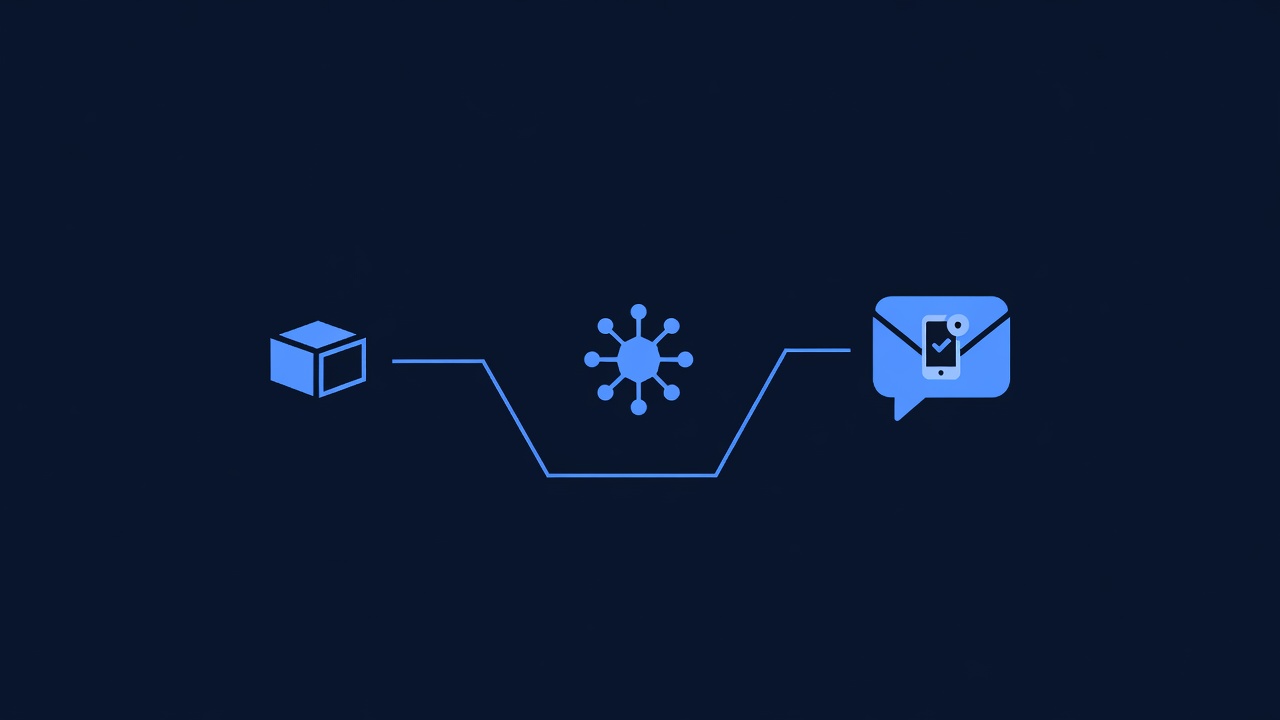
Goal: When customer completes BigCommerce order → create/update GHL contact → send SMS confirmation with order number and details.
Step 1: Create New Workflow
- In Pabbly Connect dashboard, click Create New Workflow
- Name: “BigCommerce Order → GHL SMS Confirmation”
- Click Create
Step 2: Add Trigger — New Order in BigCommerce
- On the workflow canvas, click Add Trigger (left side)
- Search for BigCommerce
- Select New Order Created (or Order Created)
- Click Continue
- Select BigCommerce Connection: Choose your authorized connection
- Click Test Trigger (Pabbly verifies connection and tests with recent order)
- Success: “Trigger verified — found X recent orders”
Step 3: Add Filter — Only Completed Orders
Add a condition to prevent SMS on pending/test orders:
- Click + Add Filter (below trigger)
- Set rule:
- If
Statusequals “Completed” OR “Awaiting Fulfillment” - Then Continue to next action
- Else Stop workflow
- If
- Click Save Filter
Step 4: Add Action 1 — Create/Update GHL Contact
- Click + Add Action (below filter)
- Search for GoHighLevel
- Select Find or Create Contact
- Click Continue
- Select GHL Connection: Choose your authorized connection
- Map customer data:
- Email:
customer.email(from BigCommerce) - Phone:
customer.phone(from BigCommerce) - First Name:
customer.first_name - Last Name:
customer.last_name
- Email:
- Advanced — Toggle “Fuzzy Match: ON” (auto-normalizes phone format to E.164)
- Click Continue
Step 5: Add Action 2 — Tag Contact & Store Order Data
- Click + Add Action (below Action 1)
- Search for GoHighLevel
- Select Update Contact
- Click Continue
- Select GHL Connection: Choose your authorized connection
- Contact ID: Map to output from Step 4 (
contact_id) - Add Tags:
paid_customerbigcommerce_orderorder_${order_id}(dynamic; e.g.,order_12345)
- Add Custom Fields (create these in GHL Settings first if not present):
- Order Number: Map to
order_number(from BigCommerce) - Order Total: Map to
order_total - Order Date: Map to
date_created - Order Products: Map to
products(list of product names)
- Order Number: Map to
- Click Continue
Step 6: Add Action 3 — Send SMS Confirmation
- Click + Add Action (below Action 2)
- Search for GoHighLevel
- Select Send SMS
- Click Continue
- Select GHL Connection: Choose your authorized connection
- Contact: Map to output from Step 4 (
contact_id) - Message Template:
Thanks for your order! 🎉 Order #[order_number] confirmed. Total: $[order_total]. We'll ship soon. Track your order: [store_link] Reply STOP to unsubscribe. - Map dynamic fields:
- Click
[order_number]→ select BigCommerce fieldorder_number - Click
[order_total]→ select BigCommerce fieldorder_total - Click
[store_link]→ enter your store’s order tracking URL
- Click
- Send Timing: Set to “Immediately”
- Click Continue
Step 7: Test Workflow
- Click Test & Review (top right of canvas)
- Option A — Live Test:
- In BigCommerce storefront, place a test order with valid phone (E.164 format:
+15551234567) - Wait 2–5 minutes
- Check: (a) GHL contact created with tags, (b) SMS received on test phone
- In BigCommerce storefront, place a test order with valid phone (E.164 format:
- Option B — Pabbly Test Mode (faster):
- In Pabbly, click Test Workflow → Select recent BigCommerce order from dropdown
- Pabbly simulates order data through workflow
- Check GHL contact created and SMS sent (or log shows attempted send)
- If SMS doesn’t arrive:
- Verify GHL SMS add-on is active (Settings → SMS)
- Check phone number is E.164 format:
+[country code][number](e.g.,+15551234567) - Check Pabbly logs for errors (click workflow → Logs tab)
Step 8: Activate Workflow
- In Pabbly, toggle workflow ON (top left of canvas; switch should be green)
- Workflow is now live — all new BigCommerce orders will trigger SMS confirmations
Expected results:
- SMS arrives within 2–5 minutes of order completion
- GHL contact auto-created with order details
- Contact tagged for segmentation and future automations
Time to build and test: ~25 minutes
Part 5: Core Workflow 2 — Abandoned Cart Recovery (SMS + Email)
Goal: When customer abandons cart (leaves site without checkout) → send SMS reminder at 1 hour with discount code → send email at 24 hours with product details + incentive.
Step 1: Create Workflow
- In Pabbly Connect, click Create New Workflow
- Name: “BigCommerce Abandoned Cart → SMS + Email Recovery”
- Click Create
Step 2: Add Trigger — Abandoned Cart
- Click Add Trigger
- Search for BigCommerce
- Select Abandoned Cart (or Cart Abandoned)
- Note: This trigger requires BigCommerce webhook event. Verify your BigCommerce version supports cart abandonment webhooks (standard on all plans since v2 API).
- Click Continue
- Select BigCommerce Connection: Choose your authorized connection
- Abandoned Timeout: Set to “1 hour” (trigger fires if cart idle ≥1 hour)
- Click Test Trigger
- Success: “Trigger verified — found X abandoned carts”
- If no abandoned carts exist, continue anyway (workflow activates when first cart is abandoned)
Step 3: Add Filter — Minimum Cart Value
Only send recovery SMS for carts worth $25+:
- Click + Add Filter
- Set condition:
- If
cart_totalis greater than or equal to$25 - Then Continue
- Else Stop (don’t send SMS for small carts)
- If
- Click Save Filter
Step 4: Add Action 1 — Create/Update GHL Contact
- Click + Add Action
- Search for GoHighLevel
- Select Find or Create Contact
- Click Continue
- Map customer data:
- Email:
customer.email - Phone:
customer.phone - First Name:
customer.first_name
- Email:
- Tag: Add
abandoned_carttag - Custom Field — Abandoned Cart Total: Map to
cart_total - Click Continue
Step 5: Add Action 2 — Wait, Then Send SMS Reminder
-
Click + Add Action
-
Search for Pabbly
-
Select Delay / Wait (or Pause)
-
Click Continue
-
Wait Duration: Set to “60 minutes”
-
Click Continue
-
Click + Add Action (after delay)
-
Search for GoHighLevel
-
Select Send SMS
-
Click Continue
-
Message Template:
Don't forget your cart! 🛒 $[cart_total] waiting. Use code COMEBACK10 for 10% off. Shop now: [cart_link] Reply STOP to unsubscribe. -
Map dynamic fields:
[cart_total]→ BigCommercecart_total[cart_link]→ BigCommerce abandoned cart recovery link (usually auto-generated)
-
Send Timing: “Immediately” (after the 60-minute wait)
-
Click Continue
Step 6: Add Action 3 — Wait 24 Hours, Then Send Email
-
Click + Add Action
-
Select Delay / Wait
-
Click Continue
-
Wait Duration: Set to “1440 minutes” (24 hours)
-
Click Continue
-
Click + Add Action (after 24-hour delay)
-
Search for GoHighLevel
-
Select Send Email
-
Click Continue
-
Email Subject:
"Your cart is waiting — save 10% now ⏰" -
Email Body Template:
Hi [first_name], You left [product_count] item(s) in your cart worth $[cart_total]. We're holding them for 48 hours. Use code COMEBACK10 for 10% off: [cart_link] This offer expires in 24 hours. Questions? Reply to this email. -
Map dynamic fields:
[first_name],[product_count],[cart_total],[cart_link] -
Click Continue
Step 7: Test Workflow
- Click Test & Review (top right)
- Live test:
- In BigCommerce storefront, add products to cart ($30+)
- Leave site without checking out
- Wait 1 hour (or use Pabbly test mode to simulate)
- Check:
- SMS at 1 hour: Reminder with discount code received
- Email at 24 hours: Detailed recovery email arrives in inbox
- If SMS/email doesn’t arrive:
- Check GHL SMS add-on active
- Verify BigCommerce webhook for abandoned carts is enabled (Admin → Settings → Webhooks)
- Check Pabbly logs for errors
Step 8: Activate Workflow
- Toggle workflow ON (green switch, top left)
- Workflow is now live
Expected results:
- Recovery SMS sent 1 hour after cart abandonment
- Follow-up email sent 24 hours after abandonment
- Customers with discount codes show higher conversion intent
Note on cart recovery rates: Recovery rates vary by industry and audience. This guide provides the technical setup only; actual conversion rates depend on offer strength, audience, and product type. Monitor open rates and click-through rates in GHL analytics after deployment.
Time to build and test: ~25 minutes
Part 6: Core Workflow 3 — Post-Purchase Upsell (SMS)
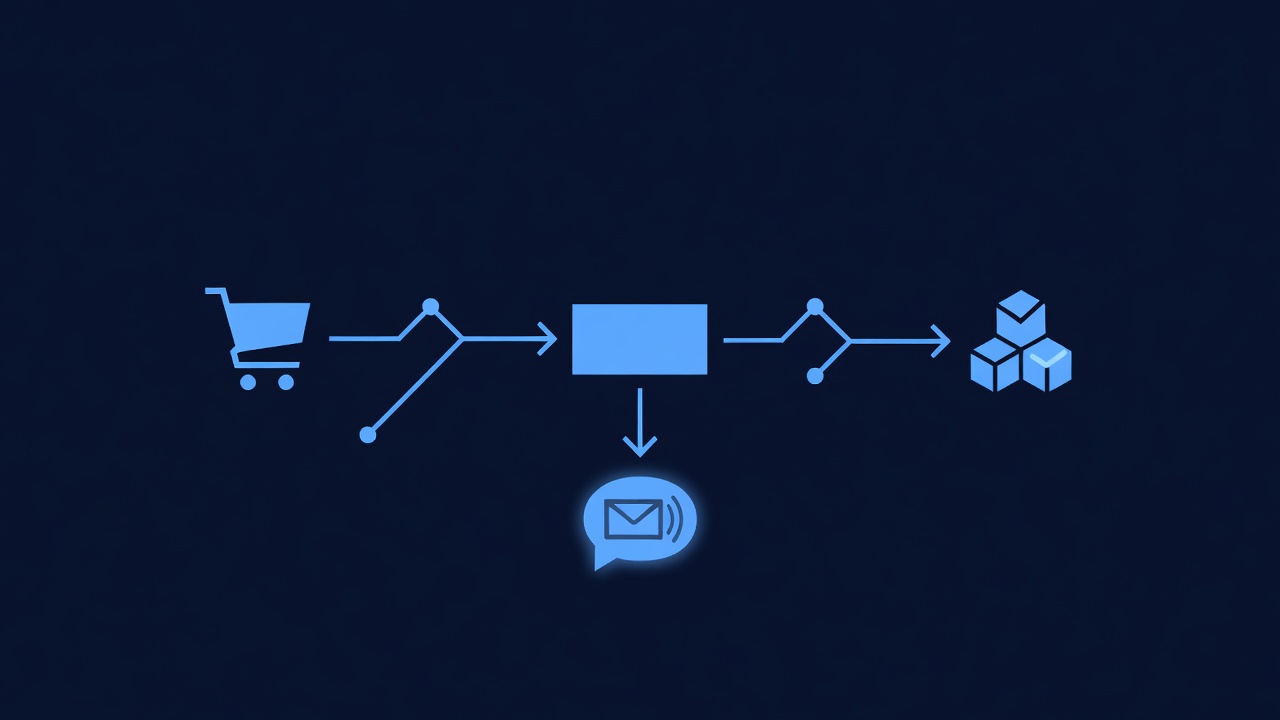
Goal: After order ships → send SMS with complementary product recommendation + one-time discount code for next order.
Step 1: Create Workflow
- In Pabbly Connect, click Create New Workflow
- Name: “BigCommerce Order Shipped → GHL Upsell SMS”
- Click Create
Step 2: Add Trigger — Order Shipped
- Click Add Trigger
- Search for BigCommerce
- Select Order Status Changed (or Order Shipped)
- Click Continue
- Status: Select “Shipped”
- BigCommerce Connection: Choose your authorized connection
- Click Test Trigger
Step 3: Add Filter — Order Value Threshold
Only upsell on orders $50+:
- Click + Add Filter
- Set condition:
- If
order_total≥$50 - Then Continue
- If
- Click Save Filter
Step 4: Add Action 1 — Tag Contact
- Click + Add Action
- Search for GoHighLevel
- Select Update Contact
- Click Continue
- Add Tags:
order_shippedupsell_eligible
- Custom Field — Last Order Date: Map to
date_shipped - Click Continue
Step 5: Add Action 2 — Wait 48 Hours, Then Send Upsell SMS
-
Click + Add Action
-
Select Delay / Wait
-
Duration: 48 hours (gives order time to arrive)
-
Click Continue
-
Click + Add Action
-
Search for GoHighLevel
-
Select Send SMS
-
Click Continue
-
Message Template:
Your order is on the way! 📦 Use code NEXT15 for 15% off your next order. Customers love [related_product]. Shop: [store_link] Reply STOP to unsubscribe. -
Map related_product (manual): Pick a complementary product or leave placeholder for editorial review
-
Click Continue
Step 6: Activate & Test
- Click Test & Review (Pabbly test mode or live test by shipping a test order)
- Toggle workflow ON
Time to build: ~15 minutes
Part 7: Customer Data Sync (Optional: Bidirectional)
Goal (optional, advanced): Sync customer data from GHL back to BigCommerce (notes, tags, custom fields) to keep both platforms in sync.
If you only need one-way sync (BigCommerce → GHL), skip this section. If you want GHL contact updates reflected in BigCommerce customer notes, follow these steps:
Step 1: Create Sync Workflow
- In Pabbly Connect, click Create New Workflow
- Name: “GHL Contact Updated → BigCommerce Customer Sync”
- Click Create
Step 2: Add Trigger — GHL Contact Updated
- Click Add Trigger
- Search for GoHighLevel
- Select Contact Updated (or Contact Field Changed)
- Click Continue
- GHL Connection: Choose your authorized connection
- Trigger on: Select “Tags Updated” or “Custom Field Updated”
- Click Test Trigger
Step 3: Add Action — Update BigCommerce Customer
- Click + Add Action
- Search for BigCommerce
- Select Update Customer (or Update Contact)
- Click Continue
- BigCommerce Connection: Choose your authorized connection
- Find customer by: Email or Phone
- Update fields:
- Notes: Map to GHL contact notes or tags (e.g., “VIP customer”, “Subscribed to SMS”)
- Custom attributes (if BigCommerce custom fields exist): Map GHL custom fields
- Click Continue
Step 4: Activate
- Toggle workflow ON
- Anytime you update a GHL contact tag or field, it syncs to BigCommerce customer notes
Time to set up: ~10 minutes
Part 8: Compliance Checklist
SMS and webhook integrations require compliance with telecommunications and data protection regulations. This section is reference only—consult legal counsel for your jurisdiction.
TCPA Compliance (SMS in US)
| Requirement | Action | Reference |
|---|---|---|
| Customer Consent | Maintain records of SMS opt-in (double opt-in recommended) | 47 CFR § 64.1200 |
| Sender ID | SMS should include business name or short code (Pabbly/GHL passes this from your settings) | TCPA best practice |
| Opt-Out Link | Every SMS must include “Reply STOP to unsubscribe” (Pabbly auto-appends) | 47 CFR § 64.1200 |
| Time Restrictions | No SMS before 8 AM or after 9 PM customer’s local time | State laws vary (CA, TX, NY stricter) |
| Archive Records | Keep SMS send logs, opt-in records, and unsubscribe timestamps for 12+ months | TCPA documentation requirement |
| Violations | Up to $500–$1,500 per SMS violation; class action risk | FCC enforcement |
Setup for Compliance
-
In GHL:
- Go to Settings → SMS → Unsubscribe Settings → Ensure “Auto-append STOP message” is ON
- All SMS will auto-include “Reply STOP to unsubscribe”
-
In Pabbly Workflow:
- Add SMS message footer (manual):
"Reply STOP to unsubscribe. Msg & data rates may apply. " - Example compliant SMS:
Thanks for your order! #12345. Track: [link]
Reply STOP to unsubscribe. Msg & data rates may apply.
- Add SMS message footer (manual):
-
Document Opt-In:
- In BigCommerce checkout, add checkbox: “Opt in to SMS order confirmations and offers”
- GHL auto-logs opt-in timestamp when SMS is sent
- Review logs monthly: GHL dashboard → SMS → Sent Messages → filter by contact
-
Test Opt-Out:
- Reply “STOP” to any SMS
- GHL auto-tags contact with
sms_unsubscribed - Verify contact is excluded from future SMS campaigns
GDPR Compliance (International)
If you serve EU customers:
| Requirement | Action |
|---|---|
| Data Processing Agreement | Ensure Pabbly and GHL have Data Processing Agreements (DPA) on file (both do; check their websites) |
| Customer Consent | Explicit opt-in before SMS (GDPR Article 21) |
| Data Retention | Delete SMS logs and contact data after customer’s retention window (typically 12–24 months unless required by law) |
| Right to Deletion | When customer requests deletion, remove from GHL and BigCommerce within 30 days |
CCPA Compliance (California)
If you serve California residents:
| Requirement | Action |
|---|---|
| Sale of Data | Pabbly/GHL are service providers (not resellers). You own the data. |
| Customer Rights | Honor requests to delete, download, or opt-out of SMS marketing |
| Privacy Policy | Link to privacy policy in SMS (or in app/website; not required in SMS itself per CA regulations) |
Webhook Security
- BigCommerce webhooks are HTTPS-signed: Each webhook includes an
X-BC-WebHook-Signatureheader (HMAC-SHA256). - Pabbly validates signatures automatically: You don’t need to verify manually.
- Store webhook logs: BigCommerce stores webhook delivery logs (Admin → Settings → Webhooks → View Logs). Review monthly to ensure no failed deliveries.
- Monitor webhook latency: BigCommerce typically delivers webhooks within 5–30 seconds. If latency >2 minutes, contact BigCommerce support.
Reference Links
- TCPA Rules (FCC) — US SMS regulations
- GDPR Article 21 (EU) — Right to object (SMS marketing consent)
- CCPA (California) — California consumer privacy
- Pabbly Privacy Policy — Data processing details
- GoHighLevel Privacy Policy — Data processing details
- [BigCommerce Webhooks Documentation](https://developer.bigcommerce.com/docs