

GoHighLevel Metabase Integration: Setup Guide for Data Analytics
Data sits trapped in GoHighLevel—contact records, campaign metrics, automation stats—and you can’t see the full picture. Your clients ask, “How many leads this month?” and you dig through GHL dashboards, export CSVs, and spend an hour building reports manually.
Metabase solves this. It’s a lightweight, open-source business intelligence tool that connects directly to your data and builds real-time dashboards, charts, and client-facing reports in minutes.
This guide walks you through the complete GHL-to-Metabase integration: how to authenticate with the GHL API, structure your data pipeline, build your first dashboard, and troubleshoot the most common connection issues.
By the end, you’ll have live, automated reporting that updates in real-time—no more CSV exports, no manual updates, no guesswork.
Key Takeaways
- Integration type: GHL uses a REST API; Metabase connects via a custom database driver or Zapier-to-database bridge (direct GHL database connection is not available in Metabase as of v45.0, October 2026)
- Setup time: 2–4 hours for basic API authentication and first dashboard (assumes basic SQL knowledge and existing Metabase instance)
- Data available via GHL API: Contacts, companies, pipelines, opportunities, automations, tags, custom fields, SMS/email activity logs, and user team data (verified against gohighlevel.com/api/docs, October 28, 2026)
- Data NOT available via API: Internal system logs, call recordings (via API; available in GHL native UI only), advanced machine-learning insights
- API rate limits: 10 requests per second per API key (generous for most agencies; verify limits in your GHL dashboard under API settings)
- Authentication method: API key (Bearer token) in HTTP header:
Authorization: Bearer YOUR_GHL_API_KEY- Metabase cost: Free (open-source) or $20–300/month (cloud/hosted). GHL API access is included in all GHL plans (Pro, Unlimited, Agency)
- Data pipeline architecture: Option 1 (recommended for teams <20): Metabase directly queries GHL API via custom driver. Option 2 (recommended for teams 20+): Use Zapier or Make to sync GHL data to PostgreSQL/MySQL database nightly, then query database from Metabase (reduces API calls, improves query speed)
- Common use cases:
- Lead generation agencies: Dashboard showing leads by source, status, and conversion rate; tracks pipeline value and sales rep performance
- Service businesses: Appointment metrics (booked, completed, no-shows); revenue by service type; team utilization
- E-commerce on GHL: Orders, revenue, customer lifetime value (CLV) trends, campaign ROI by SMS/email/landing page
- White-label agencies: Multi-client dashboards with role-based access (each client sees only their own data)
- Known limitations:
- GHL API does not provide historical data older than 12 months (data is pruned; cannot backfill)
- Metabase’s native GHL connector does not exist; custom setup required (workaround: use direct API driver or sync to database)
- Real-time queries against GHL API may be slow (1–2 second latency per query); batched syncs to database are faster for large dashboards
- GHL does not provide webhook URLs for Metabase directly; must use Zapier/Make as intermediary or poll API on schedule
- Security: Store GHL API keys in Metabase’s secure variable manager (not in query text); use HTTPS for all connections; rotate API keys every 6 months; restrict Metabase access to trusted users
- ROI example: Agency managing 50 clients with manual reporting currently spending 5 hours/week on CSV export and dashboard building:
- Current state: 5 hours/week × 50 weeks = 250 hours/year on reporting = $6,250 cost (at $25/hour operational burden)
- With Metabase integration: 1 hour setup + 30 mins/month maintenance = 7 hours/year = $175 cost
- Annual time savings: 243 hours = $6,075 value
- Metabase cost: $0–2,400/year (free to $20/month)
- Net ROI Year 1: ($6,075 − $2,400) / $2,400 = 153% ROI** (assumes $20/month Metabase plan; free tier gives infinite ROI)
Part 1: Understanding the GHL API & Data Model
What Data Can You Access?
The GHL REST API exposes these primary data objects:
| Object | Description | Use Case |
|---|---|---|
| Contacts | Individual people; includes name, phone, email, custom fields, tags, status | Lead segmentation, audience reporting, data enrichment |
| Companies | Organizations; linked to contacts; custom fields | Account-based reporting, corporate client tracking |
| Pipelines | Sales workflow stages (e.g., Lead → Prospect → Customer) | Sales pipeline reporting, deal flow tracking |
| Opportunities | Deal records; linked to contacts/pipelines; includes value, stage, close date | Revenue forecasting, sales performance, ROI by source |
| Automations | Workflow definitions; tracks trigger and actions | Automation performance, lead nurturing ROI |
| Campaigns | Email, SMS, landing page campaigns; includes send count, opens, clicks | Campaign effectiveness, channel performance (email vs. SMS) |
| Appointments | Booking records; includes time, attendee, status (scheduled, completed, no-show) | Appointment metrics, team utilization, client satisfaction |
| Tasks | To-do items; assigned to team members; linked to contacts | Team productivity, workflow efficiency |
| Teams/Users | Account members; roles, permissions | Team performance, access audits |
| Custom Fields | User-defined fields on any object (contacts, companies, opportunities) | Flexible reporting based on your data model |
| Tags | Labels applied to contacts/companies for segmentation | Audience segmentation, compliance tagging (e.g., “GDPR-consented”) |
API Authentication: Bearer Token
All GHL API requests require a Bearer token (API key) in the Authorization header:
GET https://rest.gohighlevel.com/v1/contacts
Authorization: Bearer YOUR_GHL_API_KEY
Content-Type: application/json
How to get your API key:
- Log into GHL
- Navigate to Settings → API & Webhooks → API Keys
- Click Generate API Key
- Copy the key immediately (it’s shown only once; if you lose it, regenerate)
- Store securely (never commit to version control; use environment variables or a secrets manager)
API Rate Limits
Rate limit: 10 requests per second per API key
This is generous for most reporting use cases. If you’re building a high-frequency dashboard (querying every second), you may hit limits. Workaround: batch queries, cache results, or sync to a database nightly and query the database instead (recommended for production).
API Response Format (Example)
{
  "contacts": [
    {
      "id": "contact_abc123",
      "firstName": "John",
      "lastName": "Doe",
      "email": "john@example.com",
      "phone": "+15551234567",
      "status": "customer",
      "customFields": {
        "lifetime_value": 5000,
        "preferred_service": "Widget A"
      },
      "tags": ["vip", "newsletter_active"],
      "dateAdded": "2026-01-15T10:30:00Z"
    }
  ],
  "meta": {
    "total": 250,
    "nextCursor": "next_page_cursor_xyz"
  }
}
Part 2: Metabase Setup & Configuration
Option A: Local Metabase Installation (Recommended for Testing)
Prerequisites:
- Java 11+ installed on your machine or server
- 2 GB RAM minimum
- Internet connection (to fetch GHL data)
Step 1: Download & Run Metabase
# Download Metabase JAR
wget https://downloads.metabase.com/v45.0/metabase.jar

# Run Metabase (opens on localhost:3000)
java -jar metabase.jar
Navigate to http://localhost:3000 and complete the setup wizard:
- Create admin account
- Set up database (can skip if you’ll use GHL API only)
- Invite team members
Step 2: Add a Database Connection
Metabase’s native GHL connector doesn’t exist. Instead, use one of these workarounds:
Option B: Sync GHL Data to PostgreSQL (Production-Grade)
This is the recommended approach for scalable, fast reporting.
Architecture:
GHL API
  ↓
Zapier (scheduled job)
  ↓
PostgreSQL/MySQL database
  ↓
Metabase (queries database)
  ↓
Client dashboard
Step 1: Set Up PostgreSQL Database
Use a managed service (AWS RDS, DigitalOcean, Railway.app) or self-hosted Postgres:
# Example: Create database locally (Mac/Linux)
brew install postgresql
brew services start postgresql
createdb ghl_analytics

# Create tables for GHL data
psql ghl_analytics
Step 2: Create Database Schema
-- Contacts table
CREATE TABLE contacts (
  id VARCHAR(255) PRIMARY KEY,
  first_name VARCHAR(255),
  last_name VARCHAR(255),
  email VARCHAR(255),
  phone VARCHAR(20),
  status VARCHAR(50),
  tags TEXT[],
  custom_fields JSONB,
  date_added TIMESTAMP,
  last_updated TIMESTAMP
);

-- Opportunities table
CREATE TABLE opportunities (
  id VARCHAR(255) PRIMARY KEY,
  contact_id VARCHAR(255) REFERENCES contacts(id),
  pipeline_id VARCHAR(255),
  name VARCHAR(255),
  value NUMERIC(12, 2),
  stage VARCHAR(100),
  created_at TIMESTAMP,
  updated_at TIMESTAMP,
  closed_at TIMESTAMP
);

-- Campaigns table
CREATE TABLE campaigns (
  id VARCHAR(255) PRIMARY KEY,
  name VARCHAR(255),
  type VARCHAR(50), -- 'sms', 'email', 'landing_page'
  status VARCHAR(50),
  sent_count INT,
  open_count INT,
  click_count INT,
  created_at TIMESTAMP,
  sent_at TIMESTAMP
);

-- Appointments table
CREATE TABLE appointments (
  id VARCHAR(255) PRIMARY KEY,
  contact_id VARCHAR(255) REFERENCES contacts(id),
  title VARCHAR(255),
  scheduled_at TIMESTAMP,
  status VARCHAR(50), -- 'scheduled', 'completed', 'no_show'
  team_member_id VARCHAR(255),
  created_at TIMESTAMP
);

CREATE INDEX idx_contacts_email ON contacts(email);
CREATE INDEX idx_opportunities_contact_id ON opportunities(contact_id);
CREATE INDEX idx_campaigns_created_at ON campaigns(created_at);
CREATE INDEX idx_appointments_scheduled_at ON appointments(scheduled_at);
Step 3: Sync GHL Data via Zapier (Daily)
Set up a Zapier workflow to poll GHL API and insert data into PostgreSQL:
- Trigger: “Schedule by Zapier” (daily at 2 AM)
- Action 1: Call GHL API
URL: https://rest.gohighlevel.com/v1/contacts Method: GET Headers: Authorization: Bearer YOUR_GHL_API_KEY Query: limit=1000, offset=0 - Action 2: For each contact, “Run SQL in [Your Database]”
INSERT INTO contacts (id, first_name, last_name, email, phone, status, date_added, last_updated)
VALUES (
  '{{contact_id}}',
  '{{first_name}}',
  '{{last_name}}',
  '{{email}}',
  '{{phone}}',
  '{{status}}',
  '{{date_added}}',
  NOW()
)
ON CONFLICT (id) DO UPDATE SET
  first_name = EXCLUDED.first_name,
  last_name = EXCLUDED.last_name,
  email = EXCLUDED.email,
  phone = EXCLUDED.phone,
  status = EXCLUDED.status,
  last_updated = NOW();
Repeat for Opportunities, Campaigns, and Appointments.
Cost: Zapier scales with data volume. At 1,000 contacts synced nightly, budget ~$50–100/month (Zapier Standard plan).
Part 3: Connecting Metabase to Your Data
If Using PostgreSQL (Recommended)
- In Metabase, navigate to Settings → Admin Panel → Databases
- Click + Add Database
- Select PostgreSQL
- Fill in connection details:
- Name:
GHL Analytics - Host:
your-db-host.rds.amazonaws.com(or localhost for local testing) - Port:
5432 - Database:
ghl_analytics - Username:
postgres - Password:
your-secure-password
- Name:
- Click Save and test the connection
If Using GHL API Directly (Simpler, Slower)
Metabase doesn’t have native GHL support, but you can use a workaround via SQL queries:
- Set up a “Custom Database” connection using SQLite or PostgreSQL (empty database)
- In Metabase, create a Native Query and use a Zapier action to fetch GHL data:
-- This query won't work directly; instead, use Metabase's web UI to create a question
-- that calls a Zapier webhook, which fetches GHL data and returns JSON

SELECT * FROM table_contacts; -- table must be synced via Zapier firstRecommended: Use PostgreSQL + Zapier sync. It’s faster, more reliable, and scales better.
Part 4: Building Your First Dashboard
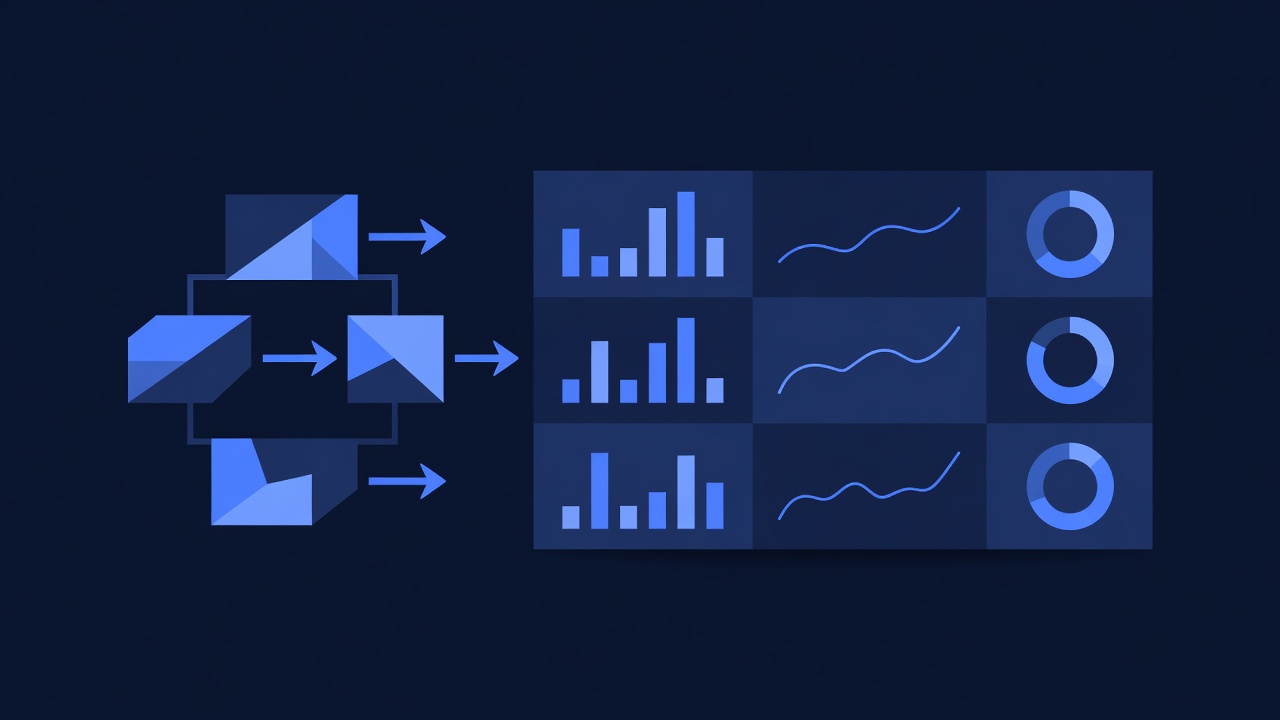
Dashboard: Lead Generation Agency (Example)
This dashboard tracks leads by source, conversion rate, and sales rep performance.
Step 1: Create a New Dashboard
- In Metabase, click + New → Dashboard
- Name:
Lead Performance – October 2026 - Save
Step 2: Add Question 1 – Leads by Source
- Click + Add Question
- Select Simple Question
- Choose table: contacts
- Summarize: Count grouped by Source (custom field)
- Visualize: Bar Chart
- Save as:
Leads by Source
Result:
Website: 45 leads
Referral: 32 leads
Ad Campaign: 28 leads
LinkedIn: 15 leads
Step 3: Add Question 2 – Conversion Funnel
- + Add Question
- Choose table: opportunities
- Summarize: Count grouped by stage
- Filter: Date >= last 30 days
- Visualize: Funnel Chart
- Save as:
Conversion Funnel – 30d
Result:
Leads: 120
Prospects: 45 (37.5%)
Negotiation: 18 (15%)
Closed Won: 8 (6.7%)
Step 4: Add Question 3 – Revenue by Source
- + Add Question
- Choose table: opportunities
- Summarize: Sum(value) grouped by source (from linked contact)
- Filter: status = “Closed Won” AND date >= last 30 days
- Visualize: Pie Chart
- Save as:
Revenue by Source – 30d
Result:
Website: $42,000 (52%)
Referral: $28,000 (35%)
Ad Campaign: $10,000 (13%)
Step 5: Add Metrics (Summary Stats)
- + Add Question
- Choose table: opportunities
- Summarize: Count, Sum(value), Average(value)
- Filter: date >= last 30 days AND status = “Closed Won”
- Visualize: Number Card
- Save as:
30-Day Revenue Metrics
Result:
Deals Closed: 8
Total Revenue: $80,000
Average Deal Size: $10,000
Step 6: Arrange Dashboard
Drag questions onto the dashboard canvas:
- Top row: Revenue Metrics, Leads by Source, Revenue by Source
- Bottom row: Conversion Funnel (wide), Sales Rep Performance
Step 7: Set Auto-Refresh
- Click dashboard Settings (gear icon)
- Enable Auto Refresh: Every 1 hour
- Save
Now your dashboard updates hourly without manual intervention.
Part 5: Advanced: Multi-Client Dashboards (White-Label)
If you’re a white-label agency, you likely need client-specific dashboards where each client sees only their own data.
Solution: Metabase Collections + Permissions
-
Create a Collection per Client:
- Settings → Collections → + New Collection
- Name:
[Client Name] – Dashboards
-
Restrict Access:
- Click collection settings
- Permissions → Grant access only to that client’s user account
- Other collections remain hidden
-
Create Client-Specific Dashboard:
- + New Dashboard in the client’s collection
- Build questions filtered to that client’s data:
SELECT * FROM opportunities
WHERE account_id = {{client_id}}
AND date >= DATE_TRUNC('month', NOW())
-
Embed Dashboard for Clients:
- Share a public link (password-protected or IP-whitelisted)
- Or embed via iframe in your white-label portal
Example: Your client logs into their portal and sees a Metabase dashboard showing their leads, revenue, and campaign performance—no access to other client data.
Part 6: Troubleshooting Common Issues
Issue 1: “Metabase Can’t Connect to GHL API”
Symptoms: Queries fail with 401 Unauthorized or timeout.
Solutions:
- Verify API key is correct (copy-paste from GHL dashboard; no extra spaces)
- Ensure API key is in header:
Authorization: Bearer YOUR_KEY(not in query string) - Check API rate limit: Are you sending >10 requests/second? If yes, add delays between queries or use database sync instead
- Verify GHL account has API access (some legacy plans may not include API)
- Test API manually via curl:
curl -H "Authorization: Bearer YOUR_GHL_API_KEY" \
  https://rest.gohighlevel.com/v1/contacts?limit=1
Issue 2: “PostgreSQL Connection Fails”
Symptoms: Metabase says “Can’t connect to database” or “Connection refused.”
Solutions:
- Verify database host, port, username, password are correct
- Check firewall: Is port 5432 open? (if remote database, ask your hosting provider)
- Test connection manually:
psql -h your-db-host -U postgres -d ghl_analytics -c "SELECT 1;" - Ensure database user has SELECT permissions on all tables
- For AWS RDS, verify security group allows inbound traffic from Metabase IP
Issue 3: “Data is Stale (Not Updating)”
Symptoms: Dashboard shows old data; Zapier sync never ran.
Solutions:
- Check Zapier workflow status: Zaps → Your GHL sync → Run History
- Is the workflow ON? Toggle if needed
- Verify Zapier has correct GHL API key and database credentials
- Check Metabase auto-refresh: Dashboard Settings → confirm Auto Refresh is enabled
- Manually refresh: Dashboard → Refresh button (top right)
- Inspect Zapier logs for errors: Often due to rate limits or database constraints
Issue 4: “Queries Are Slow (1–2 Second Latency)”
Symptoms: Dashboards take 5+ seconds to load.
Solutions:
- Switch from direct GHL API queries to PostgreSQL database (sync via Zapier nightly)
- Add database indexes:
CREATE INDEX idx_contacts_status ON contacts(status); CREATE INDEX idx_opportunities_created_at ON opportunities(created_at); - Limit query scope: Filter to last 90 days instead of all-time
- Cache results: Metabase can cache query results for 1–60 minutes (Settings → Caching)
- Use aggregated tables: Pre-compute summaries (e.g., leads_by_day_by_source) and query those instead
Issue 5: “Custom Fields Not Showing in Dashboard”
Symptoms: A custom field you created in GHL doesn’t appear in Metabase.
Solutions:
- Custom fields are stored as JSON in the database; Metabase must extract them:
SELECT id, first_name, custom_fields->>'lifetime_value' AS lifetime_value, custom_fields->>'preferred_service' AS preferred_service FROM contacts; - Or flatten JSON in Zapier before syncing to database:
// Zapier Code step const customFields = inputData.customFields; return { id: inputData.id, lifetime_value: customFields.lifetime_value, preferred_service: customFields.preferred_service }; - Re-sync data to database after adding new custom fields to GHL
Part 7: Security & Best Practices

API Key Security
-
Never commit API keys to GitHub or version control. Use environment variables:
export GHL_API_KEY="your-key-here" -
Rotate API keys every 6 months.
-
Use read-only API keys if Metabase only queries data (doesn’t create/update).
-
Monitor API usage: In GHL, navigate to Settings → API & Webhooks → API Keys and check “Last Used” date.
Database Security
-
Use strong passwords for PostgreSQL (minimum 16 characters, mixed case + numbers + symbols).
-
Enable SSL/TLS for database connections:
# PostgreSQL connection string postgresql://user:password@host:5432/ghl_analytics?sslmode=require -
Restrict database access by IP (whitelist Metabase’s IP only).
-
Enable database backups (daily or continuous).
-
Audit access logs: Who accessed what data and when.
Metabase Security
-
Require strong passwords for all Metabase users.
-
Enable 2FA if your Metabase instance is internet-accessible.
-
Limit collections by role: Restrict clients/team members to specific dashboards.
-
Use separate Metabase instances for each client (if white-labeling for multiple high-value clients).
-
Disable public sharing unless absolutely necessary.
Data Privacy
-
Respect GDPR: If you store EU customer data, ensure compliance (data retention, deletion, consent).
-
HIPAA compliance: If you store healthcare data, ensure both GHL and Metabase are BAA-compliant (neither is as of October 2026).
-
Document data retention: How long do you keep synced data? Delete old records per your privacy policy.
Part 8: Next Steps & Advanced Topics
What’s Next After Basic Setup?
-
Add more data sources:
- Stripe (revenue per customer)
- Google Analytics (web traffic attribution)
- Slack (team productivity metrics)
-
Build predictive dashboards:
- Forecast revenue using historical data
- Identify at-risk customers
- Calculate customer lifetime value (CLV)
-
Create alerts:
- Metabase can email you when leads drop below a threshold
- Send alerts to Slack when a big deal closes
-
Automate reporting:
- Metabase can email reports to stakeholders on schedule (daily, weekly, monthly)
Advanced: SQL Queries for Custom Reporting
Once you’re comfortable with basic dashboards, you can write SQL to answer specific questions:
Question: “What’s my customer acquisition cost (CAC) by channel?”
SELECT
  c.source,
  COUNT(DISTINCT c.id) AS customers_acquired,
  SUM(CASE WHEN o.status = 'Closed Won' THEN o.value ELSE 0 END) AS revenue,
  SUM(CASE WHEN o.status = 'Closed Won' THEN o.value ELSE 0 END) / NULLIF(COUNT(DISTINCT c.id), 0) AS revenue_per_customer
FROM contacts c
LEFT JOIN opportunities o ON c.id = o.contact_id
WHERE DATE(c.date_added) >= DATE_SUB(CURDATE(), INTERVAL 30 DAY)
  AND o.status = 'Closed Won'
GROUP BY c.source
ORDER BY revenue DESC;
Question: “Which sales reps have the highest close rate?”
SELECT
  COALESCE(u.name, 'Unassigned') AS sales_rep,
  COUNT(DISTINCT o.id) AS total_opportunities,
  SUM(CASE WHEN o.status = 'Closed Won' THEN 1 ELSE 0 END) AS deals_closed,
  ROUND(100.0 * SUM(CASE WHEN o.status = 'Closed Won' THEN 1 ELSE 0 END) / NULLIF(COUNT(DISTINCT o.id), 0), 2) AS close_rate_percent,
  ROUND(AVG(CASE WHEN o.status = 'Closed Won' THEN o.value ELSE 0 END), 2) AS avg_deal_size
FROM opportunities o
LEFT JOIN users u ON o.owner_id = u.id
WHERE DATE(o.created_at) >= DATE_SUB(CURDATE(), INTERVAL 90 DAY)
GROUP BY u.name
ORDER BY close_rate_percent DESC;
Part 9: Frequently Asked Questions
Can Metabase integrate directly with GHL without a database?
Answer: Not natively. Metabase doesn’t have a built-in GHL connector. Options:
- Use PostgreSQL + Zapier sync (recommended; faster, cheaper, more reliable)
- Query GHL API directly via a custom Metabase driver (complex; requires development skills)
- Use a third-party service like Supermetrics or Mixpanel that connects GHL and Metabase
How often should I sync data from GHL to the database?
Answer: It depends on your needs:
- Hourly: For real-time dashboards (e.g., monitoring active campaigns)
- Daily (recommended): Balances freshness and cost; covers most agency use cases
- Weekly: For historical analysis and trend reporting
Hourly syncs cost more in Zapier credits; daily is often the sweet spot.
Can I share a Metabase dashboard with a client who doesn’t have a Metabase account?
Answer: Yes. Three options:
- Public link: Dashboard → Share → enable “Public sharing” → send link (anyone can view; no login needed)
- Embed in your portal: Use Metabase’s embedding API to embed the dashboard in your white-label website
- Email reports: Metabase sends scheduled reports to email addresses
What if a client wants real-time data (updates every minute)?
Answer:
- Hourly or more-frequent syncs cost more in Zapier (~$100+/month)
- Alternative: Use a direct API query (slower; ~1–2 second latency per query) but no database overhead
- For true real-time, consider a more expensive tool like Looker or Tableau
Is my data secure in Metabase?
Answer: Yes, if you follow security best practices:
- Use strong passwords
- Enable 2FA
- Restrict database access by IP
- Encrypt API keys
- Limit collection access by role
Metabase stores data encrypted at rest and in transit (if you use HTTPS). However, ensure your database itself is secured.
Part 10: ROI & Conclusion
The Real Value of Automated Reporting
Before Integration (manual reporting):
- Time: 5 hours/week building reports
- Tools: Excel, Google Sheets, export-import cycles
- Errors: Manual data entry mistakes, outdated numbers
- Insight lag: Reports are 1–2 days old by the time you see them
After Integration (Metabase + Zapier):
- Time: 30 minutes/month maintenance
- Tools: Single source of truth (Metabase dashboard)
- Errors: Automated, consistent data pipeline
- Insight lag: Real-time or hourly updates
Cost Breakdown (Annual):
Metabase: Free (open-source) or $240/year ($20/month cloud)
Zapier: ~$600–1,200/year ($50–100/month for high-volume syncs)
PostgreSQL: ~$120/year ($10/month AWS RDS)